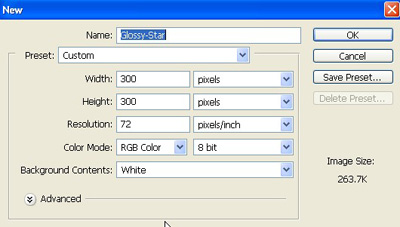
1. Take a new file of 300 pixels, 300 pixels, of resolution 72 dpi in the RGB mode.
2. Select the Polygon tool
 from the tool palette.
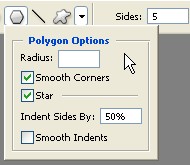
3. Then in top panel geometry shapes drop down menu and set the option.
4. Draw a star like in picture.

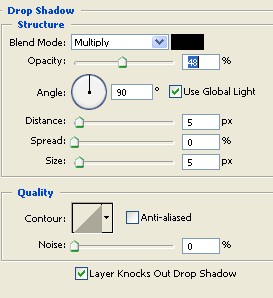
5. Now select the Drop Shadow from the Layer style and use the following settings.
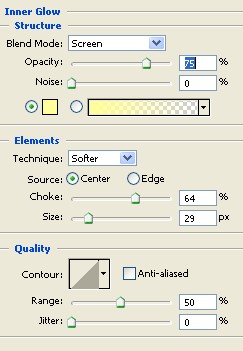
6. Now select the Inner Glow from the Layer style and use the following settings.
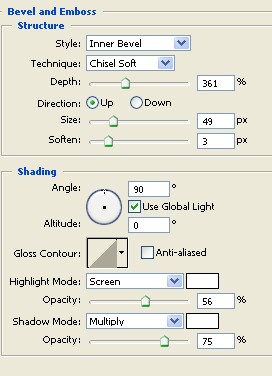
7. Now select the Bevel and Emboss from the Layer style and use the following settings
8. Your image should be look like this.

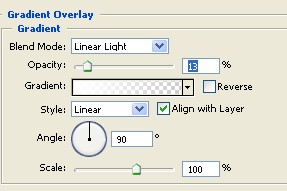
9. Now select the Gradient Overlay from the Layer style and use the following settings
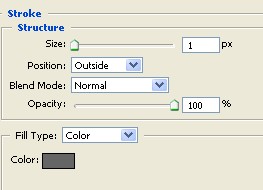
10. Now select the Stroke Structure from the Layer style and use the following settings.
11. Your final image should be look like this.