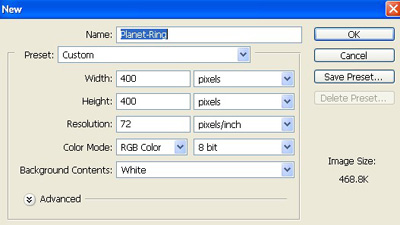
1. Take a new file of 400 pixels 400 pixels of resolution 72 dpi in the RGB mode.
2. Now set the color for your foreground and background.

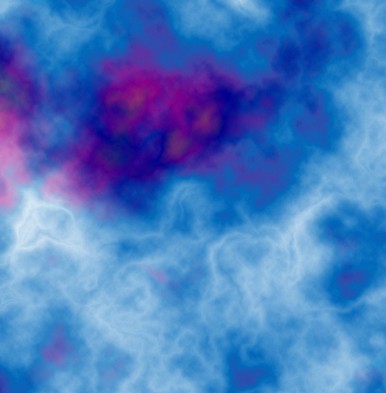
3. Then go to Filter>Render>Cloud and then Filter>Render>Difference Cloud.
4. Now select the Elliptical Marquee Tool
 .
.
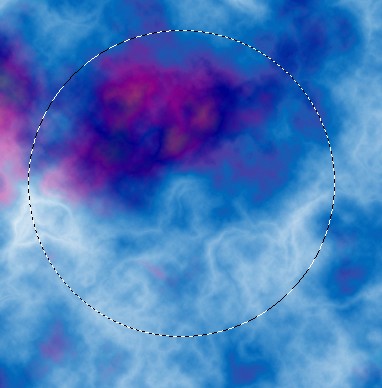
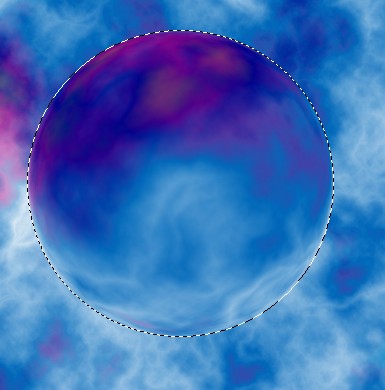
5. Then draw a circle see in the next image.
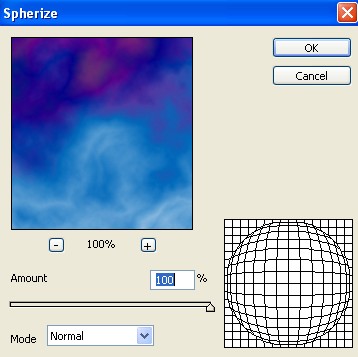
6. Now go to Filter>Distort>Spherize use these settings.
7. Your image should be look like this.
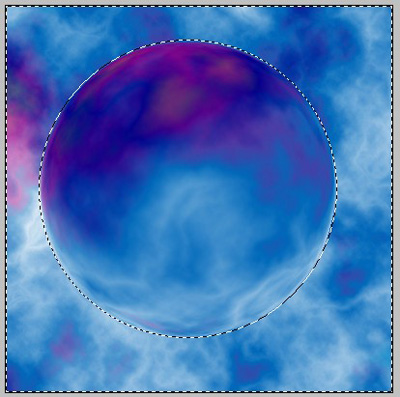
8. Go to Select>Inverse.
9. And Hit Delete Key on your keyboard then press Ctrl+D to Deselect.
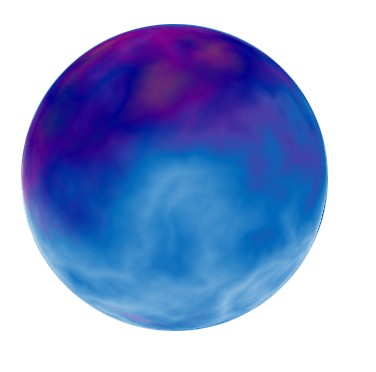
10. Create the new layer.
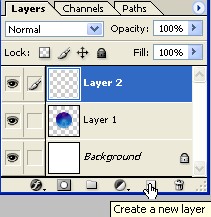
11. Now set the color for your foreground and background.

12. Then go to Filter>Render>Clouds.
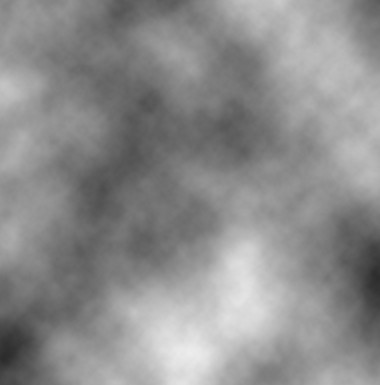
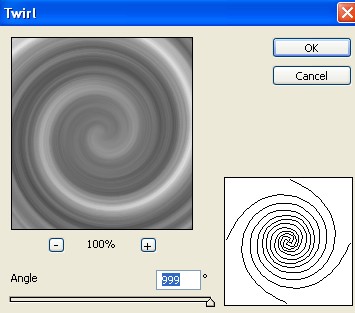
13. Then again go to Filter>Distort>Twirl use these settings.
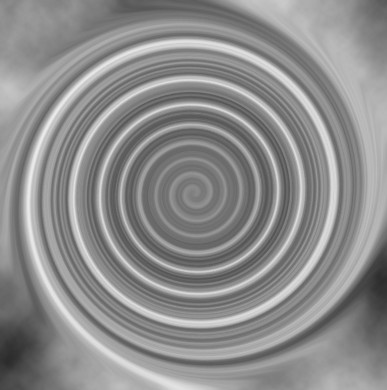
14. Your image should be look like this.
15. And now select the Elliptical Marquee Tool
 .
.
16. Then create a new shape as shown image below.
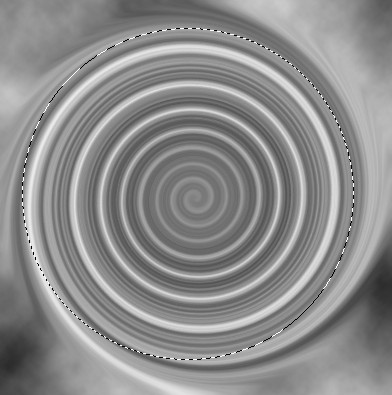
17. Go to Select>Inverse.
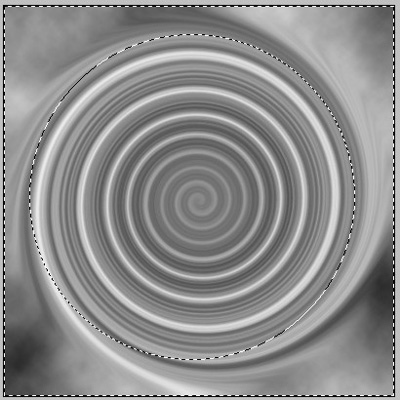
18. And Hit Delete Key on your keyboard then press Ctrl+D to Deselect.
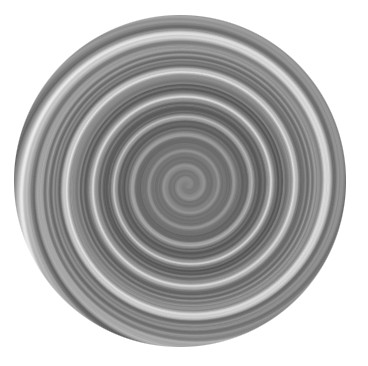
19. Now select the Elliptical Marquee tool and draw a another circle.
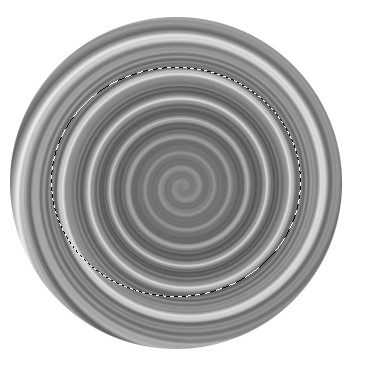
20. Now select the Eraser tool from the tool palette use these settings.
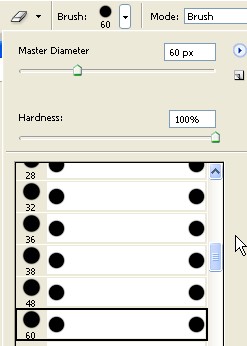
21. Use the Eraser brush inside the circle area see in the next image.
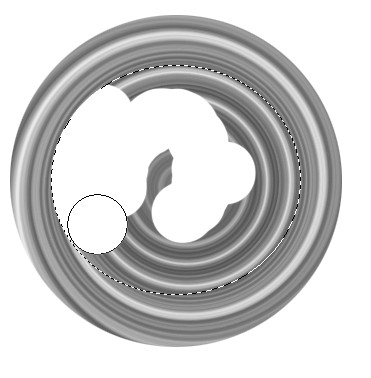
22. Your image should be look like this.
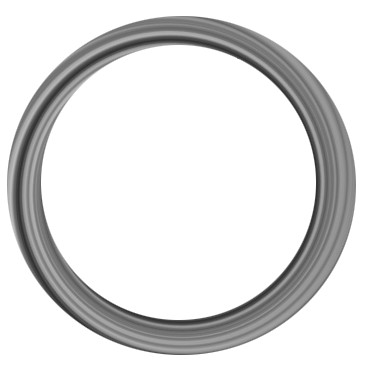
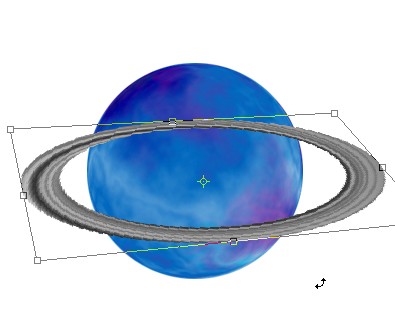
23. Apply Edit>Transform>Scale see in the next image.
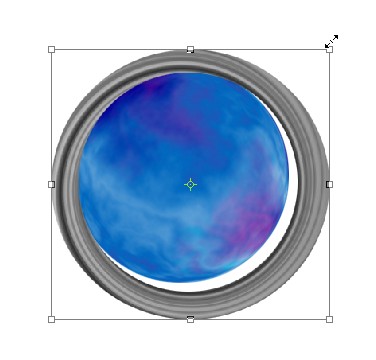
24. Apply Edit>Transform>Scale see in the next image.
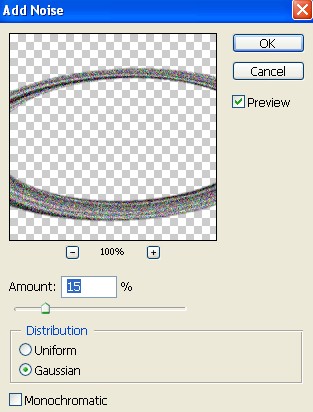
25. Then go the Filter>Noise>Add Noise e apply the following settings.
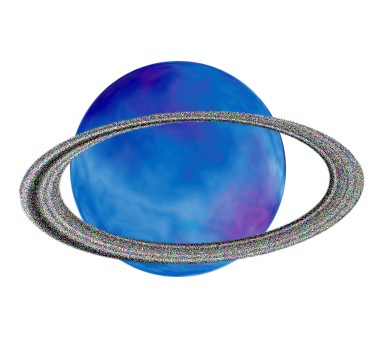
26. Your image should be look line this.
27. And now Hold Ctrl+Click the layer1 see in the next.
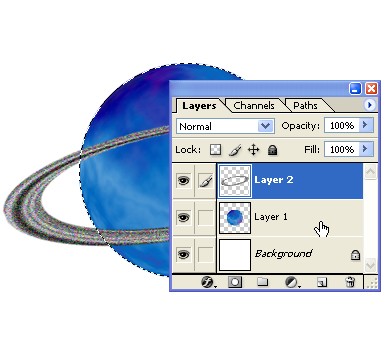
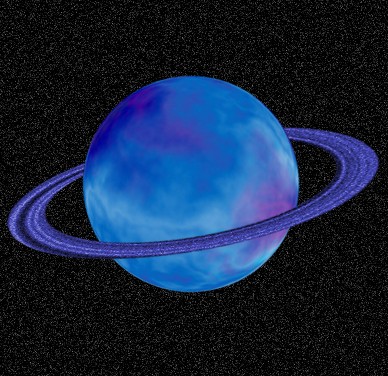
28. And now choose the Eraser Tool and erase the remote part of the ring.
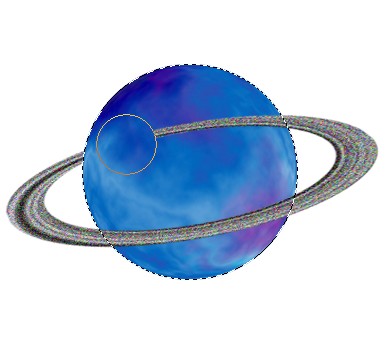
29. Your image should be look like this.
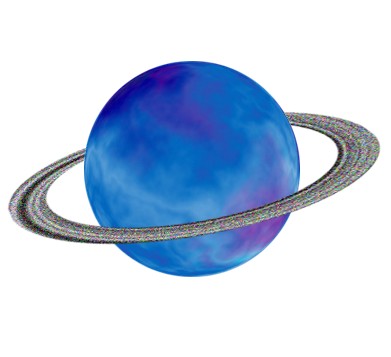
30. Then select the layer 2 and add some color press Ctrl+U, use these settings.
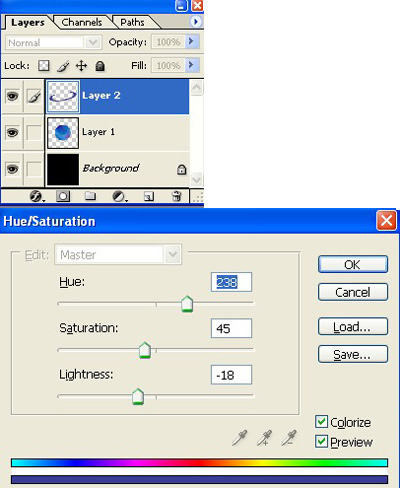
31. Your final image should be look like this.