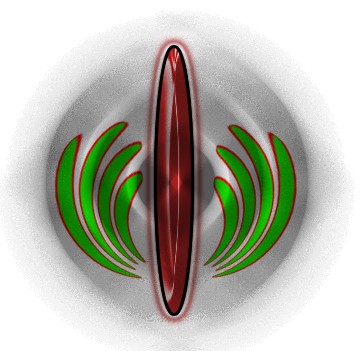
1. First open a new document size 420x420 pixel 96 resolution,RGB color mode
2. Create a new Layer1 from the Layer window now create a new circle help by the Rectangular marquee tool After that fill the Black color with Alt+Backspace. Now deselect
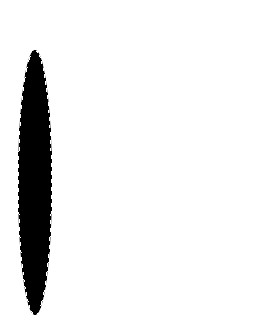
3. Hold on 'Alt' key and drag the Shape or press the Ctrl+J for copy paste
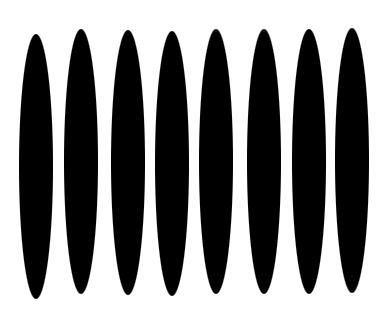
4. Select the Layer1copy6 and press the Ctrl+E , use the setting below As shown below
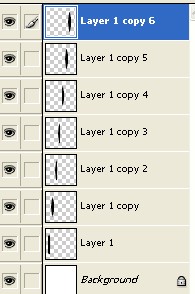
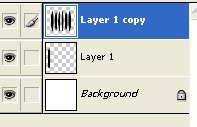
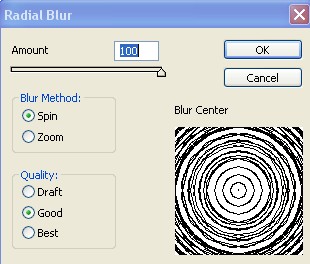
5. Now go to Filter menu>Blur>Radial Blur and use the setting below
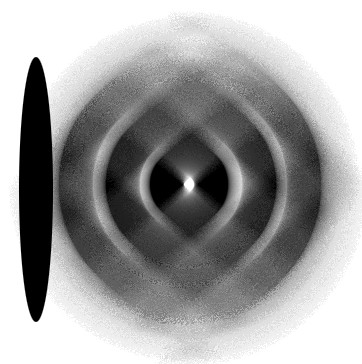
6. Your image should look like this
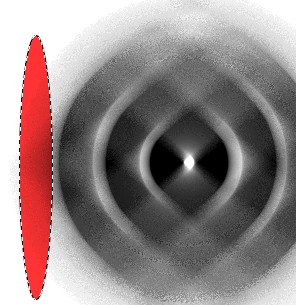
7. Ctrl+Click on this Layer1 and fill the Red color or as you like
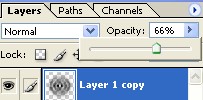
8. Radius the Layer1copy's Opacity=66% as shown below
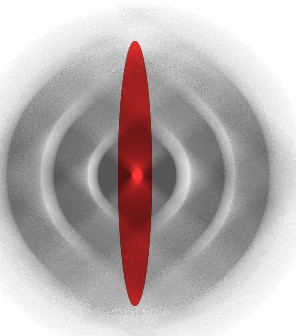
9. Your image should look like
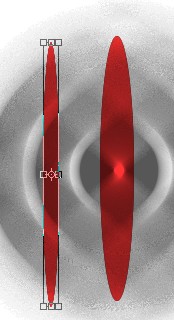
10. Now copy the Layer1 and small the shape as shown below
11. Ctrl+Click on this Layer and Fill the any nice color here I have used light green color Now deselect
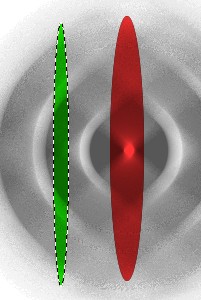
12. Now right click and apply the Stroke use the following settings
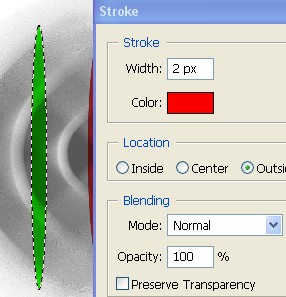
13. Copy to the shape with Ctrl+J after that Ctrl+E for merge layer
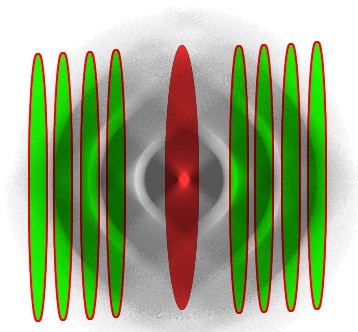
14. Now go to Filter menu>Distort>Polar Coordinates and use the following settings
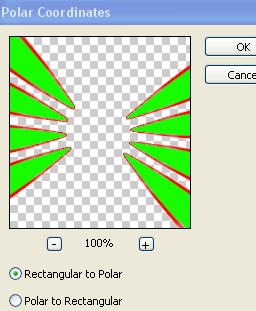
15. Now once again use the above same setting
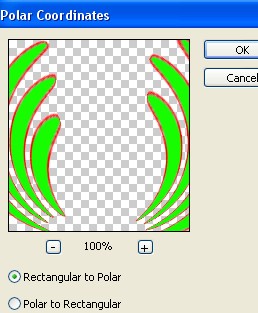
16. Your image should look like this as shown below
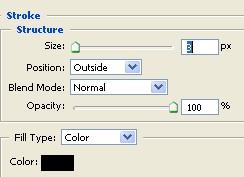
17. Double click on this Layer1 and select the 'Stroke' from the Layer style and use the following settings
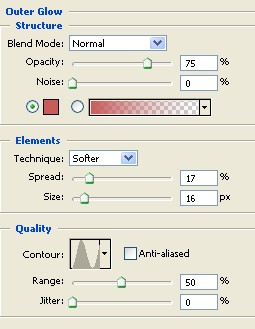
18. Now select the Outer Glow from the layer style and use the following settings
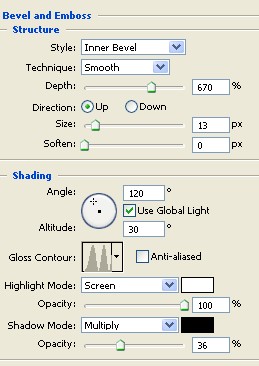
19. Now select the Bevel and Emboss and use the following settings as shown below
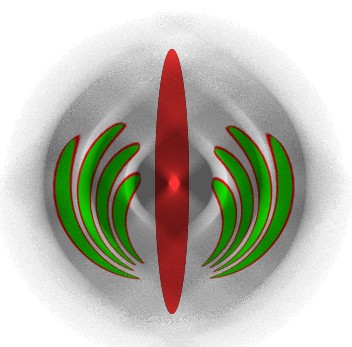
20. Your image has been completed.