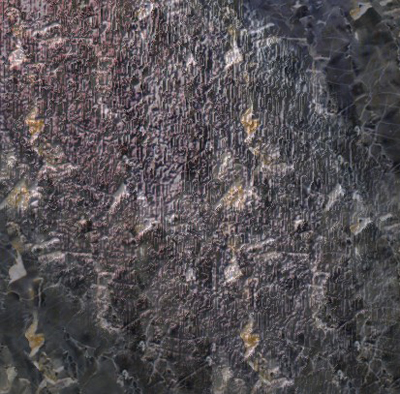
1. First of all open a new document size= 400x400 pixel 96 resolution, RGBcolor mode
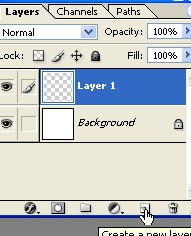
2. Now create a new Layer1 from the Layer window As shown below Now press the "D" key on your key board
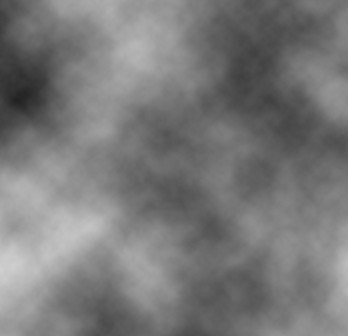
3. Go to Filter>Render>Clouds
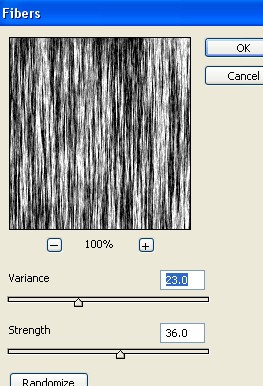
4. Now go to Filter>Render>Fibers and use the following settings
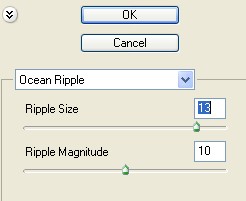
5. Now go to Filter>Distort>Ocean Ripple and use the settings below
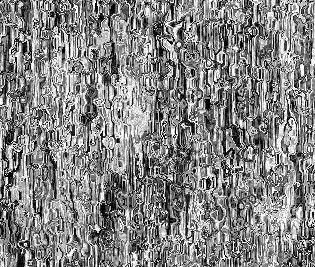
6.Your image should look like this
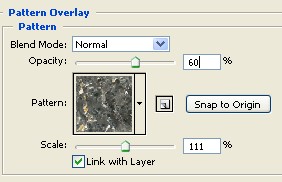
7. Double click on this Layer1 and select the 'Pattern Overlay' from the Layer window now use the settings below
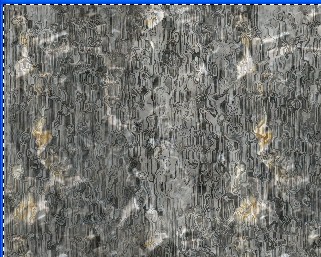
8.Now Ctrl+Click on this layer and Press Ctrl+Shift+A , After that press Ctrl+Shift+C
9. Now go to Channels window and create a new channel as shown below
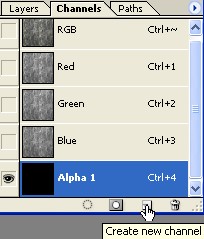
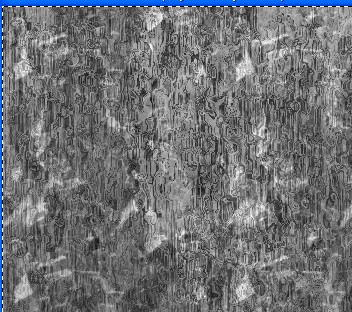
10.Press the Ctrl+Shift+V now deselect
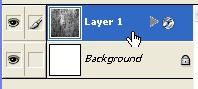
11. Go back to Layer window and select the layer1
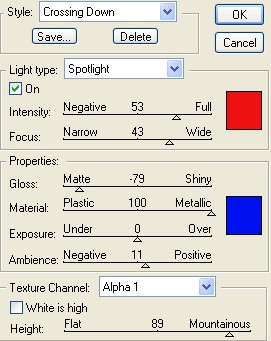
12. Here go to Filter>Render>Lighting Effects now use the following settings
13. Complete your image . As shown below