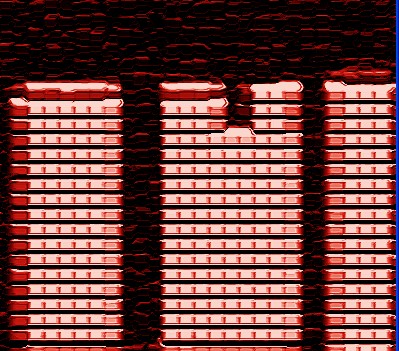
1. First of all open a new document size 400x400 pixel 96 resolution, RGB color mode . After that create a new Layer from the Layer window
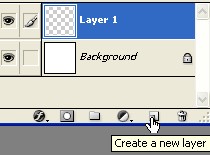
2. Now fill the Black color with Alt+Backspace

3. Now create new shape with the help of the Rectangular marquee tool with hold on 'Shift' key
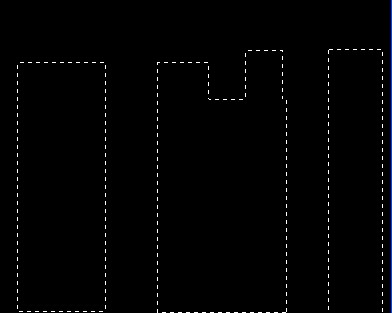
4. Press the Ctrl+I after that press the Ctrl+D
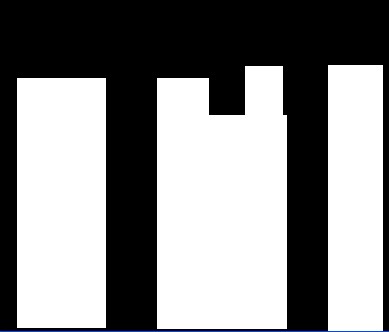
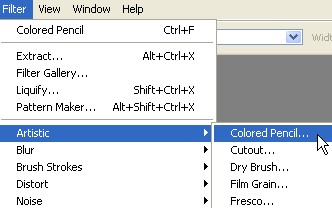
5. Now go to Filter>Artistic>Colored Pencil>
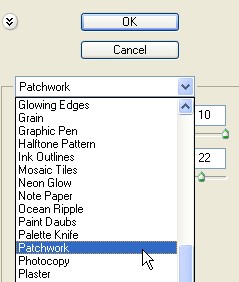
6. Now here select the Patchwork and use the settings ,Square size 10, Relief 22,
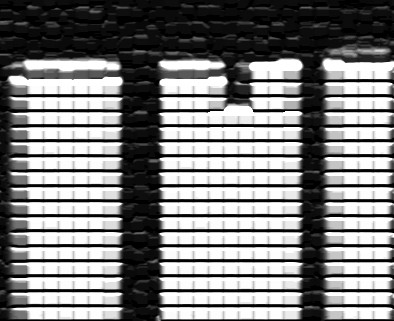
7. Your image should look like this .
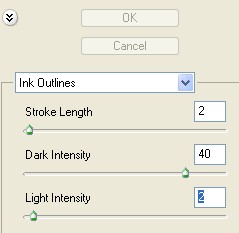
8. Once again go back in Filter>Artistic>Colored Pencil > now select the Ink Outline and use the following settings
9. Now your image should look like this
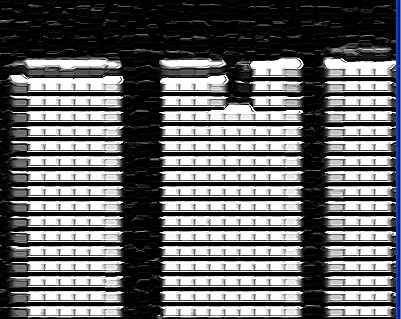
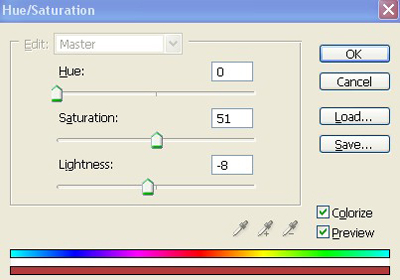
10. Press the Ctrl+U to Hue/Saturation and use the following settings
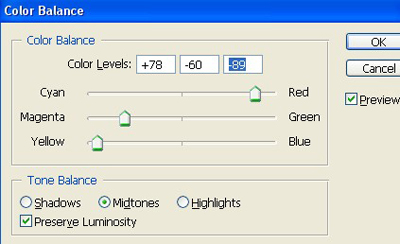
11. Now press the Ctrl+M to Color Balance and use the following settings
12. Your image has been completed . As shown below