Select Horizontal Type Mask Tool, type 'text' with arial black 100 pt font.
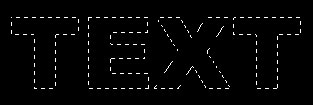
Create a new layer by pressing shift+ctrl+n together. Fill the selection with linear gradient (the first gradient) selecting # DC0000 as foreground and # 850002 as background color :

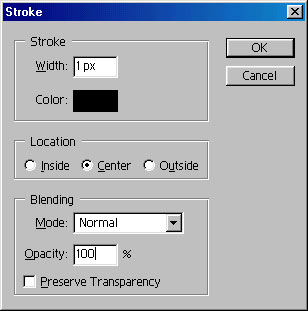
Go to edit>stroke and add 1 pixel black stroke :
Go to Select>modify>contract and contract the selection by 2 pixel :
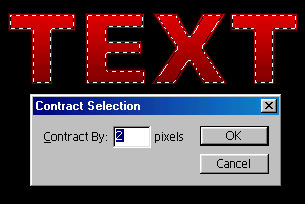
Create a new layer and fill the selection with white color :

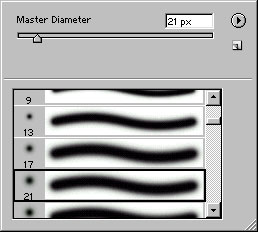
Select the eraser tool and select this brush :
Erase most of the layer leaving the portion as shown :

Group and merge these two layers. Again go to edit>stroke and this time change the stroke color to white and width to 2 pixel :

Select this layer again by pressing control key from the keyboard and clicking on its layer name in layer palette. Now, go to select>modify>expand and expand the selection by 3 pixels. Create a new layer and fill the selection with #9F2108 . Also send this layer backward :

Keep the selection active and move it as shown :

Press ctrl+alt from the keyboard and click on its layer name in layer palette to have a selection like shown :

Create another layer and fill the selection with # CA4B06 :

Group and merge all the layers :

Press control+t to transform the layer as shown :

Press control+j to duplicate the layer. Go to filter>distort>ripple as shown :
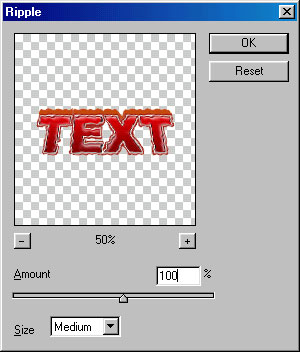

Press control+f key for 6-7 times :
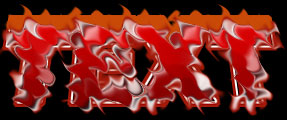
Press shift+ctrl+u to desaturate the layer :
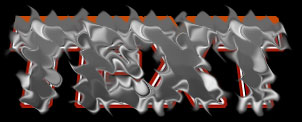
Go to filter>blur>gaussian blur as shown :
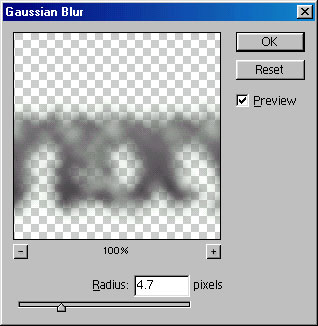

Change the blending mode to Vivid Light :

Apply pattern overlay in it as shown :
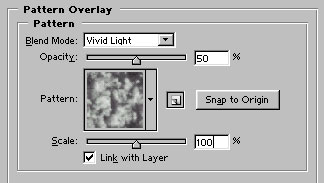
Now, press alt from the keyboard and click in between two layer names in layer palette to have a clipping mask. Now merge these two layers.

Duplicate this layer again. Select smudge tool and this brush type :
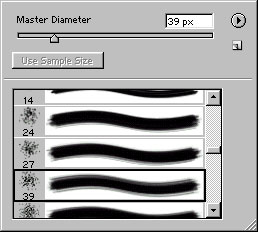
This is the setting of smudge tool :

Drag the brush over the layer to have this kind of effect :

Apply gradient overlay as shown :
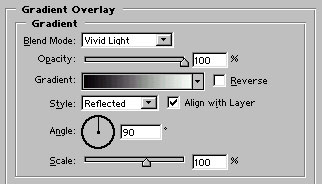

Erase the part of the layer which is covering the first layer as shown with soft brush. Our war text is ready :)