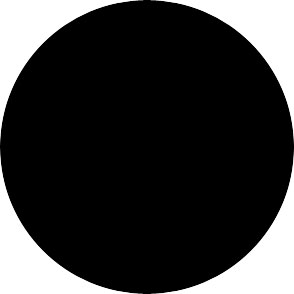
Draw a black circle with Ellipse tool :
Draw a smaller circle inside the first one with ellipse tool. Use #6D7174 as foreground color while drawing the shape. Now rasterize this layer:
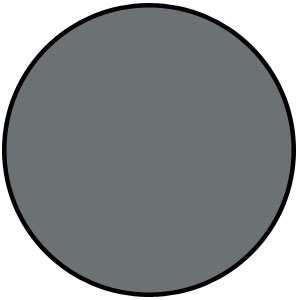
Using the high feather eraser ( I have used 300 pixel soft brush) erase the parts of this layer as shown :
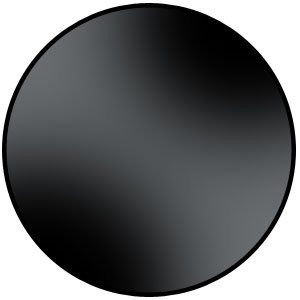
Draw a white color line as shown with line tool. I have used 2 pixel weight for the line :
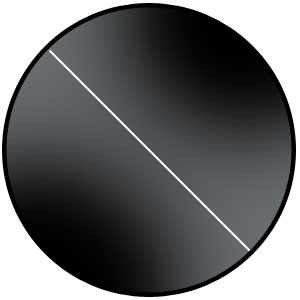
Rasterize the layer, go to filter>blur>Gaussian blur and set the radius to 8 pixel :
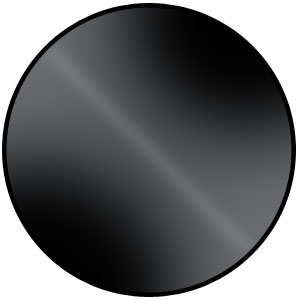
Create a new layer by pressing shift+ctrl+n. Draw a selection with elliptical marquee tool as shown :
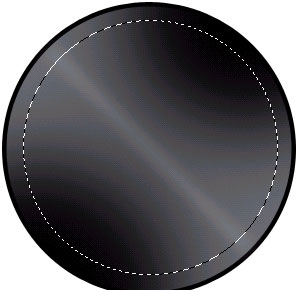
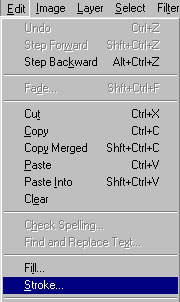
Set the foreground to black by pressing 'D' from the keyboard. Go to Edit>Stroke :
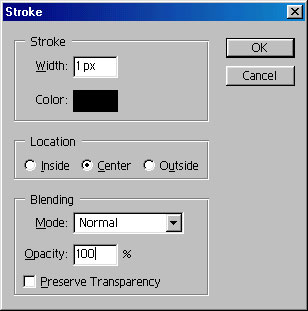
You will have something like this :
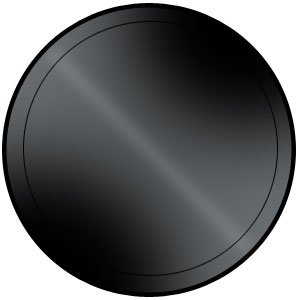
Draw more circles :
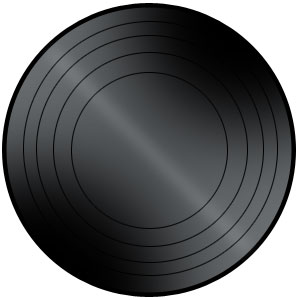
Draw this black circle with ellipse tool :
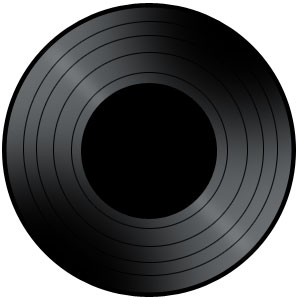
Draw a #E03835colored circle :

Create a new layer. Draw a selection as shown :
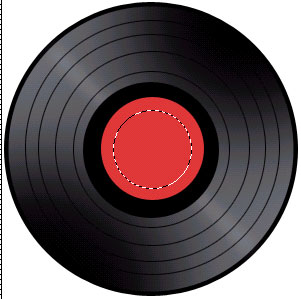
Stroke the selection as described previously. This time set the width to 2 pixel and change the stroke color to #8F0903 :

Using the soft eraser erase the left and right part of this layer :

Now, group and merge all the layers. For that, hide the background layer. Go to layer>Merge Visible. Regardless of how many layers you have, it will merge all the "Visible" layers.
Now, unhide the background layer. Click on the top layer (the combination of all the layers excluding the background layer). Make a selection in the middle of that layer and press delete. Our vinyl record is ready to play :)

You can now decorate your vinyl record by adding some custom shapes :)