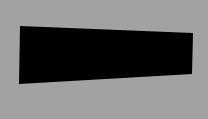
Select pen tool and draw the shape as shown :
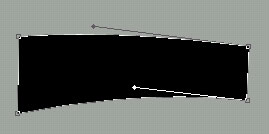
Click on convert to point tool and adjust the nodes as shown :
Apply these layer styles in it :
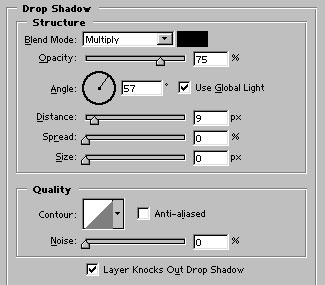
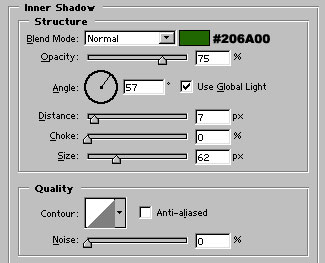
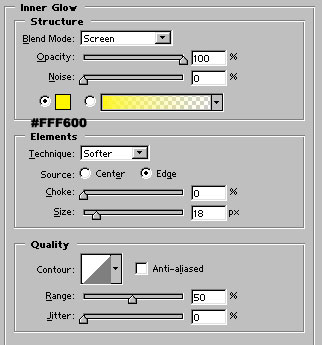
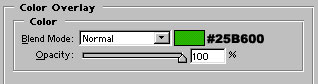
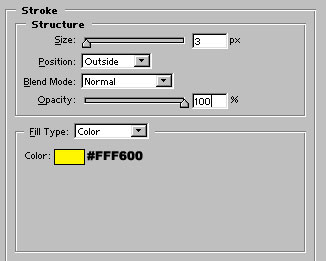
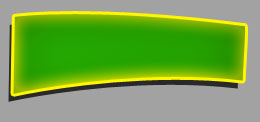
Shape after applying above layer styles :
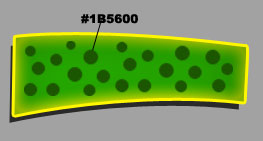
Now, draw some circles with ellipse tool. Select #1B5600 color as background while drawing the circles :
Now, separately type 't', 'e' 'x', and 't' with Arial Black font having 60 point size. I have rotated them + and - 15 degree.
Arrange them as shown :

Now, click on the first character 't' to make it active and apply these layer styles in it :
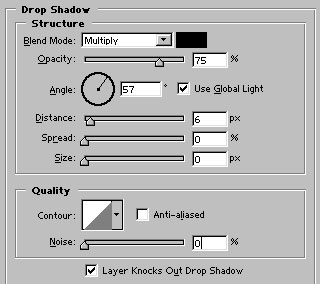
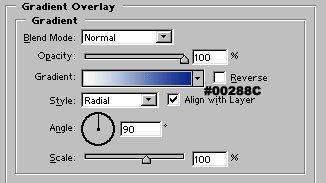
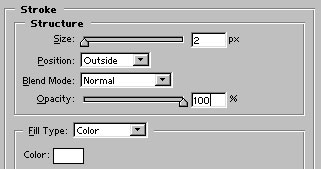

Now, right click on the t layer name. Click on copy layer style. Now, group and merge the remaining characters (e, x and t). Right click on its layer name in layer palette and click on paste layer style.
Your happy text is ready :)