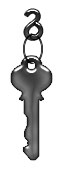
Select this autoshape :
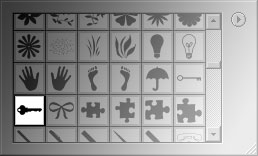
And, draw the shape as shown :
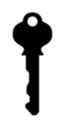
Apply these layer styles in it :
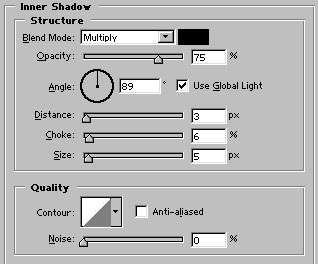
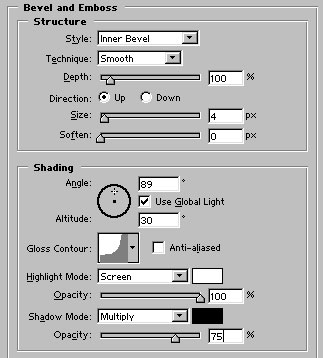
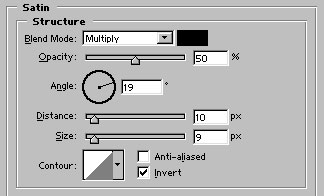
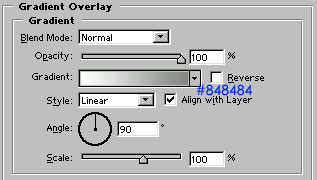
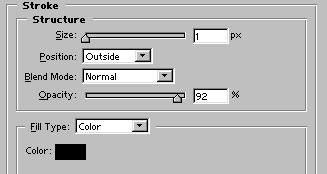
Image after applying above layer styles :
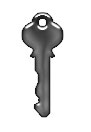
Draw another circle shape available in autoshapes as shown :
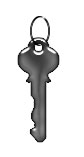
Now, type "S" with Century Gothic 40 point size font :
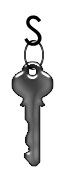
Go to edit>transform>flip horizontal and apply similar layer styles in it as we applied in the key (right click on the key layer>Copy layer style. Now, right click on the "S" type layer, select paste layer style)
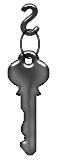
Rasterize the type layer (right click on its layer name in layer palette and select rasterize). Duplicate and place the layer as shown :
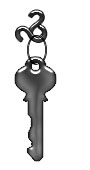
Remove the left part of this layer either by erasing it or by selecting the part from any selection tool and pressing delete. Our key is ready :)