Open your image :

Press control+j to copy the layer. Create a new layer by pressing shift+ctrl+n. Fill the layer with #E0A900 color.

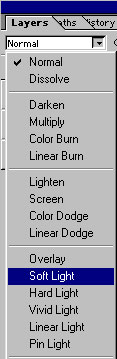
Change the blending mode to Soft Light as shown :

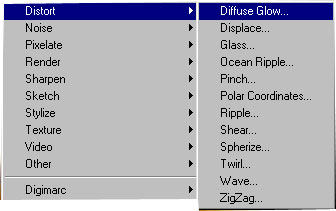
Group and merge the layers. Now go to filter>Distort>Diffuse Glow :
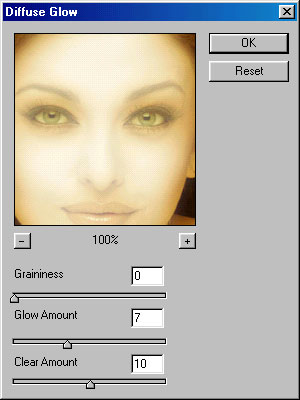
Apply these settings :
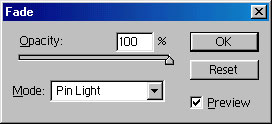
After applying the filter, go to edit>fade or press shift+ctrl+f to open fade. Change the mode to Pin Light as shown :
You now have golden light effect on your image :)