

Open a new file having 1024x768 px and 72 dpi. Paint it after that in black color, the way you may see it below:

The next instrument
 will be helpful in representing the lowest layer of the communicator we want to design.

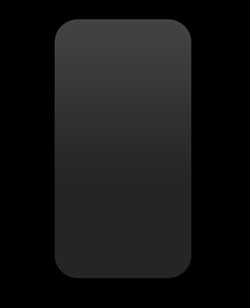
Fill 0% on the layers.
Blending Options-Gradient Overlay
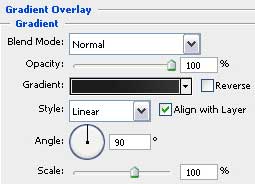
Gradient's parameters:

The same instrument will be helpful in drawing the lateral side of the communicator.
First create the outside layer, click on the Alt button and cut out the inside zone, applying the same instrument too.


Blending Options-Bevel and Emboss

Blending Options-Gradient Overlay

Gradient's parameters:

Make a copy of the new made layer and make use of Free Transform option to make the copy smaller a little and to change the copy's parameters:


Blending Options-Bevel and Emboss

Choose the next instrument
 to draw the communicator's screen. Its color should be this one - 447AB0.

Take the next instrument
 to draw an ellipse situated on the screen's zone.

Mark out the ellipse's layer and press the Alt button to click in the same time between the layers.


Fill 0% on the layers.
Blending Options-Gradient Overlay

Gradient's parameters:

Applying the previous instrument, it's possible to insert several more ellipses figures.

