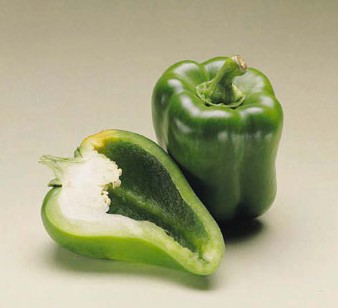
1. First of all take any new image.
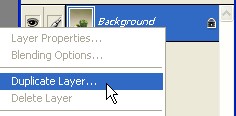
2. Now right click on this Background layer and select the Duplicate Layer. as shown below
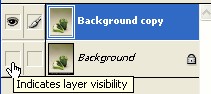
3. Now hide eye to the Background layer
4. Select the Magic Eraser Tool from the Tool bar
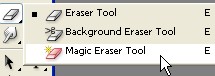
5. Look below and use the following settings for Magic Eraser tool

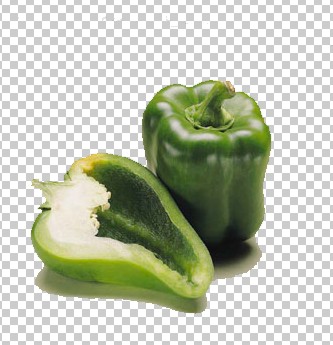
6. Now click on this Background and now you will see that the Background has finished
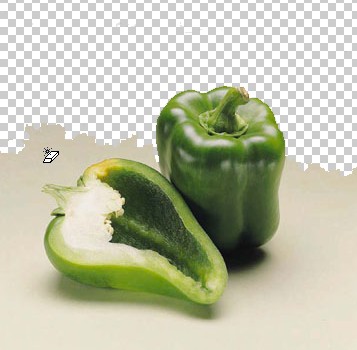
7. Now your image has been completed