1. First of all open a new document size 398x331 pixel 96 resolution, RGBcolor mode
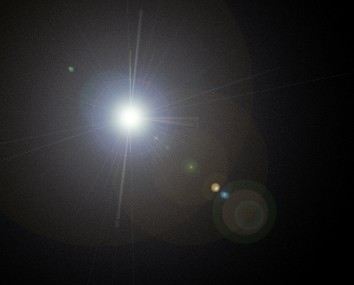
2. Press the "D" key on your keyboard and go to Filter>Render>Lens flare = 105 mm prime, 105% brightness
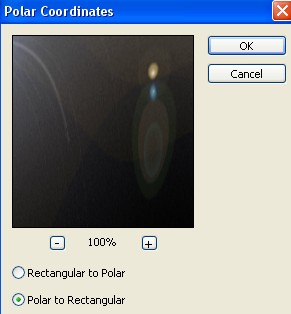
3. Go to Filter>Distort>Polar Coordinates now use the following settings
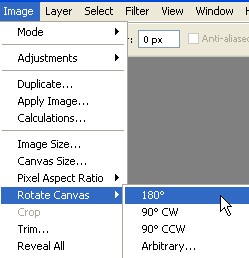
4. Go to Image>Rotate Canvas>180. As shown below
5. Now again go to Filter>Distort>Polar Coordinates use the following settings.
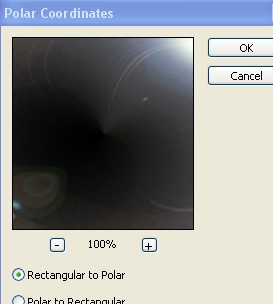
6. Your image should look like this
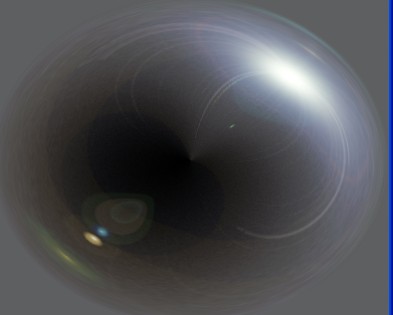
7. Create a new circle with Rectangular marquee tool and press the Shift+Ctrl+I , now press the 'Delete' key on your keyboard. As shown below
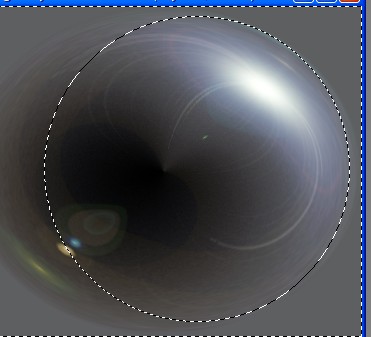
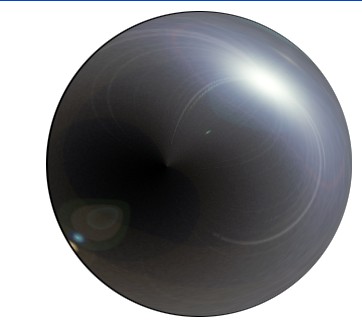
8. Now select the Background layer and fill the black color with Alt+Backspace
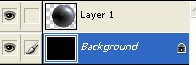
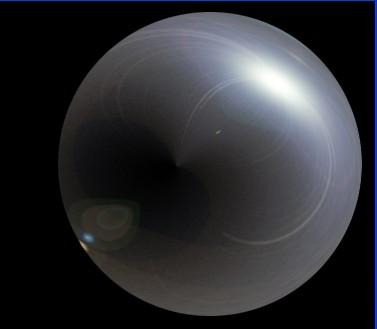
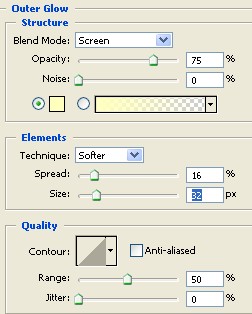
9. Select the Layer1 and double click on this layer1 now select the Outer Glow from the Layer style and use the following settings
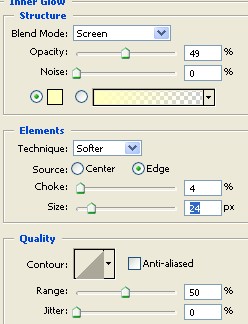
10. Now select the Inner Glow from the Layer style and use the following settings
11. Your image should look like this
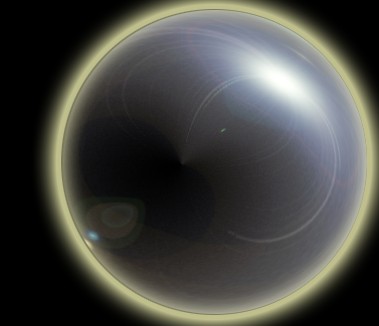
12. Now take a any new photo and make selection to it with Ctrl+Click on new photo layer
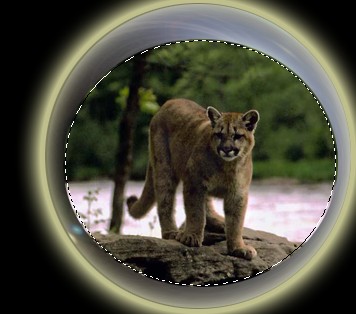
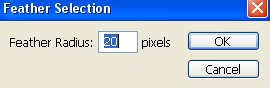
13. Go to Select>Feather selection 20 pixel
14. Press the Ctrl+Shift+I and Press the 'Delete' key on your keyboard Repeat this many times 'Delete' key
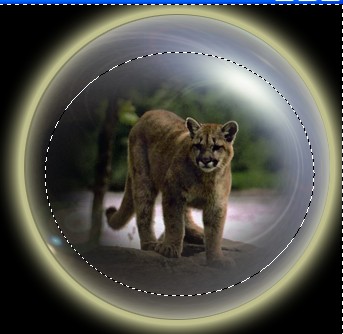
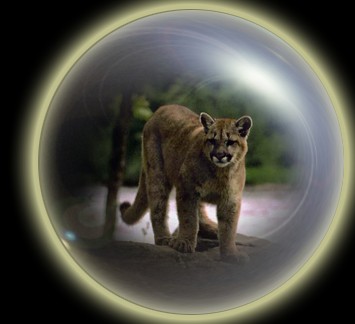
15. Your Complete Image.