1. First of all open a new document size = 400x400 pixel, 96 resolution and RGB color mode
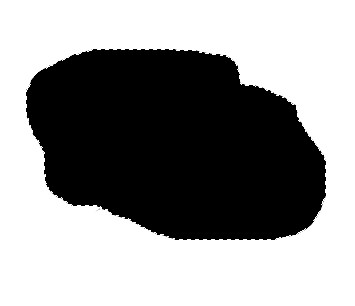
2. Create a new Layer from the layer window and now create a new shape help by the Lasso tool now fill the Black color after that deselect [Ctrl+D ]
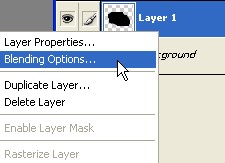
3. Now Right click on this Layer1 and select Blending Options
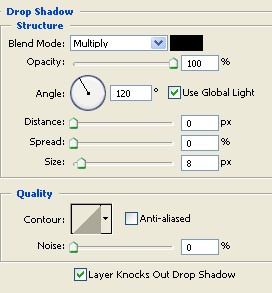
4. Select the Drop Shadow from the Layer style and use the settings below just do not click ok
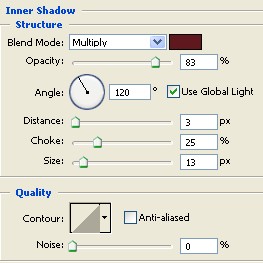
5. Now select the Inner Shadow and use the settings below here choose any nice color
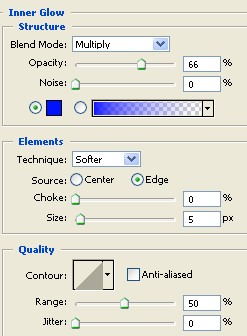
6. Select the Inner Glow and use the following setting choose the blue color
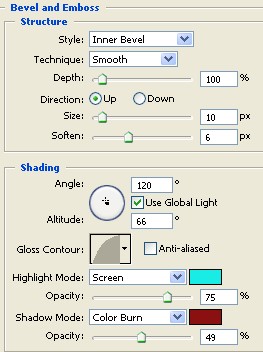
7. Now select the Bevel and Emboss and use the following settings choose the cyan color and dark red.
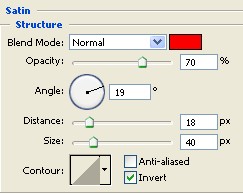
8. Select the Satin and use the following settings ,
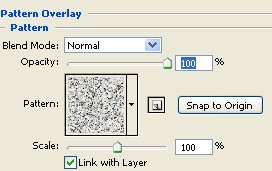
9. Now Select the Pattern Overlay and use the settings below now click ok
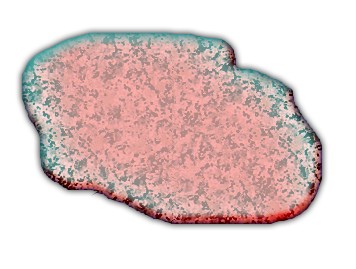
10. Your image has been completed . As shown below