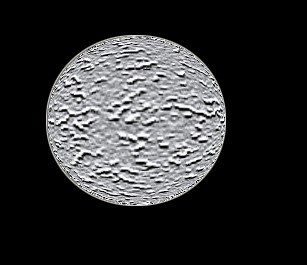
1. First Take a new Image
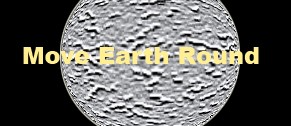
2. Now Type any words help by the Text tool .
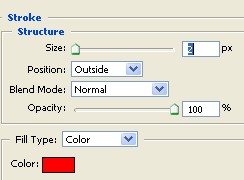
3. Now double click on this text layer and select the Stroke from the Layer style now use the following settings
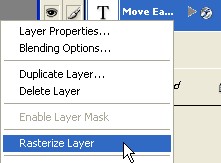
4. Now right click on this Text layer and select the Rasterize layer
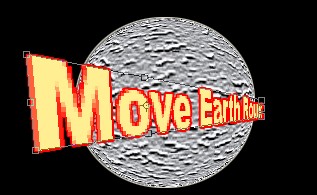
5. Press the Ctrl+T and set to the Text . As shown below
6. Now press the Ctrl+J for copy paste
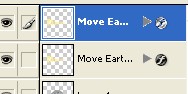
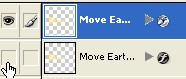
7. Hide to this eye as shown below
8. Now create a new shape with Rectangular marquee tool and press the 'Delete' key on your keyboard . After that deselect . As shown below
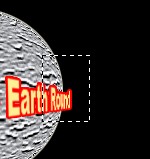
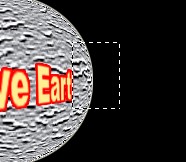
9. Slide this Text help by the Move tool . as shown below
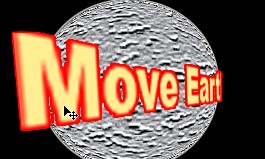
10. Now Press the Ctrl+J and hide eyes to this layer , as shown below.
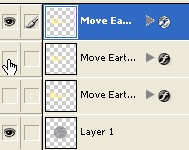
11. Now Create a new shape with Marquee tool and press the 'Delete' key on your keyboard
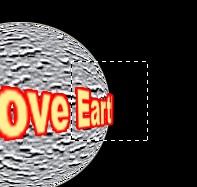
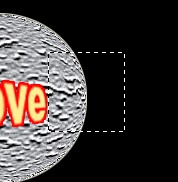
12. Slide to this Text ahead side help by the move tool
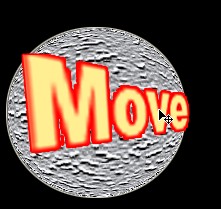
13. Now press the Ctrl+J and hide eye to this copy layer . as shown below
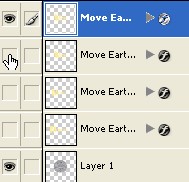
14. Now create a new shape with Marquee tool and press the 'Delete' key , now deselect to it
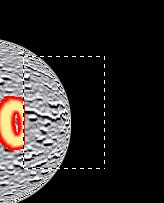
15. Small to this Text with Transform selection [Ctrl+T] now press Enter key and slide to the Text with Move tool , as shown below
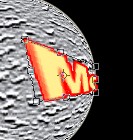
16. Press the Ctrl+J and hide eye to this copy layer . as shown below
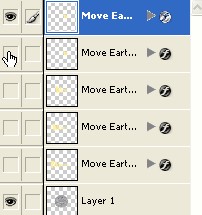
17. Small to the text help by the Transform selection now press Enter key on your key board after that slide this image with Move tool
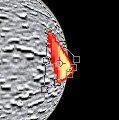
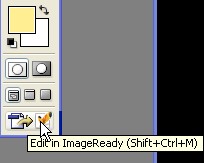
18. Now Click on the Edit in ImageReady . As shown below
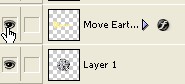
19. Here to show this layer as shown below
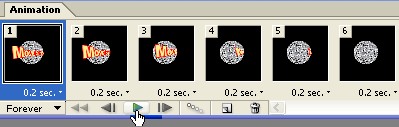
20. Now click Duplicate current frame , which is appearing below by the hand
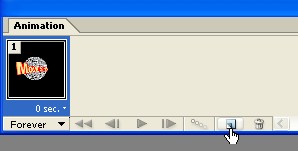
21. To show this layer as shown below and hide eye under the layer
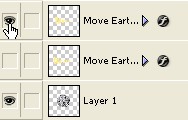
22. Now click on this icon , which is appearing below by the hand
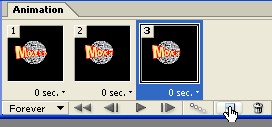
23. Repeat Above step 21
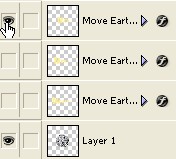
24. Click on this icon . as shown below
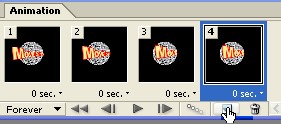
25. Repeat above step21
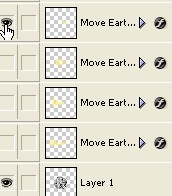
26. Click on this icon , as shown below
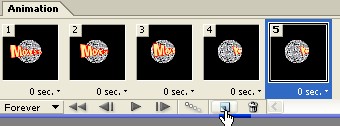
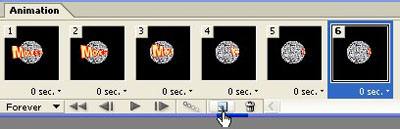
27. Repeat the above step21
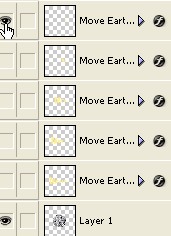
28. Click on this icon . As shown below
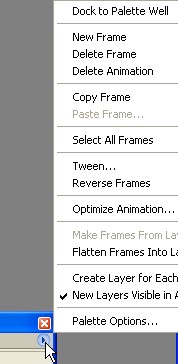
29. Now click on this icon , as shown below by the Arrow and select the 'Select all Frames'
30. Now at last click on Play icon . As shown below by the hand, This completes the animation tutorials.