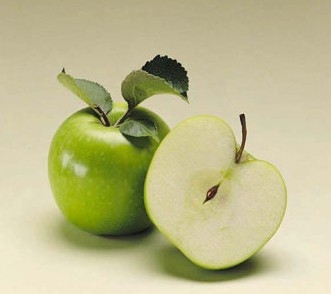
1. First of all take any new image here I have taken this image below
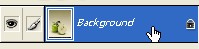
2. Now double click on this Background layer
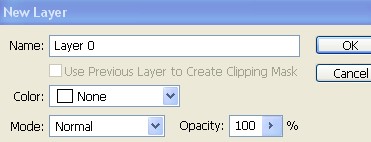
3. Click ok
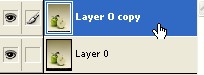
4. Double click on this layer 0 copy .
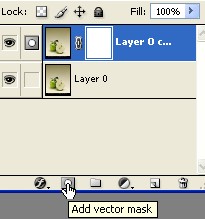
5. Now click on this icon Add vector mask as shown below.
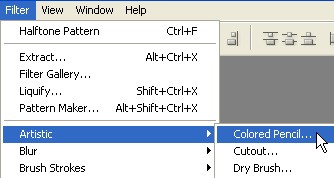
6. Go to Filter>Artistic>Colored Pencil > Halftone Pattern
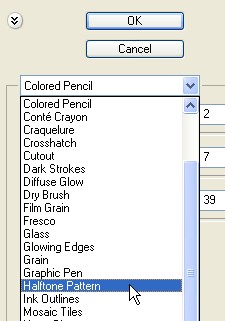
7.Here look below and select the Halftone Pattern
8. Double click on this Layer thumbnail
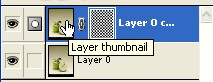
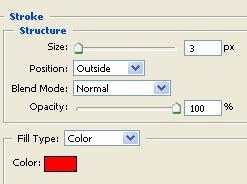
9. Now select the Stroke from the Layer style and use the following settings do not click ok
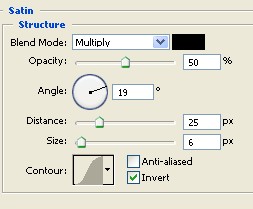
10. Now Select the Satin from the Layer style and use the settings below
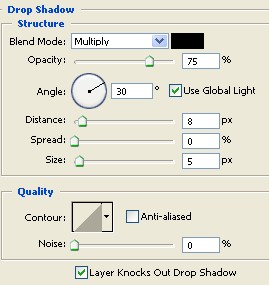
11. Now select the Drop Shadow and use the settings below now you can click ok
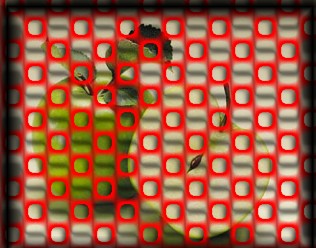
12. Your final image should look like this.