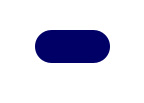
Start by creating a rounded rectangle using rounded rectangle shape tool. We used a corner radius value 20.
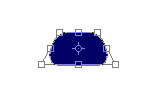
Press Ctrl+T. Right click the layer and select perspective. Adjust nodes to get the result as shown.

Enable subtract form shape area form the top bar and create a rectangle over this shape.

Duplicate layer. Press Ctrl+T. Right click the layer and select flip vertically.
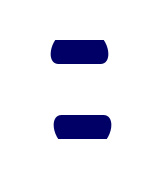
Press Ctrl+T. Scale down and place as shown.
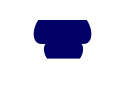
Press Ctrl+T. Right click the layer and select perspective.
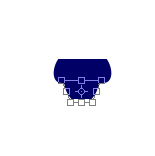

Create a vertical rectangle using rectangular shape tool.
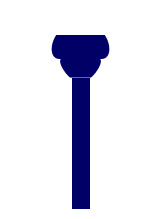
Press Ctrl+T. Right click the layer and select perspective. Adjust nodes to get the result as shown.
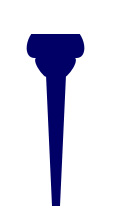
Create an ellipse using elliptical shape tool.
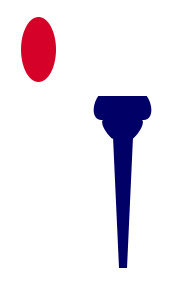
Select direct selection tool. Select the ellipse shape. Select convert point tool and click on top and bottom node of the ellipse.
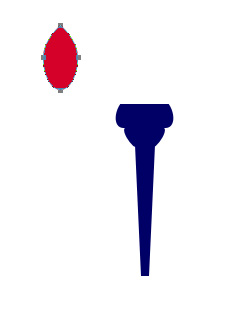
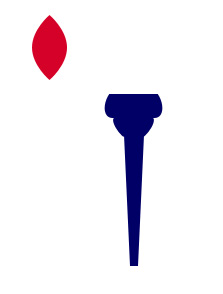
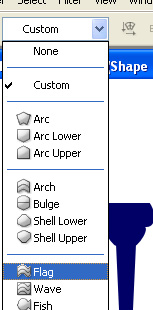
Press Ctrl+T. Right click the layer and select warp. Select flag from the preset warp shape.
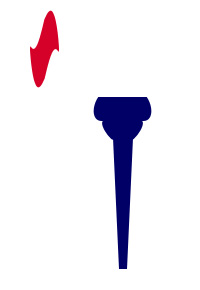
Press Ctrl+T. Stretch horizontally.
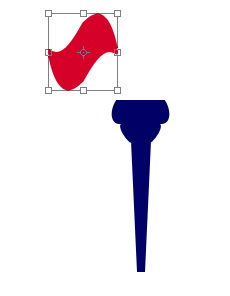
Press Ctrl+T. Rotate clockwise.
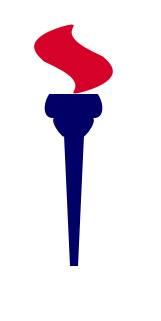
Duplicate layer and scale it down. Place as shown.
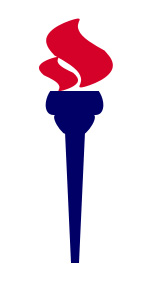
Create an ellipse using elliptical shape tool.

Enable subtract form shape area form the top bar and create a rectangle over upper half of the ellipse.
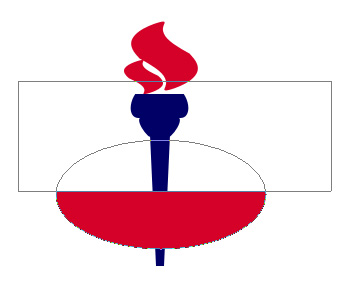
Duplicate layer and flip vertical.

Fill the upper ellipse with blue color.


Move both half ellipse layers below the torch layers.

Create a rectangle using rectangular shape tool. Keep it's width equal to the major axis of the ellipse. Move this layer on top of all layers.

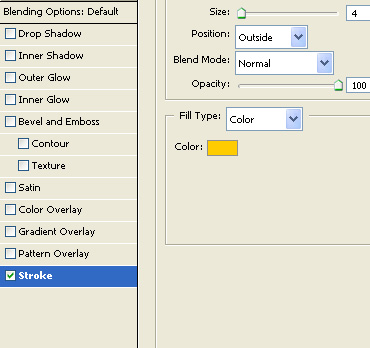
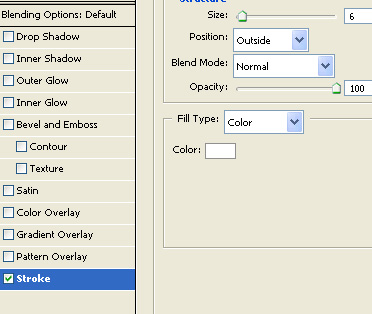
Select and merge all torch layers. Double click the layer to open layer style window. Apply layer style with the settings shown.
Type the company name over white rectangle.

Select and merge all layers. Double click the layer to open layer style window. Apply layer style with the settings shown.