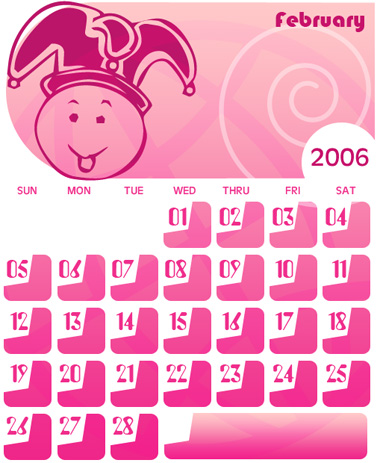
Start by creating a circle using elliptical shape tool.

Press Shift and create a rectangle over the circle.
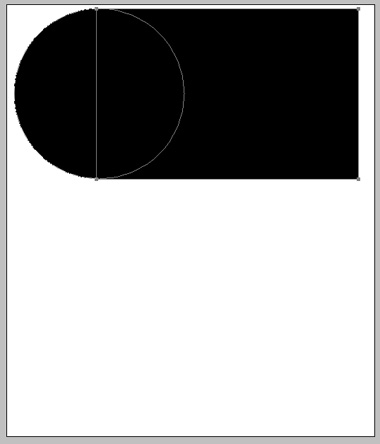
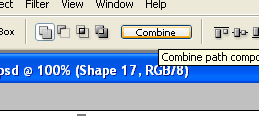
Select direct selection tool select both paths and click combine.

Create a small rounded rectangle.

Enable subtract from shape icon from the top bar and then create a pentagon using polygon tool.
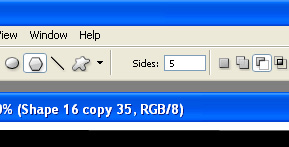
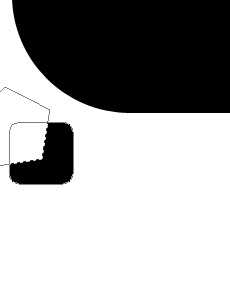

Duplicate the layer.

Create some more duplicates and place them as shown.

Adjust these shapes according to the days in a particular moth you are creating the ca lender for.
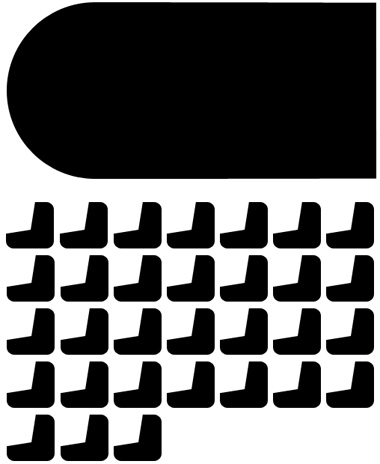
Select the last shape using direct selection tool and stretch the right hand side nodes.
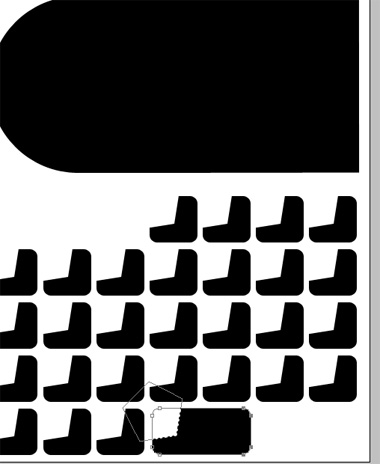
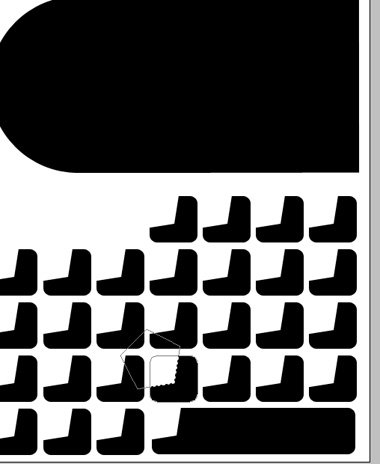
Except the last shape merge all layers. Apply gradient over using following settings.
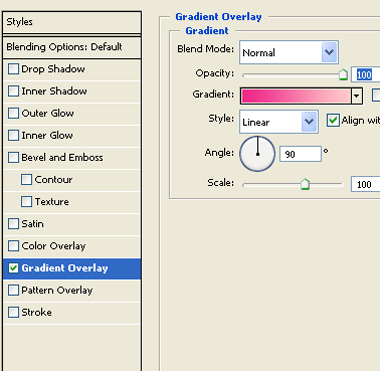

To the last shape apply gradient overlay using same settings.

Create a web shape using custom shape tool.

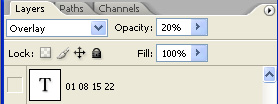
Change the layer mode to overlay and opacity to 20%.
Create a circle at the corner of the top bar. Fill the circle with white color.

Create a spiral using custom shape tool. Reduce opacity.

Add other details like month, year and dates etc. in the calendar.
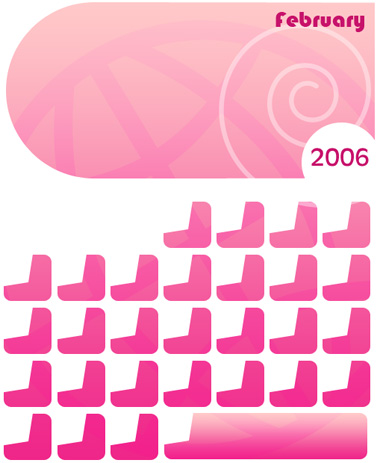
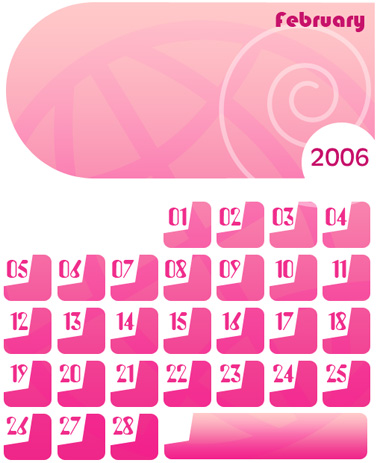
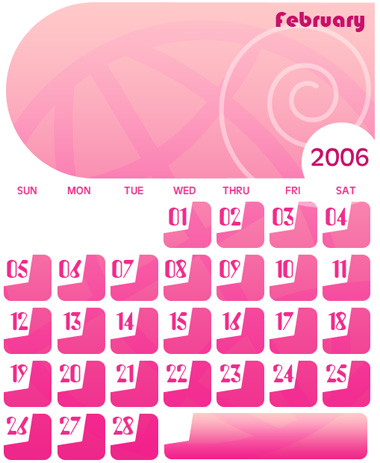
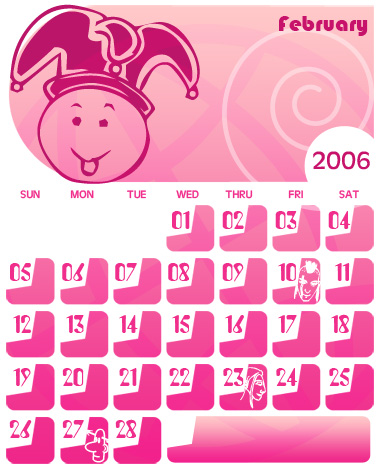
Decorate the calendar with some cartoon characters.