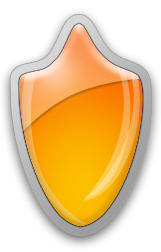
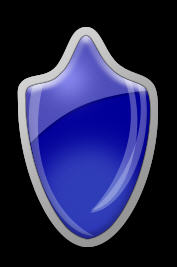
1. Start new document with 350 width and 350 height. Create New layer. Select Ellipse Tool from toolbar and draw an ellipse.
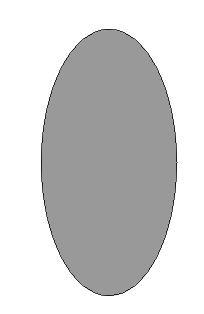
2. To give Shield Shape, Select this ellipse with Direct Selection Tool and add some Anchor Points with Add Anchor Point Tool (from Pen Drop Down Menu.
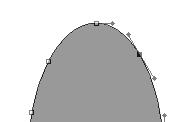
3. Adjust the nodes for shape. Then apply Linear gradient from upper left corner to lower right corner.
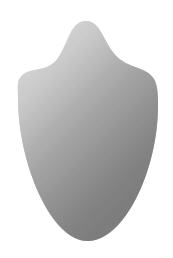
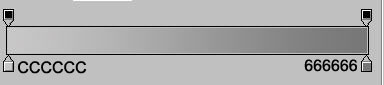
4. Add these Blending effects
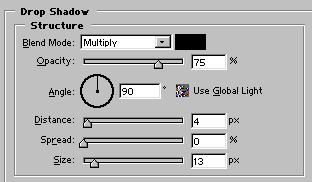
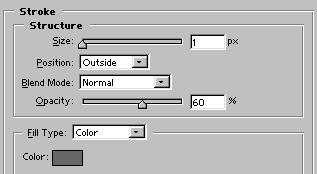
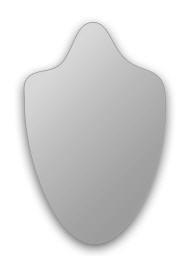
5. Duplicate this shape, clear all its blending effects. With the help of Transform reduce its size like this:
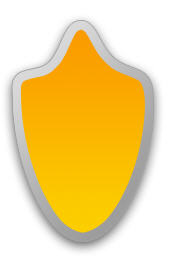
6. Apply these blending effects:
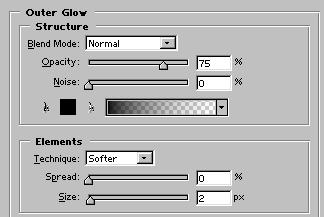
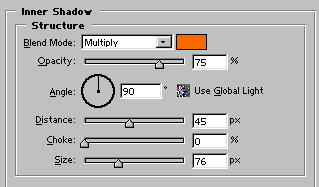
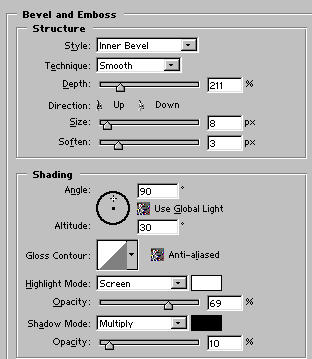
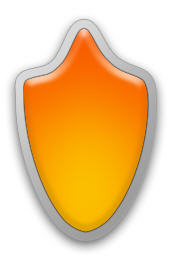
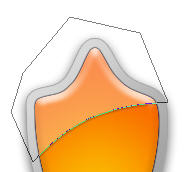
7. Now add some reflections. Select white as your foreground color, Select Pen tool and draw a reflection like this:
8. Now apply Drop Shadow with these settings:
Blend Mode: Multiply
Color: Black
Angle: 120
Distance: 2
Size: 2
9. Add some more reflections with the help of Ellipse tool.