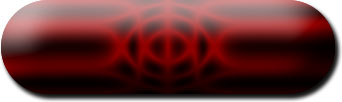
1. Create a new file. Create a new layer. Draw the Elliptical button and fill it with the color shown in the figure.

2. We will get effect with just Layer Style dialogue box. Observe the following figures carefully and make the settings accordingly.
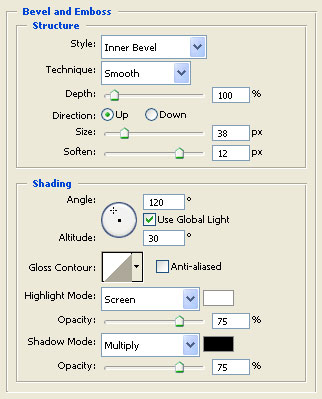
Layer > Layer Style > Bevel and Emboss
Change the settings according to the following figure.
Please remember to change the size to 38
Click Drop Shadow also.
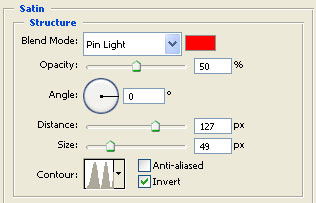
3. Select Satin
Change the setting as shown in the figure.
4. You will get the following result.

5. Duplicate the button layer and change the top layer to Multiply mode.