


This is a great way to create text that looks like its moving, or 'speeding'.
Step 1

Create a new image with a black background. Add some text.
Step 2
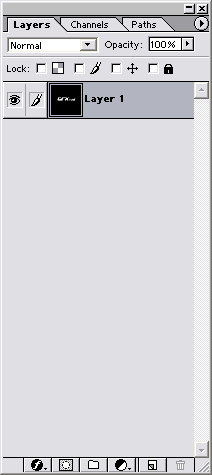
Press Ctrl+E (tap CTRL and E together) to merge layers.
Step 3
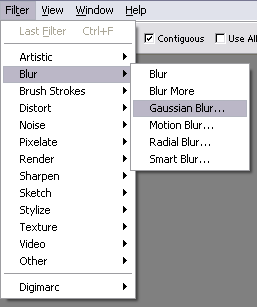
Go to the Gaussian Blur filter shown above
Step 4
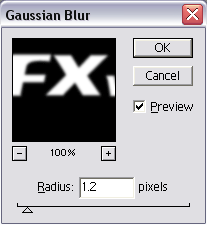
Use the above settings in your gaussian blur window.
Step 5
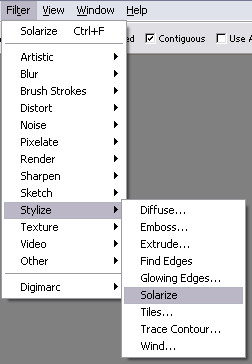
Go to the solarize filter shown above
Step 6
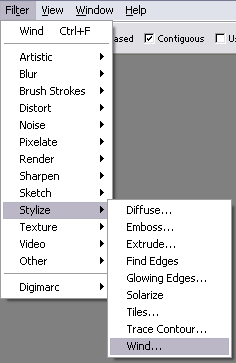
Go into the wind filter shown above.
Step 7
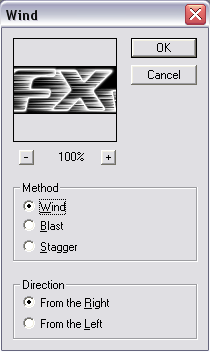
Use the above settings in the wind filter window.
Final Product

Here's my final product! It took me about 2 minutes to create this, and it does a great job to show speed or movement! I suggest you experiment with the above effects (try repeating steps 6 and 7!), to get exactly what your looking for!
