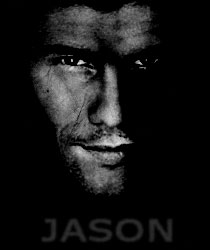
As you know the final part of the Bourne trilogy – "The Bourne Ultimatum" movie was out recently. You've probably seen the posters with overshadowed face of Matt Damon in the role of Jason Bourne.
So we need a photo to begin with. I've chosen the photo of Jason Chambers.
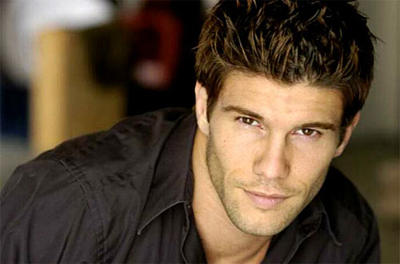
Select the face using Marquee tool, then invert the selection, delete the superfluous parts. Invert the selection again and turn the face, so that it is at right angle to the ground.
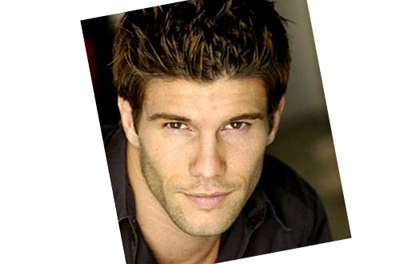
Now select the smaller area (with ears, neck and forehead) and crop canvas. Then deselect.
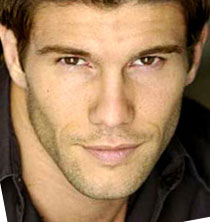
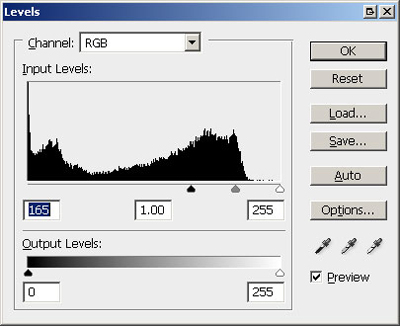
Desaturate the image and apply Levels with the following settings:
Now select the lower part of the image seizing the ear, neck and the bottom of the picture as shown below.
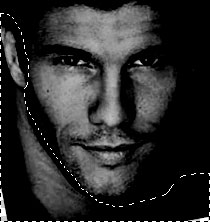
Paint the selected area black and deselect.
Next paint almost the whole right cheek black using Burn tool and soft Brush tool.
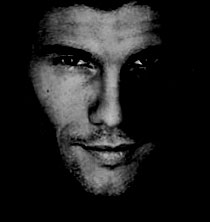
And paint the right part of the lip.
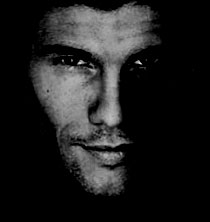
Next lighten up the bridge of nose, the upper part of lips, eyes and the right cheek.
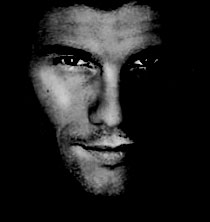
And darken the lower part of the forehead and the left cheek.
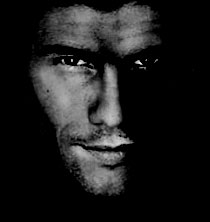
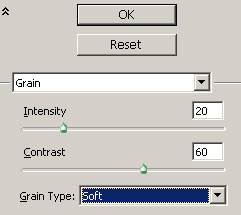
Now apply Grain filter with the following settings:
and desaturate.
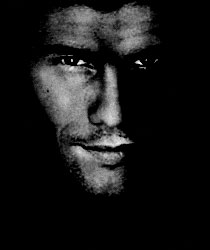
Now add several stripes using some grunge Brush.
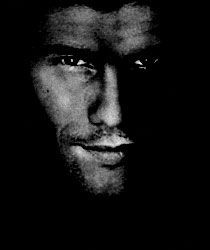
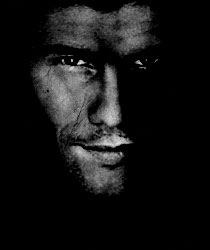
That's it. You can add a text if you wish.