


Let's start with a new document.
Size 500 x 300 pixels
Background color : Black
Select Type Tool and write down some text with a white color

Create a new layer ( press Ctrl+Shift+Alt+N )
Press D to Reset Swatches
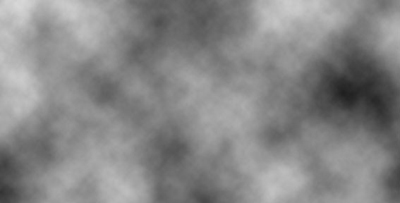
Go to Filter > Render > Clouds
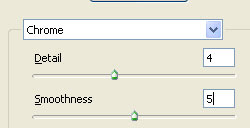
Go to Filter > Sketch > Chrome and use the following settings
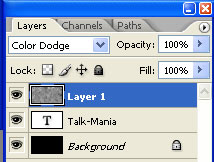
Change the blending mode for this layer to Color Dodge
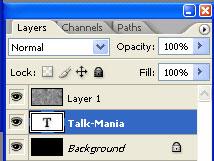
Select Text layer
Now press Ctrl+J - this will duplicate your layer
Hide the first text layer ( in my case talk-mania )
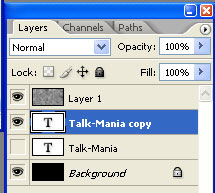
Now rasterize the layer Talk-Mania Copy
To rasterize go to Layer > Rasterize > Type
Now duplicate this rasterized layer 3 times
Ctrl+J
Ctrl+J
Ctrl+J
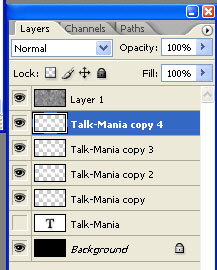
Select the following layer: "Talk-Mania Copy 3"
Then go to Filter > Blur > Motion Blur and use the following settings:
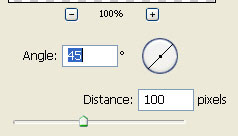
This is my result

Select the following layer: "Talk-Mania Copy 2"
Then go to Filter > Blur > Motion Blur and use the following settings:
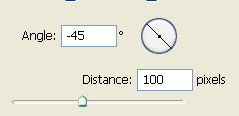
My result
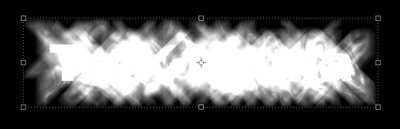
Select the following layer: "Talk-Mania Copy 1"
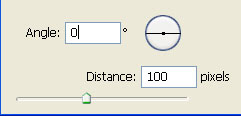
Then go to Filter > Blur > Motion Blur and use the following settings:
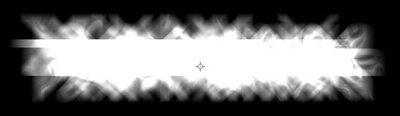
This is my result
Now select all the rasterized layers
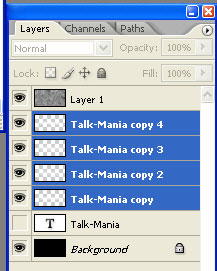
And press Ctrl+E ( this will merge all layers )
Go To Filter > Blur > Gaussian Blur
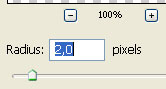
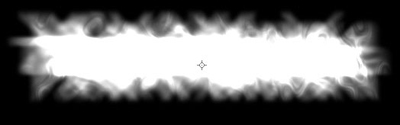
My result
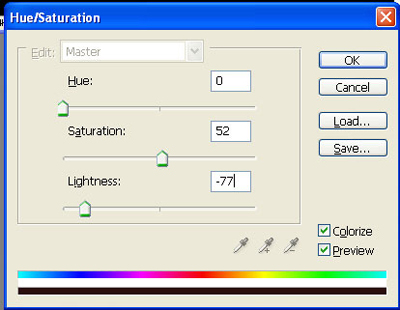
Now press Ctrl+U and use the following settings
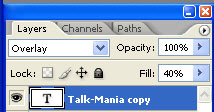
Select type tool and write one more time some text

Now change the blending mode to Overlay , and change the fill settings to 40 %.
This is my final result

I hope you like it.
