


Open a new document:
500x500 pixels will be very good.
Then download the shape from the attachment area.
Load the shape
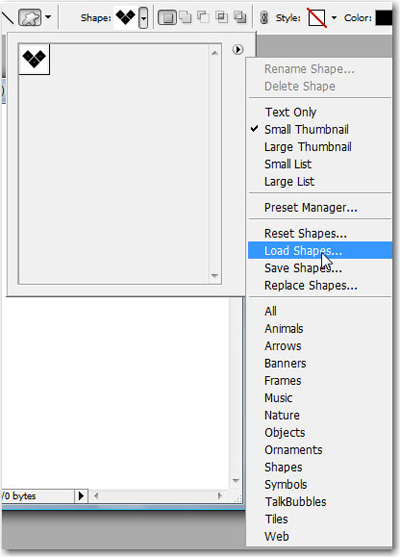
Then select Custom shape tool, and draw the shape on your canvas
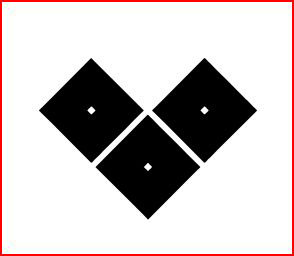
When you drag the mouse , hold down the Shift key. In this way you can create a symmetrical shape
Go to Edit > Transform > Perspective and draw the corners of the shape until you have something like in the following image
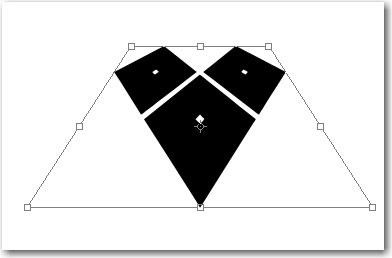
Hit the Enter key from your keyboard
Then press on Ctrl+T ( free transform tool )
Then modify the vertical scale to 70%
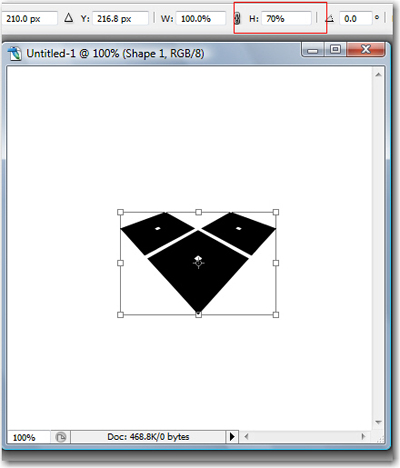
Do not forget to Hit Enter on your keyboard
Now comes the funny part
You need to follow my shortcuts very carefully
With this layer selected press on:
1 - Ctrl+J ( this shortcut will duplicate the current layer )
2 - Up arrow key
Repeat 14-15 times this steps from above and you will have something like me
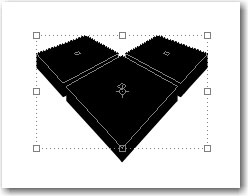
Select the top layer from your layer palette
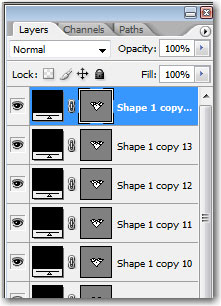
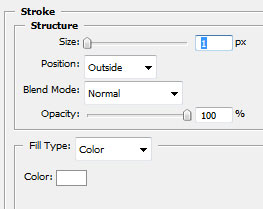
And add the following layer styles
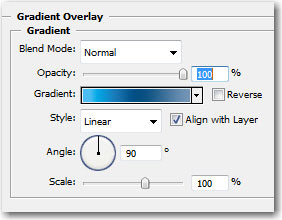
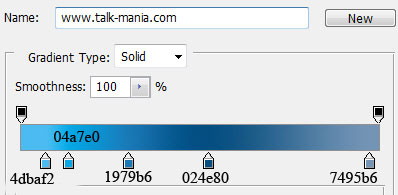
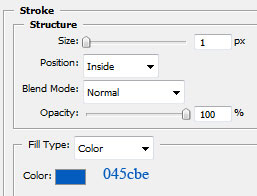
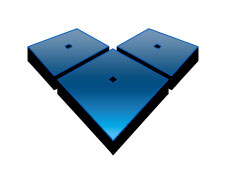
This is my result
Now select the first layer we have created in this tutorial ( the layer above the background layer )
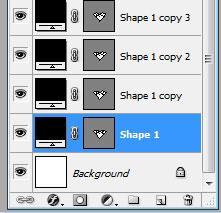
For this layer please add the following layer styles
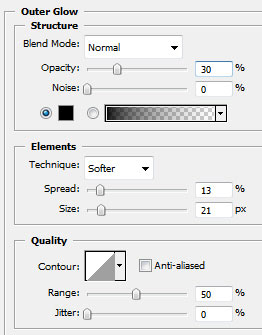
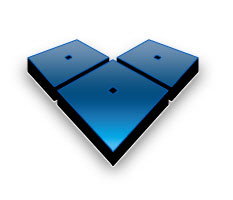
This is my final result
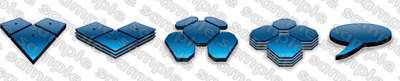
I hope you like it. You can see in the following image some logo variation created in the same way
This set of logos are available only for VIP members
Thank you.
