


Open a new document 500 x 100 pixels with a white background
Select Rounded Rectangle Tool ( set the radius to 5 pixels ) and start creating one shape, then duplicate this shape ( press CTRL+J to duplicate the layer )
Then with your arrow keys , place the buttons like in the next image

Then add the following layer styles
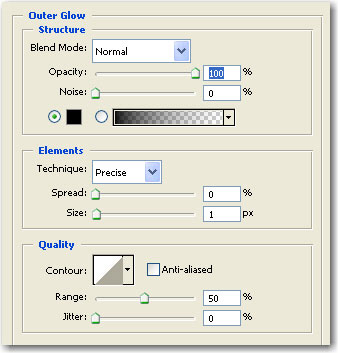
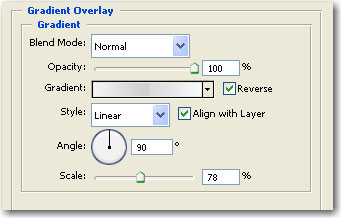
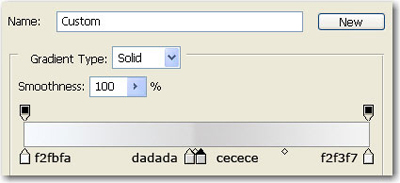
This is my result

Now select Rectangle Tool and make a rectangle
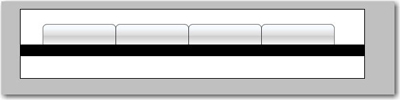
Then add the following layer styles
This is the result
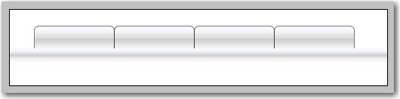
Then select Line Tool. ( set the weight to 1 pixel )
And make 3 lines and place them like in the next image. I think this is a very simple task and you will not have problems
This is the final result:
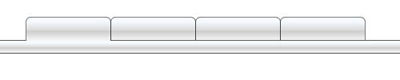
This is a very simple tutorial , but it looks very nice.
