

I will show you how to create a simple icon.
Open a new document with a grey background. ( 400 x 400 pixels )
Create a new layer ( press Ctrl+Shift+Alt+N )
With Rectangle Tool Create a small rectangle:

Then please apply the following layer style:
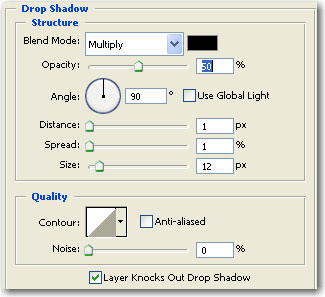
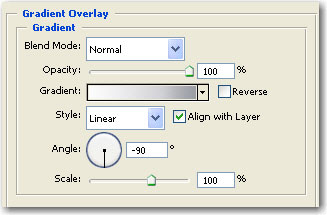
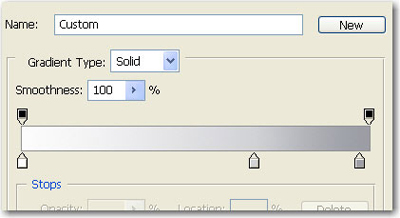
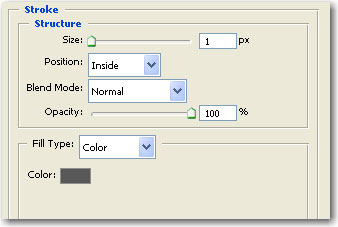
Select Polygon Tool.
Set sides to 3

And create a small triangle:
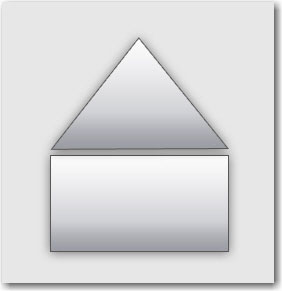
With the Move Tool change the vertical scale
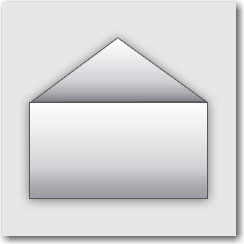
Duplicate this triangle and place it like me:

After that duplicate one more time and go to Edit > Transform Path > Flip Vertical
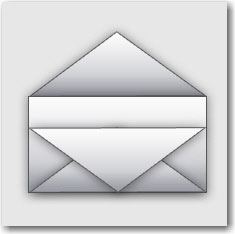
With your arrow keys place it like in the following image.

On the following image you will see a arrow. We will drag this layer before the rectangle

Drag the triangle above the rectangle ( in my case Shape 1 )
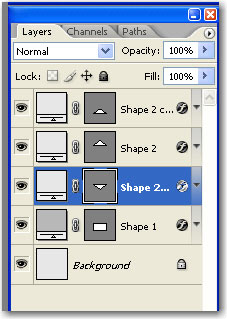
And for this last triangle change the layer style:
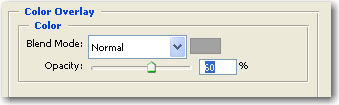
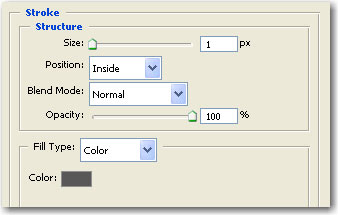
With the pen tool create a simple shape like in the following image ( i have changed the color to red so you can see better what i am doing )
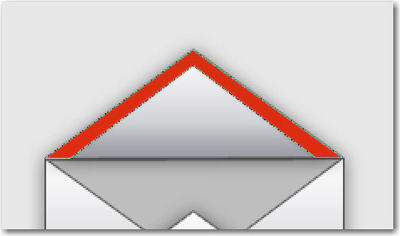
Now please change the color for this last shape to white and change the opacity for this layer to 40 %

Duplicate this layer and place it on the bottom of the brief.

Now you can leave the icon in this way or you can give it a perspective look
If you want to achieve the next perspective look select all the layers ( except background layer ) and go to Edit > Transform > Distort and move the corners until you are happy of the effect.

I hope you find this tutorial useful.
