


Open a new document in Photoshop
Size 500X500 pixels
Color of the background: #333333
Then Select Rectangle Tool and make a small rectangle

Then Add the following layer style for this simple shape
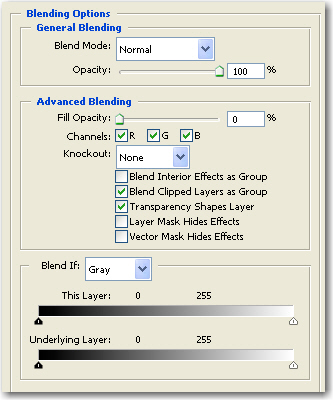
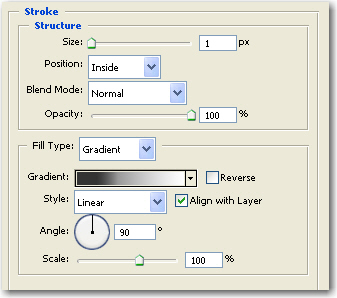
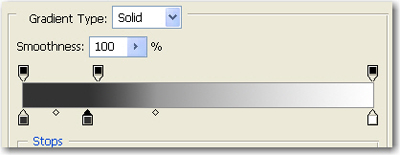
This is the result
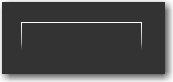
Then Select one more time Rectangle tool, and make another shape, a little smaller than the last one
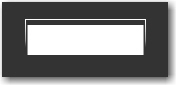
Now grab Rounded Rectangle Tool, Set the radius to 4 pixels and make another shape
I will make the rounded shape with another color . In this way you can see better what i am doing. This rounded shape we will hide later or we will delete the layer
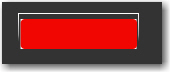
Rasterize this red shape ( go to Layer > Rasterize > Shape )
Then go to Select > Load selection
You will see that your red shape will be selected.
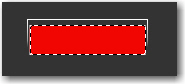
Now delete the red shape layer. You can delete this layer by dragging the layer to the recycle bin icon
After you will delete this layer you will have this result
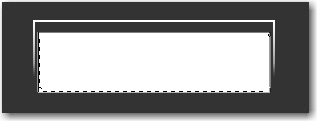
Press Ctrl+Shift+I ( this will inverse your selection )
Now select the Shape 2 layer ( the white rectangle ) and rasterize this layer too
To rasterize the layer be sure you have the layer selected, then go to Layer > Rasterize > Shape
Then Hit Delete on your keyboard
After that press Ctrl+D to deselect
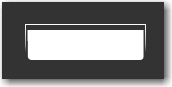
Now add the following layer style
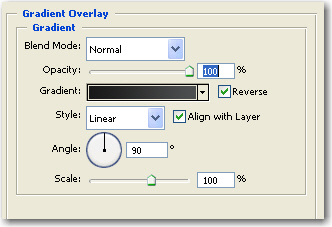
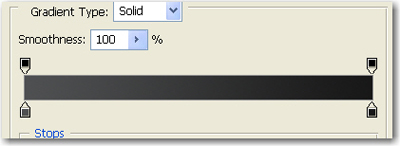
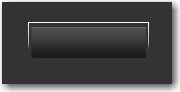
This is the result

Select Line tool, Set the Line weight to 1 pixel, and make a simple line with a color you like most
Now Make another line, with the same tool , but this time set the line weight to 2 pixels
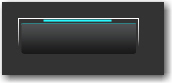
Then for this 2 pixel line add the following layer styles
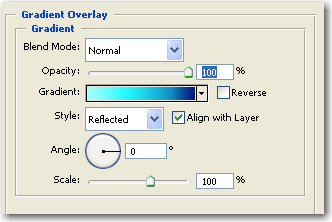
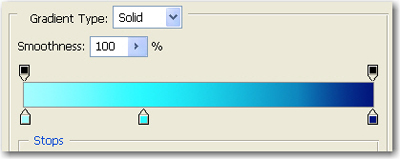
This is the result
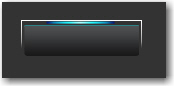
Then add some simple text

Now with the Rounded rectangle tool make some shapes

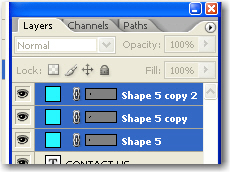
Select all the layers ( the blue shapes ), And press Ctrl+E ( this will merge all the small blue shape layers into a single layer
Then make a selection like in the following image
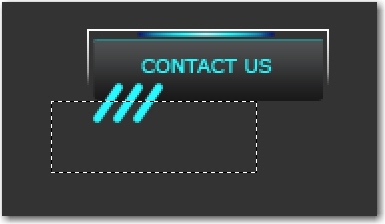
Then hit Delete key
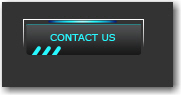
This is the result
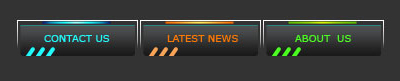
Then duplicate this button a few times and you will have a nice navigation bar. You can see that i have changed also the color of the buttons . I am sure you can do this alone
Thank you very much for watching this tutorial.
