

Step 1
Create a new document of any size, for this example I will create a document that is 1024x778 - for a standard desktop background. Fill the background with black (#000000).
Step 2
Create a new layer. Get out the rectangular marquee tool, and make a selection like so near the bottom left corner (region) of the canvas:
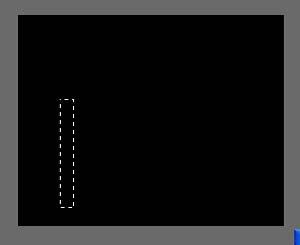
Fill this selection with the paint bucket using the color #4a4a4a.
Step 3
Press Ctrl + D on your keyboard to deselect the selection. And go to Filter->Distort->Wave and apply the following settings:
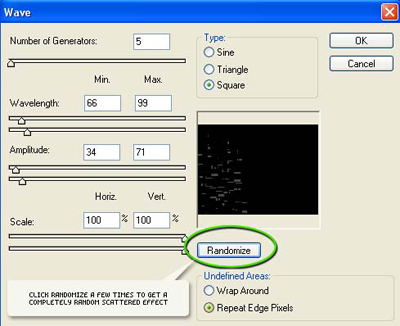
Tip: Click the 'randomize' button until you get an "random" result, avoid a pattern look.
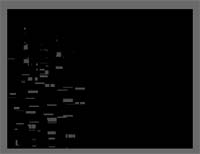
Result:
Step 4
Now Press 'V' on your keyboard to get out the move tool, and position the scattered blocks near the center of the canvas.
Press Ctrl + J on your keyboard to duplicate this layer.
Go to Edit->Transform->Flip Horizontally
Press Ctrl + E on your keyboard to merge these two layers together.
Press Ctrl + J on your keyboard again to duplicate this layer.
Go to Edit->Transform->Rotate 90 Degrees CW
Press Ctrl + E on your keyboard to merge these two layers.
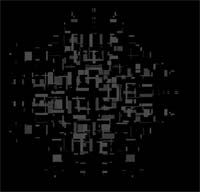
Result:
Step 5
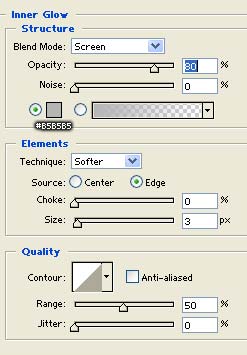
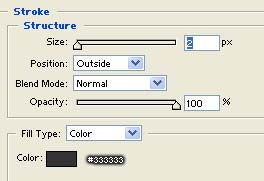
Double click this layer, and apply the following blending options:
Inner Glow:
Stroke:
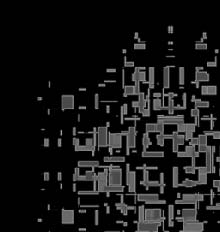
Result:
Step 6
Next get out the Dodge tool (
 ) and apply the following settings:

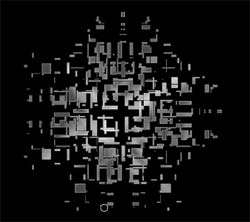
Using these settings scribble over top of our shape a few times to create some contrast in the color as I've done here:
Step 7
Next get out the Burn tool (
 ) and apply the following settings:

Once again, using these settings scribble over top of our shape a few times to create some contrast in the color.
Step 8
Now create a new layer below this layer (above the background), here is what your layers pallet should look like:
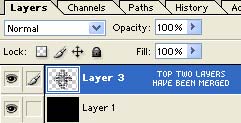
Now click on the topmost layer (the one with the scattered blocks) and press Ctrl + E on your keyboard to merge it with the new layer we'd just created. Doing so will rasterize the layer effects we had added to the layer.
Step 9
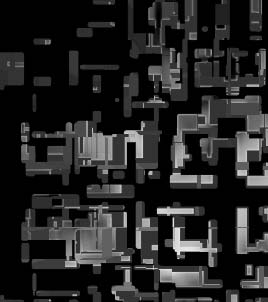
Now go to Filter->Stylize->Extrude and apply the following settings:
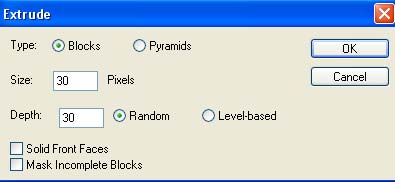
Result:
Step 10
Press Ctrl + U on your keyboard to bring up the color balance tool, and apply the following settings:
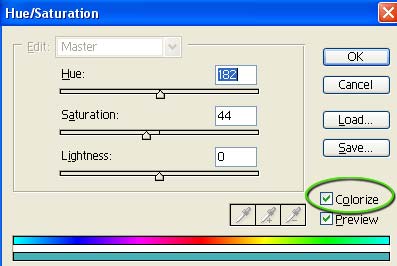
Result:
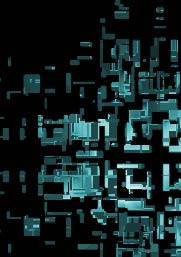
Step 11
Press Ctrl + J on your keyboard to duplicate this layer.
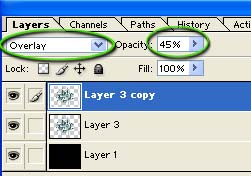
Change the new duplicate layers blending option to "overlay", and drop the opacity of this layer down to 45 percent:
Merge these two layers by pressing Ctrl + E.
This should bring out the colors a little bit more.
Step 12
Press Ctrl + J on your keyboard to duplicate this layer. Click on the middle layer (the one we just duplicated) to select it:
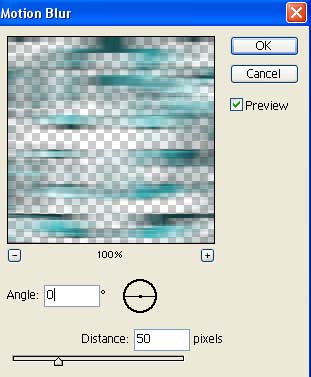
Now go to Filter->Blur-Motion Blur, and apply the following settings:
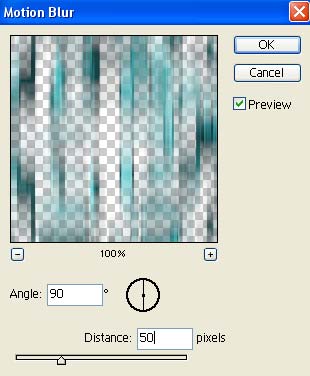
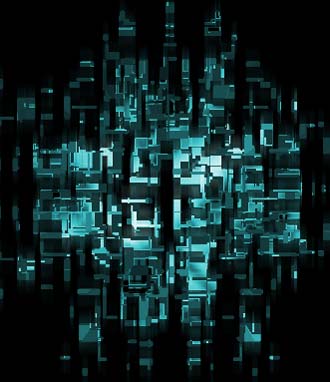
You can drop the opacity of this layer down to around 60 percent to give it a little more of a blended effect.
Result:
Step 13
Click the topmost layer, and press Ctrl + J on your keyboard to duplicate this layer once again. Now select the
Click on the layer directly below our duplicate layer to select it:
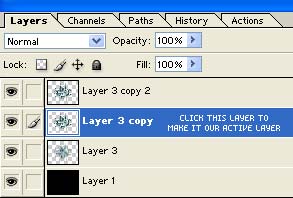
Go to Filter->Blur->Motion Blur, and apply the following settings:
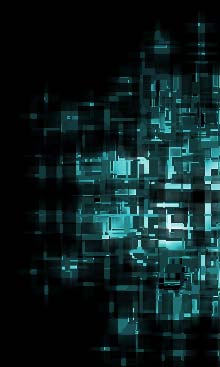
Drop the opacity of this layer down to around 75 percent.
Result:
Step 14
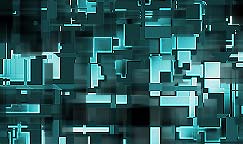
Now select the topmost layer (the one that hasn't been blurred at all) and go to: Filter->Sharpen->Sharpen.
Press Ctrl + F on your keyboard to repeat this process.
Result:
Step 15
Press Ctrl + E on your keyboard twice to merge the top three layers together.
Now press Ctrl + J on your keyboard to duplicate this layer.
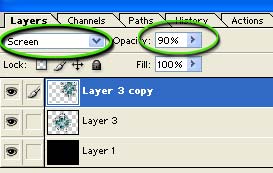
Change the blending mode to "screen" and drop the opacity of this layer down to 90 percent:
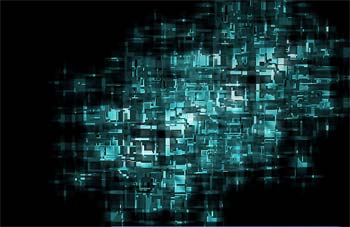
Now press 'V' on your keyboard to get out the move tool, and position this duplication near the top right corner of the canvas:
Step 15
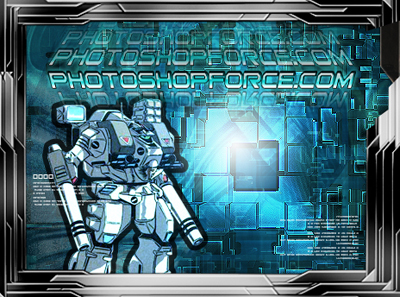
You can repeat step 15 a few times if you wish, however at this point I simply used the crop tool, found a section of the design that I think looked nice, and cropped it out for a banner background. Here is my final result after adding a simple panel border:
I hope you enjoyed this tutorial!
