


Step 1
Start a new document of any size, I'm using a 500x500 document myself.
Step 2
Press the 'D' button on your keyboard to reset your background/foreground colors to black/white respectively.
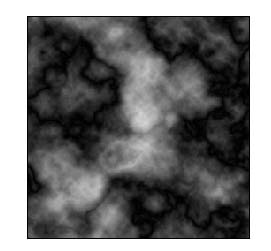
Go to "Filter->Render->Clouds".
Next go to "Filter->Render->Difference Clouds".
Press CTRL + F on your keyboard four times to repeat the "difference clouds" four more times.
You should have something that looks like this now:
Step 3
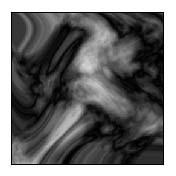
Now go to "Filter->Distort->Wave" and apply these settings:
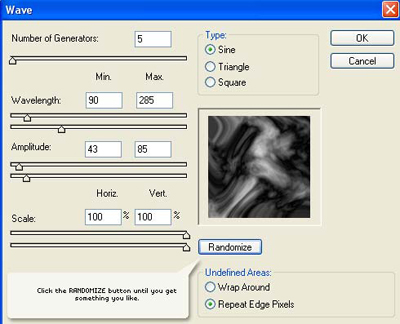
You should have something like this:
Step 4
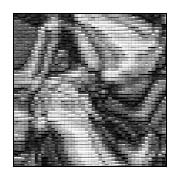
Next go to "Filter->Texture->Patchwork" and apply these settings:
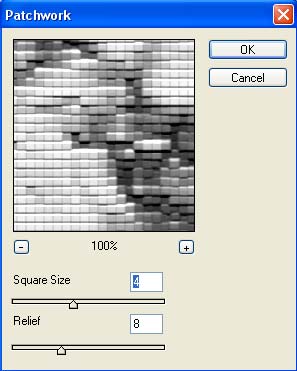
Result:
Step 5
Now we'll add some color to our piece.
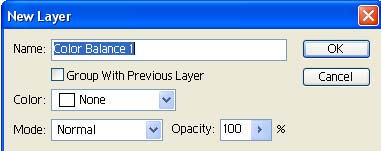
Go to Layer->New Adjustment layer->Color Balance
Press Okay:
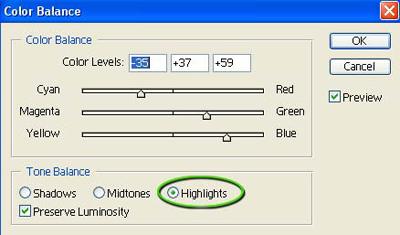
Tick the "highlights" box and apply the following options:
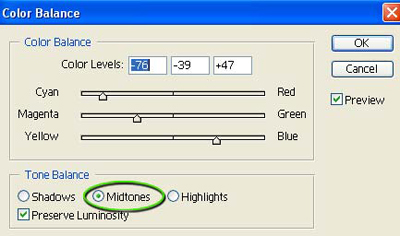
Tick the "midtones" box and apply the following options:
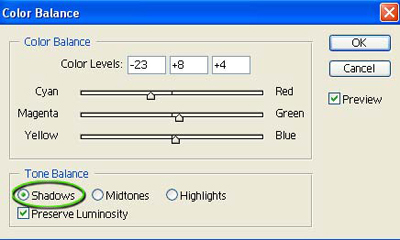
Tick the "shadows" box and apply the following options:
Result:

This completes the creation of the Patchwork Background effect. Here is how this type of background might look in a basic website banner after adding some text, and a few graphics:

The photo of the automobile is available in the download package for this tutorial.
I hope you enjoyed this tutorial.
Download Patchwork Background Effect Source Package here.
