


This is a comprehensive and detailed tutorial on creating a Zoom Blur Effect for using when transitioning from one picture to another. Lets Get started.
1. First decide what images you want to be zoomed in and out of. I am using three pictures of different colored Audi TT's in this example.



2. Using Photoshop or another image program with Blurring capability, go to the top menu and use the : Filter- Blur- Radial Blur and select to create a Zoom radial at 100%. Do this for every image that you are using. Then save a copy of the original and the zoomed picture.

3. With that done, in Flash create one layer for each photo. Here I had to create 10 layers. example: From Blue original to blue zoom to red zoom to red original: action stop.
Import your images into Flash and make them each a graphic symbol
Place image original 1 on the first layer. This will occupy keyframe 1 only.
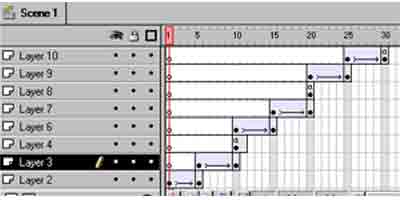
Place image 1 zoomed on the second layer. Insert a new keyframe on frame 5 of that same layer. Tween the two key frames from alpha "0" to alpha "100".
Place image zoomed 2 in the next layer and insert a keyframe at frame 10. Tween from alpha "100" to alpha "0". In the next layer insert image original 2 at keyframe 10 with a stop action.
Continue doing this for as many pictures as you have. Original 1 to original zoomed 1 to original zoomed 2 to original 2. Really quite simple.
