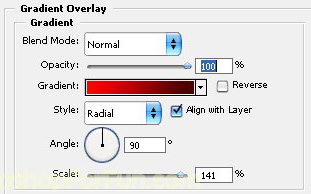
Start by creating a gradient as shown in the image below.
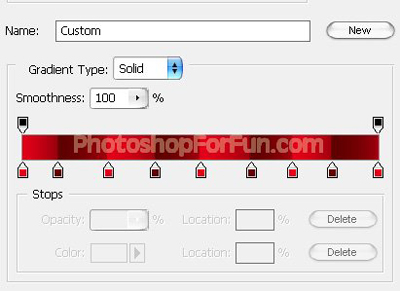
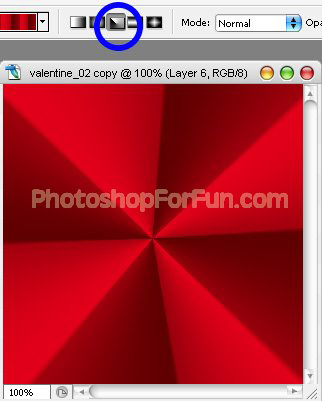
Create a new file and apply this gradient using angle mode.
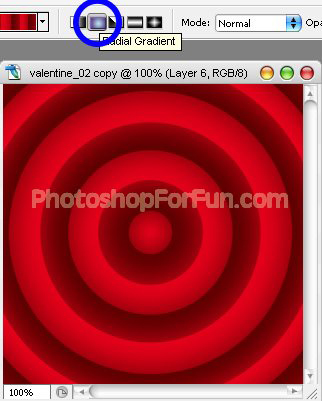
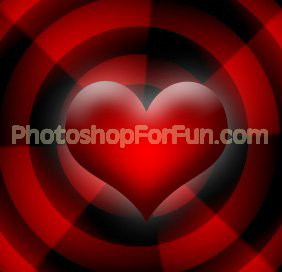
Create a new layer. Now change the gradient mode to radial and apply it form center to corner.
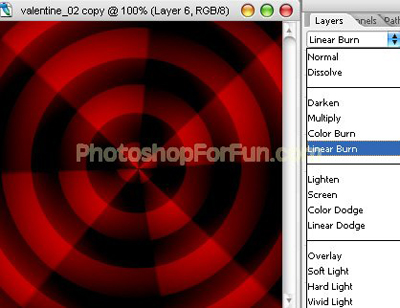
Change the layer mode to "Linear Burn".
Select custom tool and select "Heart Card" shape.
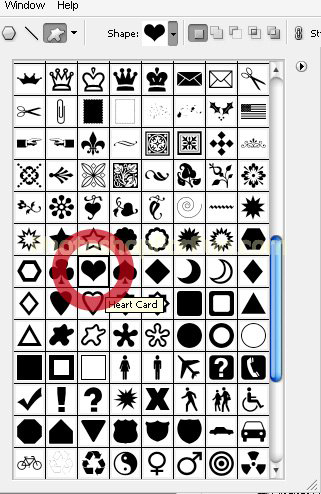
Create heart shape using red color.
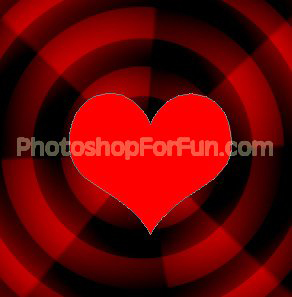
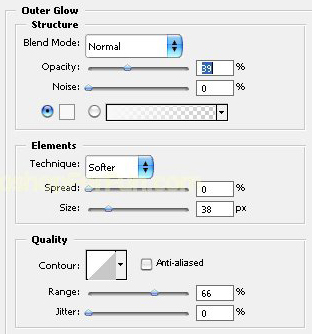
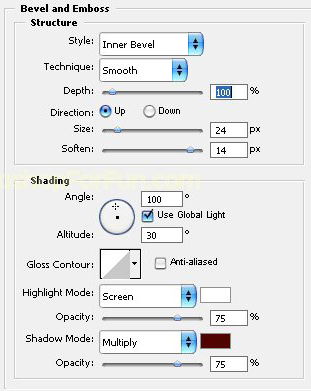
Double click the layer to open layer style window. Apply layer style with the settings shown.
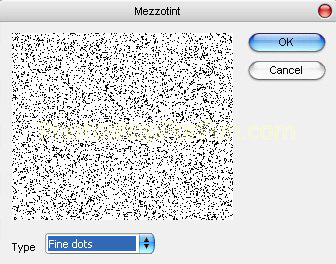
Create a new layer. Press Q to enable quick mask. From filter menu select "Pixelate>>Mezzotint". Select "Fine Dots" from the drop down menu.
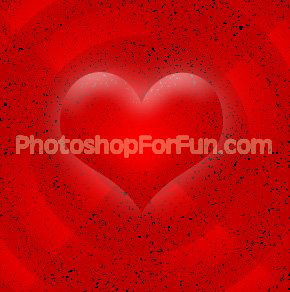
Press Q again to disable quick mask. Fill the selection with white color.
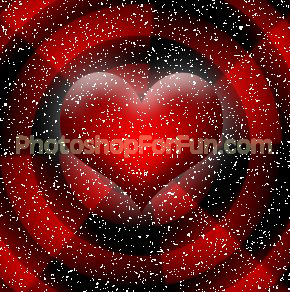
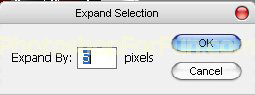
Ctrl+Click the heart layer thumbnail to get the selection. From select menu apply modify>>expand. Expand the selection by 5 pixels.
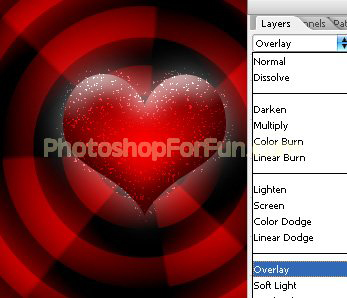
Select the fine dots layer. Press Ctrl+J to copy paste the selection into new layer. Hide the original fine dots layer. Change the layer mode to overlay.
Repeat the above mentioned steps to create another glitter layer with random seed.

Type your message and apply same effect using same technique. Create two layers for glitter to create randomness.

Open animation window. For the first frame hide second layer of heart and message glitter layer.
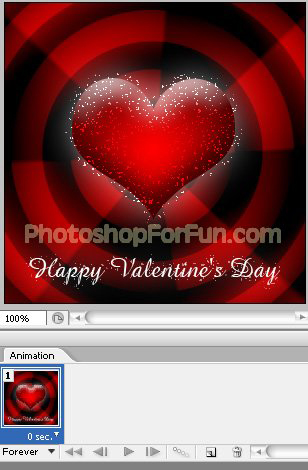
Duplicate frame. Hide the first two glitter layer and unhide the another ones.
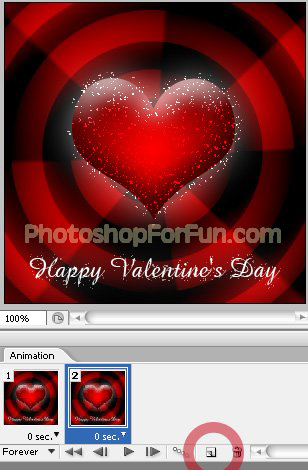
Press Ctrl+Alt+Shift+S to save an optimized animated GIF.