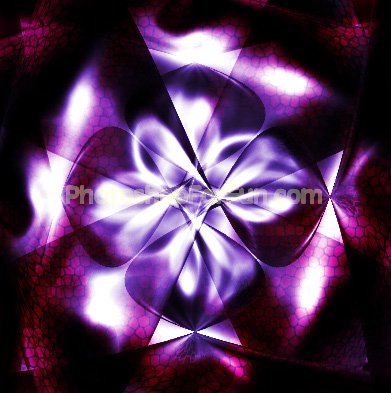
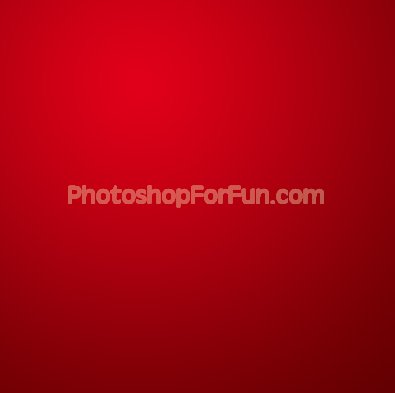
Start by applying a nice gradient to the background.
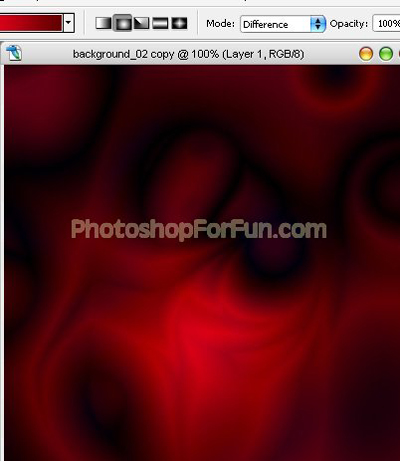
Change the gradient mode to "Difference". Apply the same gradient several times.
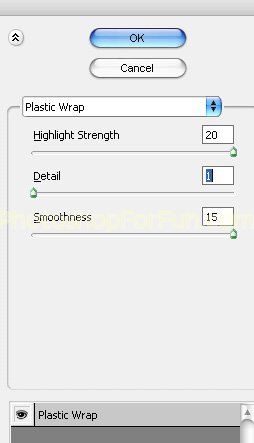
Duplicate the layer. From "Filter" menu select "Artistic>>Plastic Wrap". Apply settings as shown.
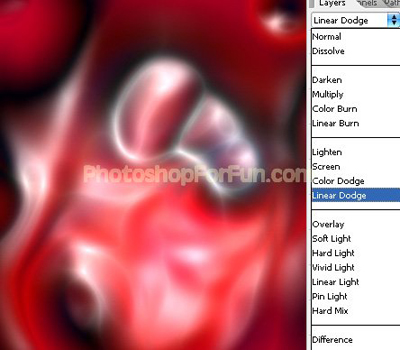
Change the layer mode to "Linear Dodge".
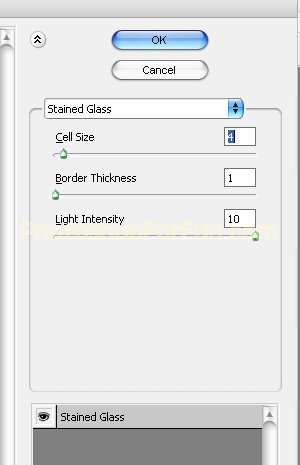
Duplicate the layer. From "Filter" menu select"Texture>>Stained Glass". Apply settings as shown.
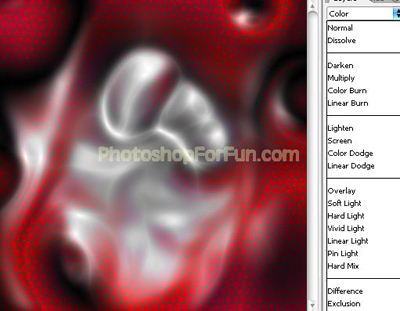
Change the layer mode to "Color".
Select and merge all the layers. Duplicate the layer. Press Ctrl+T. Right click the layer and select "Warp". Select "Fish" from the preset warp shape . Apply settings as shown.
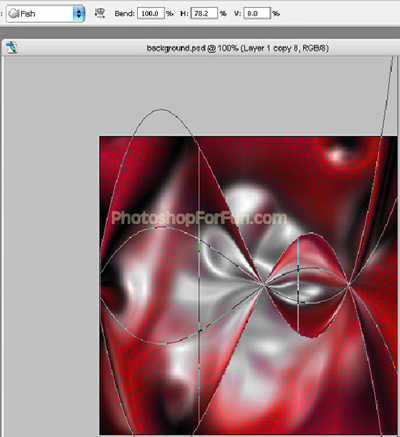
Change the layer mode to "Soft Light".
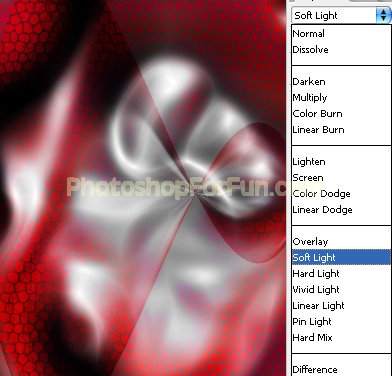
Duplicate the layer. Press Ctrl+T. Right click the layer and select flip horizontal.
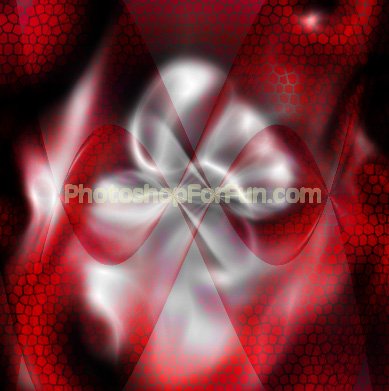
Duplicate both the warped layer. Rotate it 90°.
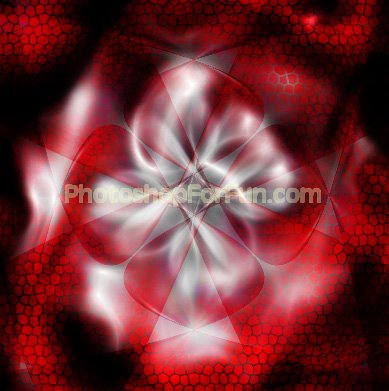
Select and merge all the warped layers. Change the layer mode to "Luminosity".
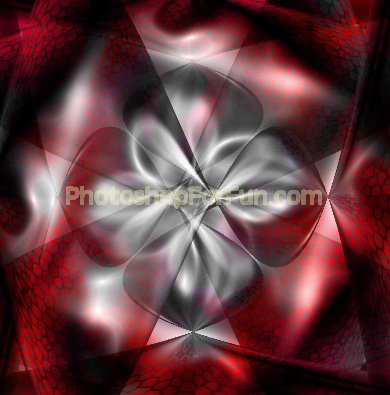
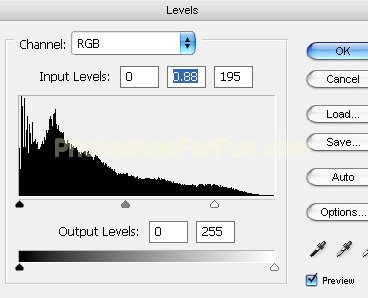
Select and merge all the layers. Duplicate the layer. Press Ctrl+L to open level settings. Apply settings as shown.
Press Ctrl+U to open hue/saturation window. Apply settings as shown.
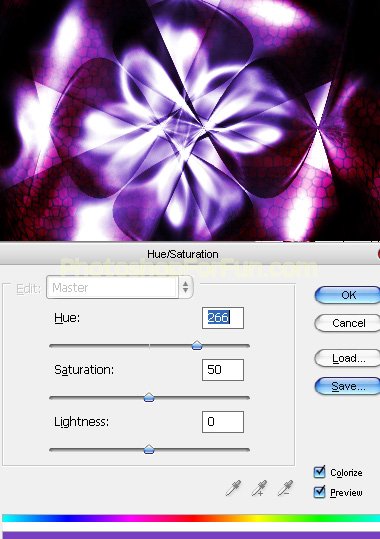
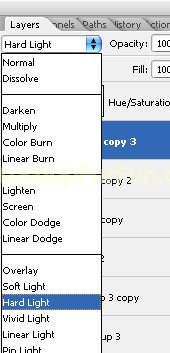
Change the layer mode to "Hard Light".