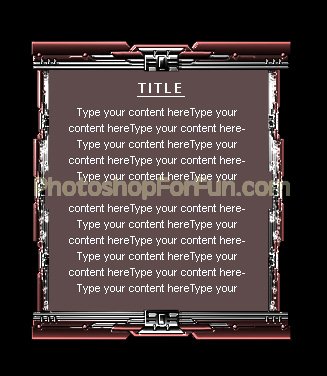
Create a rectangle using rectangular shape tool.
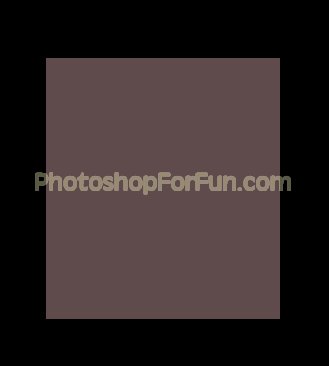
Create a shape as shown using pen tool.
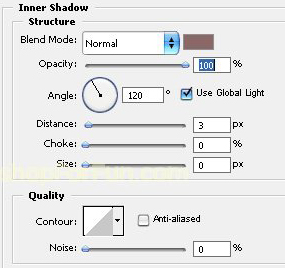
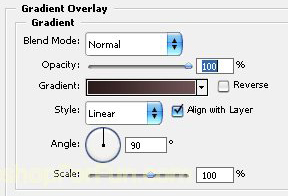
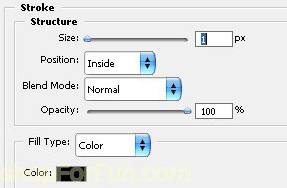
Double click the layer to open layer style window. Apply layer style with the settings shown.
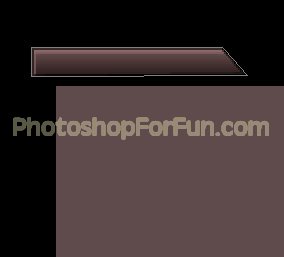
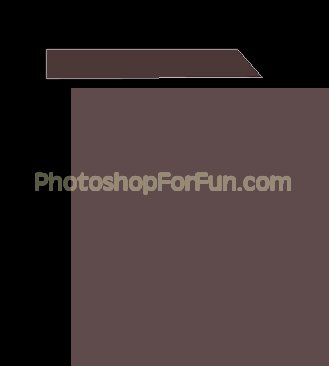
Similarly create more shapes.
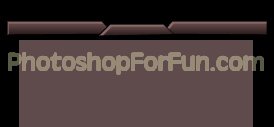
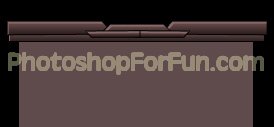
Create some more rectangular strips. Use different color in gradient overlay.
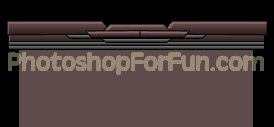
Create a rectangle using rectangular shape tool. Place it on the center.
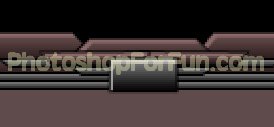
Create small rectangles to create connectors and to add details. This will create an interesting bar.
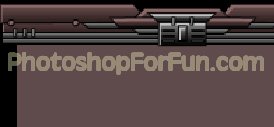
Select all the bar layers. Press Ctrl+G to group. Press Ctrl+T. Right click the layer and select "Flip Vertical" and place on the bottom.
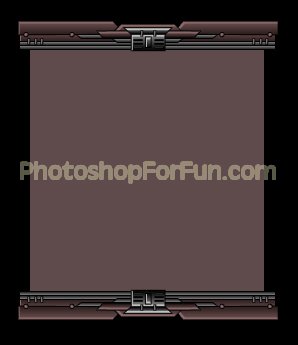
Duplicate the group several times. Scale down, rotate and place as shown to create a complete frame.
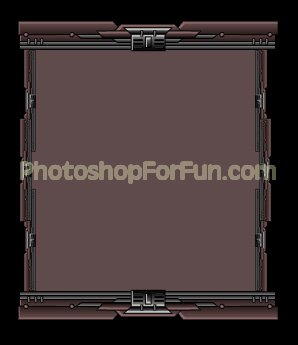
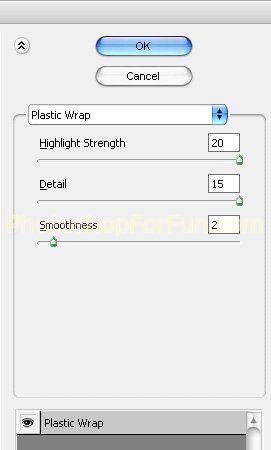
Select and merge all the bar groups by pressing Ctrl+E. Duplicate the merged layer. From filter menu select "Artistic>>Plastic Wrap".
Change the layer mode to "Hard Light".
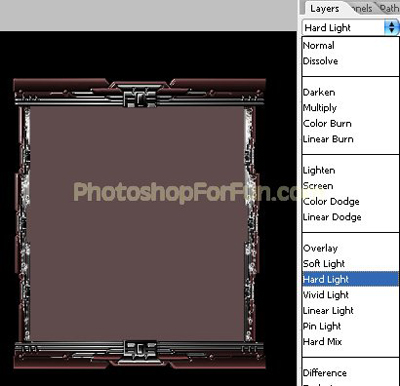
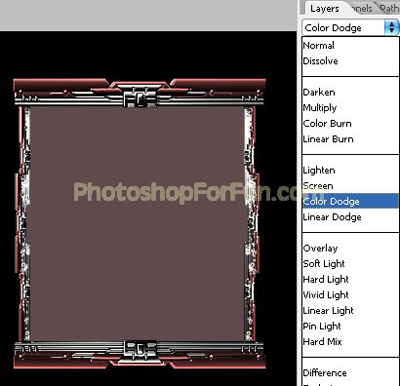
Duplicate the layer and change the layer mode to "Color Dodge".
Type your content and title.