Create a new file. Fill the background with a brown color.

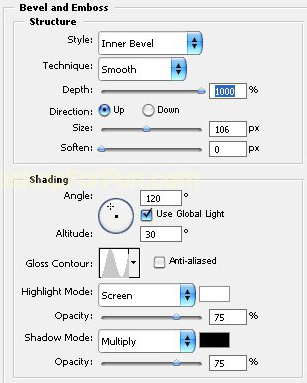
Double click the layer to open layer style window. Apply layer style with the settings shown.
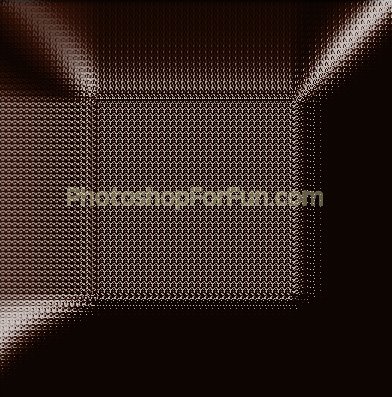
Duplicate the layer. From layer menu select layer style>>create layers. Select and merge all the resulting layers. Press Ctrl+T and scale down a bit.
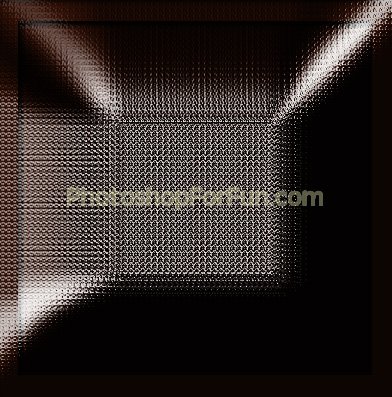
Similarly create more duplicates and scale down in decreasing order as shown in the image below.
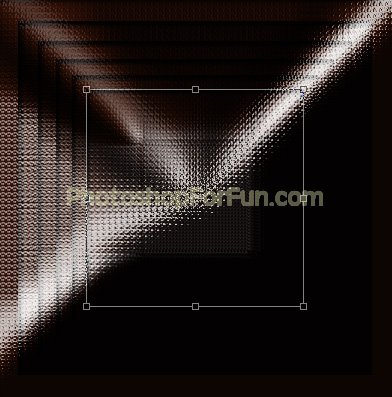
Select and merge all the layers. Duplicate the layer and change the layer mode to "Linear Dodge".
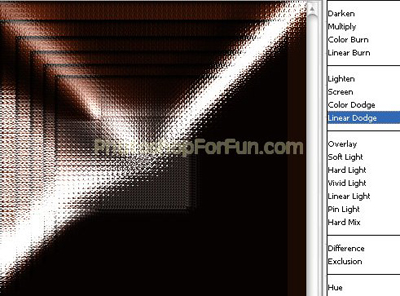
Duplicate the layer. Press Ctrl+T. Right click the layer and select rotate 180°.
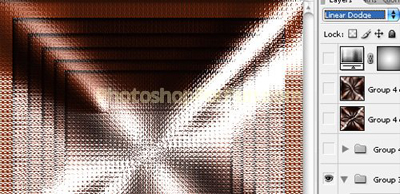
Select and merge all the layers. Duplicate the layer and hide it. Press Ctrl+T. Right Click and select Warp. Select "Bulge" style from the preset warp shapes. Apply settings as shown.
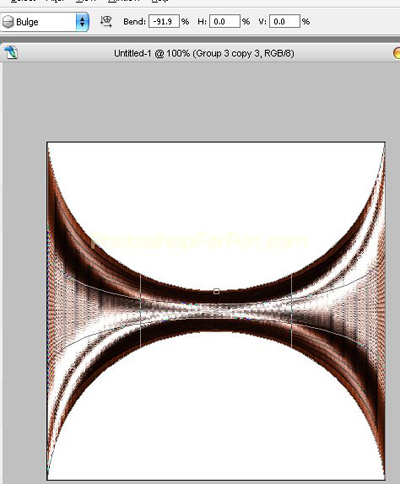
Duplicate the layer. Press Ctrl+Shift+T to rotate again. Unhide the layer.
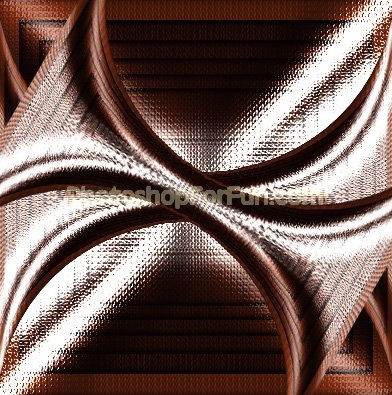
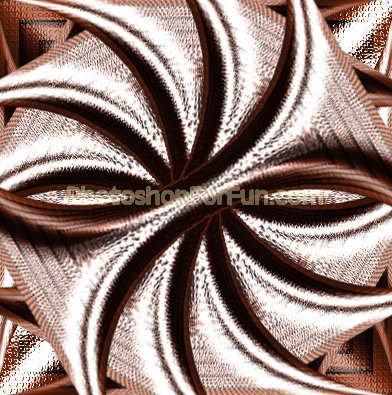
Keep duplicating and rotate.
Select the background layer. Duplicate and move this layer above all the layers in layer order in layer palette. Press Ctrl+T. Right Click and select Warp. Select "Fisheye" style from the preset warp shapes. Apply settings as shown.
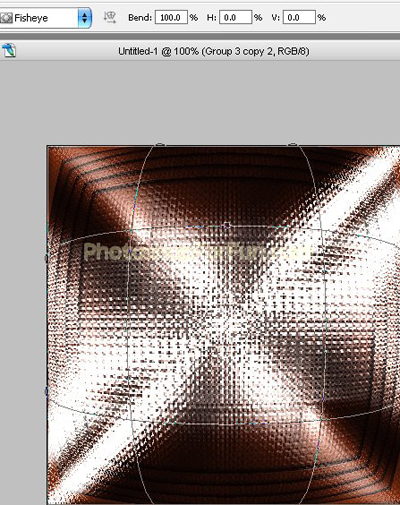
Change the layer mode to "darken".
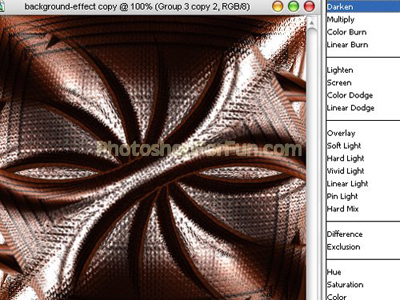
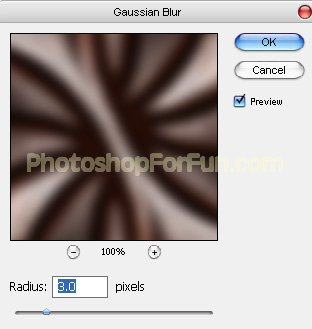
Select and merge all the layers. Duplicate the layer. From "Filter" menu select "Blur>>Gaussian Blur ". Apply settings as shown.
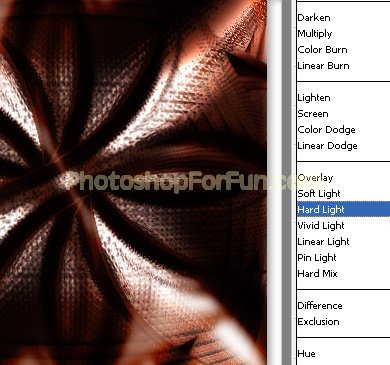
Change the layer mode to "hard Light".
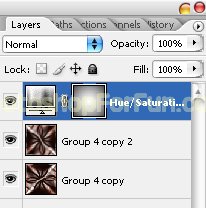
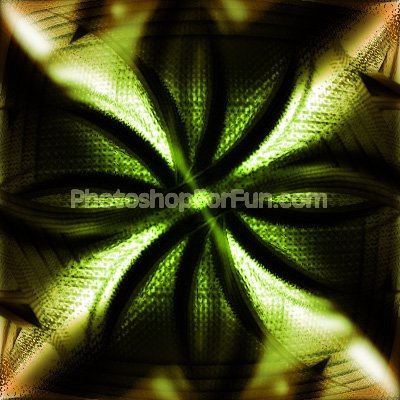
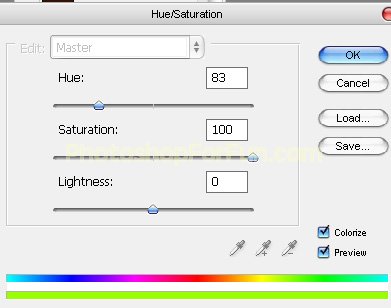
From Layer menu select "New adjustment layers>>hue/saturation". Apply settings as shown.
Click on the mask thumbnail. Apply a black to white gradient in radial mode as shown in the thumbnail.