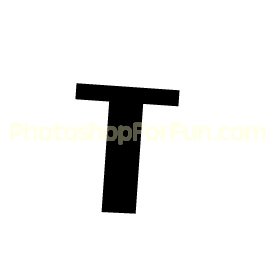
Start by typing your alphabet. Press Ctrl+T and rotate it a bit.
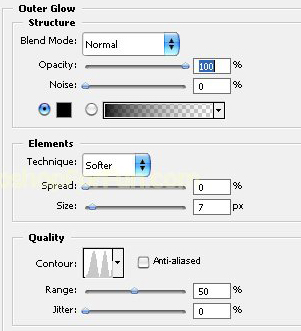
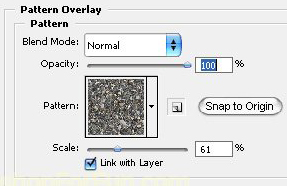
Double click the layer to open layer style window. Apply layer style with the settings shown.
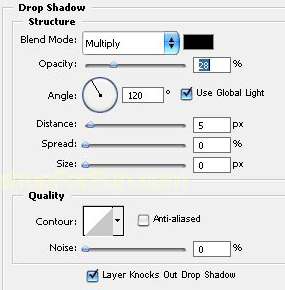
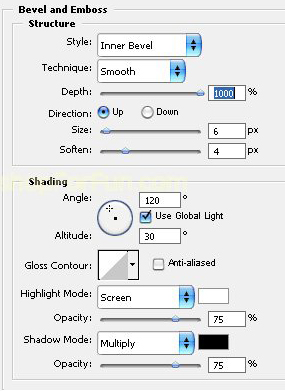
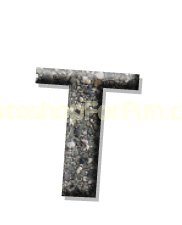
Similarly type other alphabets and rotate randomly.

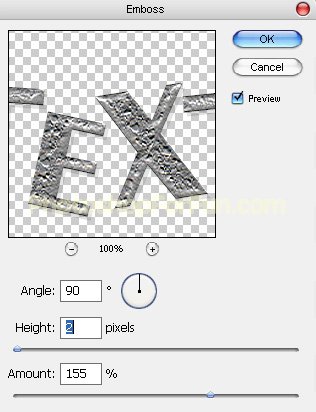
Select and merge all the alphabet layers. Duplicate the layer. From "Filter" menu select "Stylize>>Emboss". Apply settings as shown.

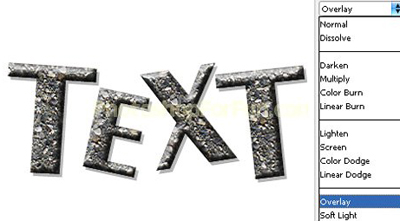
Change the layer mode to "Overlay".
Ctrl+Click the layer thumbnail to get the selection. From select menu select modify>>contract. Contract the selection by 6 pixels.

Press Ctrl+J to copy paste the selection in a new layer. Double click the layer to open layer style window. Apply layer style with the settings shown.
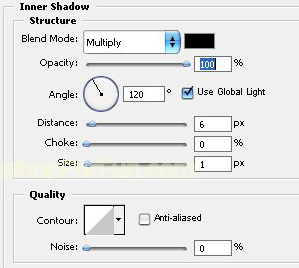
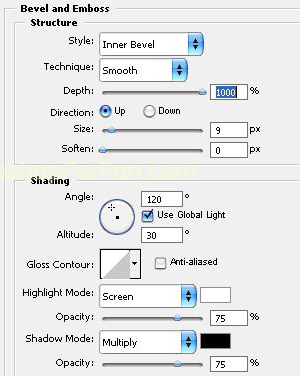
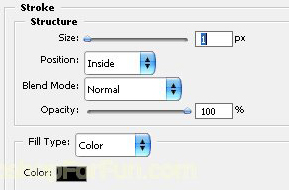

Select and merge all the layers. Double click the layer to open layer style window. Apply settings as shown.