Create a rectangular selection using rectangular marquee tool. Create a new layer and fill it with blue to green gradient in linear mode.
Create two rectangles on top and bottom using rectangular shape tool.
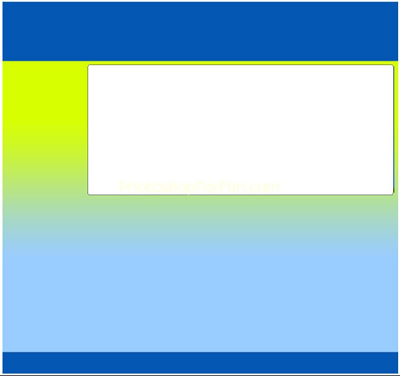
Create a rounded rectangle using rounded rectangle shape tool.
Double click the layer to open layer style window. Apply settings as shown.
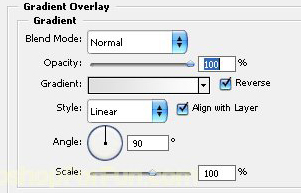
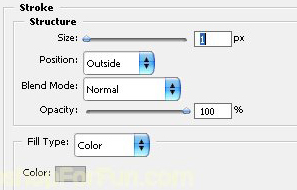
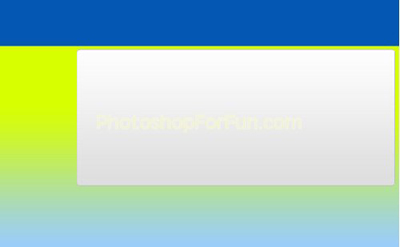
Create a rounded rectangle using rounded rectangle shape tool. Place it as shown and apply same layer style.
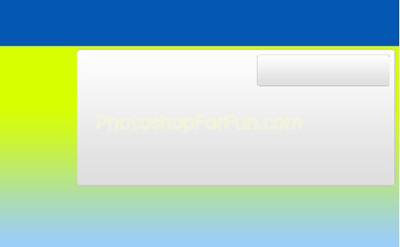
Duplicate the layer thrice and place below each other.
Create a rounded rectangle using rounded rectangle shape tool. Change gradient style to darker one.
Insert a relevant image. Move this layer right above the dark rounded rectangle layer in layer order in layer palette. Press Ctrl+Alt+G to create a clipping mask.
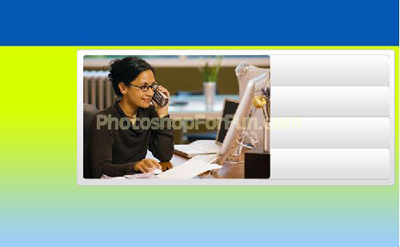
Create a rounded rectangle using rounded rectangle shape tool. Place it on the left.
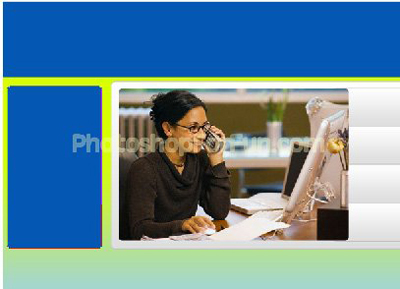
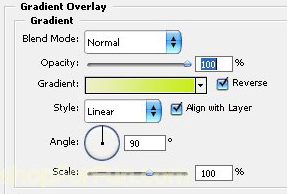
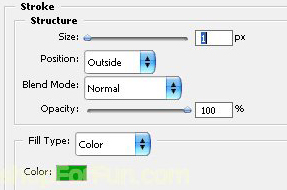
Double click the layer to open layer style window. Apply settings as shown.
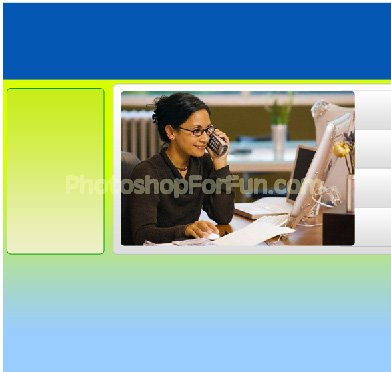
Similarly create another rectangle for the heading of the rectangle.
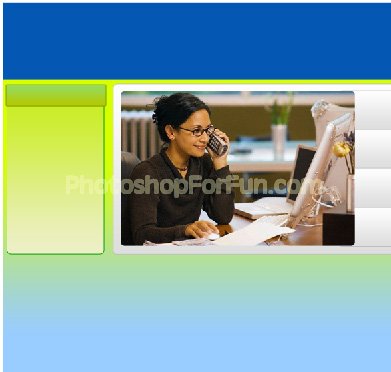
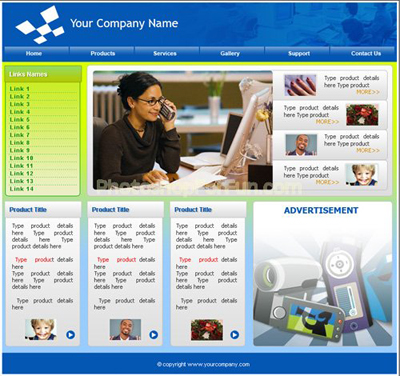
Type link names and heading as shown in the image below.
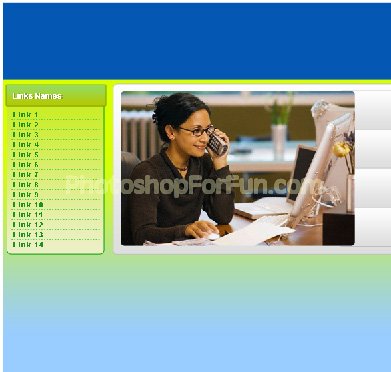
Similarly create more rectangles with different colors.
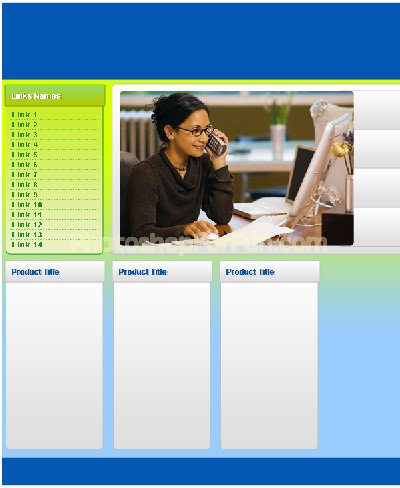
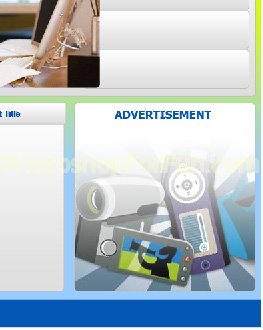
Create a rectangular selection using rectangular marquee tool. Create a new layer. Apply white to transparent gradient.
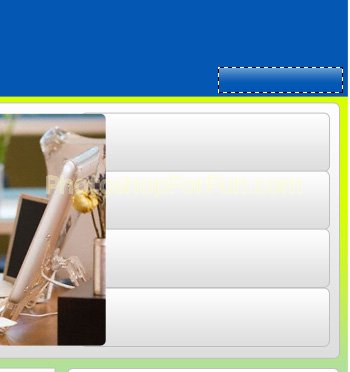
Duplicate the layer several times an place for the other buttons.
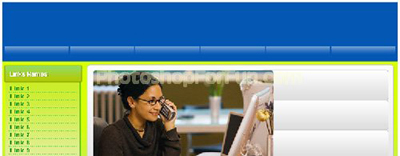
Insert another graphic over the top rectangle using clipping mask technique. Reduce the opacity.
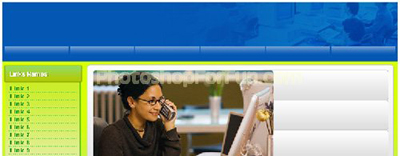
Insert company logo and name. Type link names and other details. Insert some image thumbnail too.