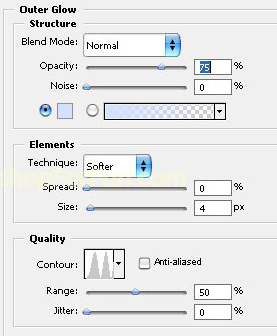
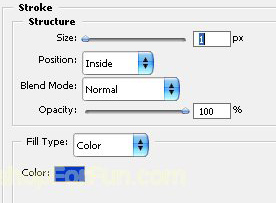
Start by applying a "blue to bark blue" gradient in linear mode. Type each alphabet separately and rotate them randomly.

Select and merge all the alphabet layers. Ctrl+Click the layer thumbnail to get the selection. Press Q to enable quick mask.

From "Filter" menu select "Stylize>>Wind". Apply settings as shown.
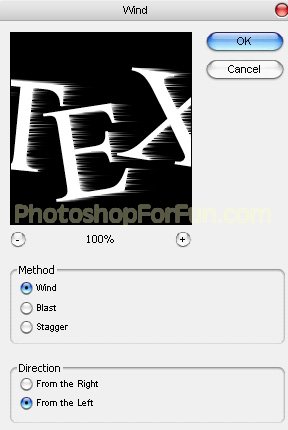
Press Q again to disable quick mask. Fill it with white color.

Select "Smudge" tool. Right click on the document and select the brush as shown.
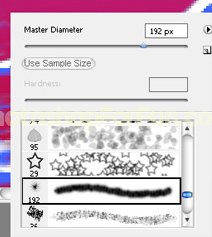
Distort the edges as shown.

Create a new layer and fill it with white color.

Double click the layer to open layer style window. Apply settings as shown.
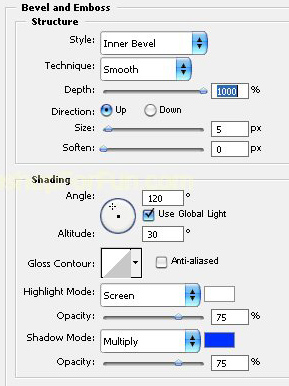

Move the first text layer above all the layers in layer order in layer palette. Double click the layer to open layer style window. Apply settings as shown.
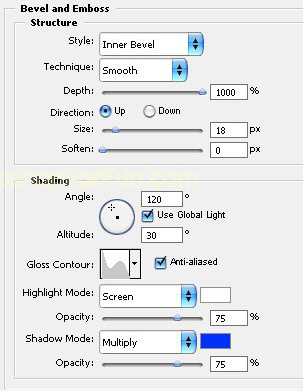

From layer menu select layer style>>create layers. Select and merge all the resulting layers. Change the layer mode to "Soft Light".
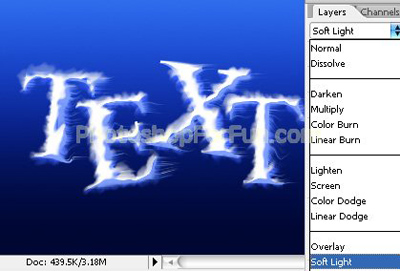
Double click the layer to open layer style window. Apply settings as shown.