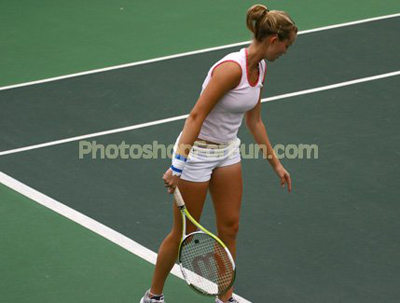
Start by opening an image of a tennis player.
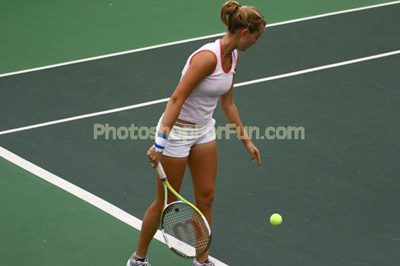
Create an circular selection around the ball using elliptical marquee tool.
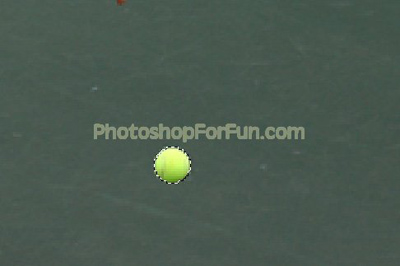
Press Ctrl+Shift+J to cut paste the selection into new layer. Hide the layer.
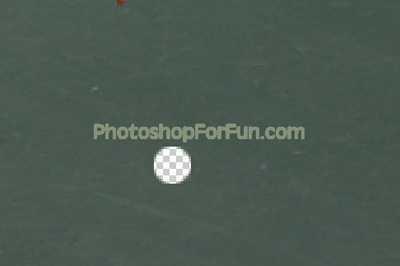
Select clone stamp tool and clone the hollow portion.
Create selection of the hand using polygon lasso tool. Press Ctrl+Shift+J to cut paste the selection in a new layer. Hide this layer.
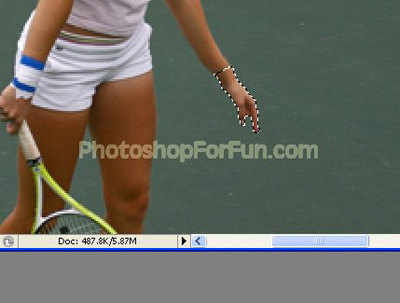
Similarly select the clone stamp tool and clone the hand area.
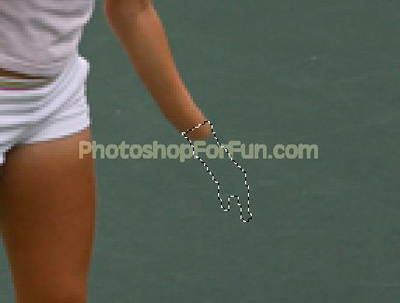
Unhide the hand layer. Duplicate and rotate slightly.
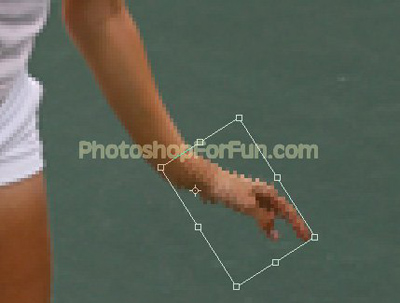
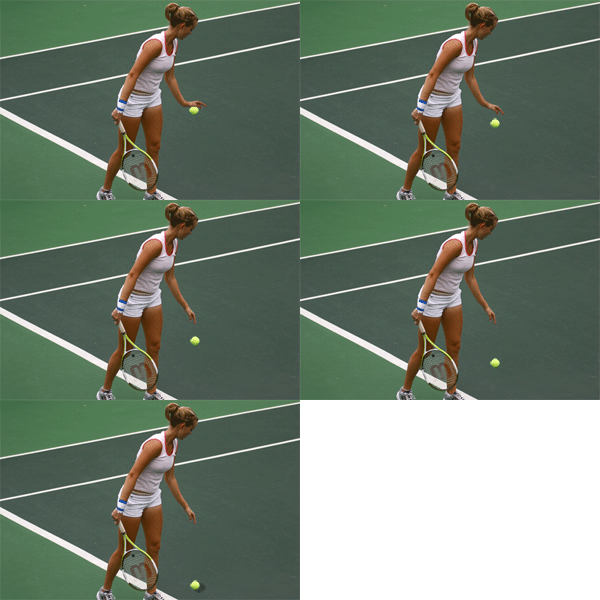
Similarly create one more duplicate and adjust hand positions and rotations as shown in the image below.
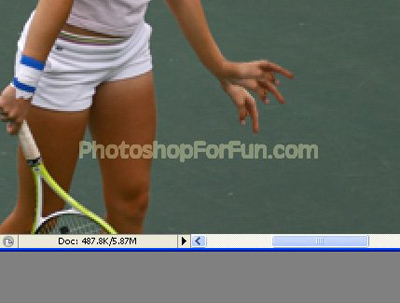
Unhide the ball layer and create some duplicates as shown in the image below.
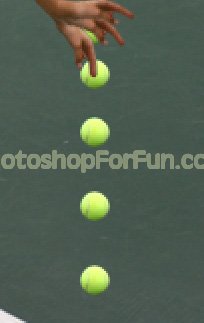
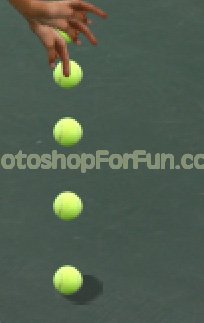
Create an elliptical selection using elliptical marquee tool. Create a new layer and fill it with gray color. Move this layer below all the ball layers in layer order in layer palette. This will create the shadow of the ball.
Open animation window. For the first frame hide all the ball layers except the top one and hide two hand layers
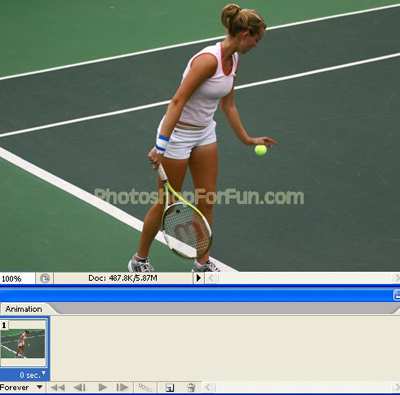
Duplicate frame. Hide the first hand layer and unhide the second one. Similarly hide the first ball layer and unhide the second.
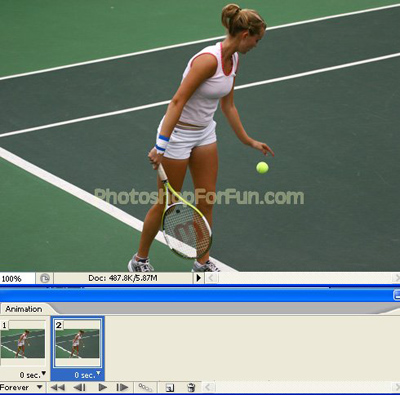
Similarly create more duplicate frames and keep hiding and unhiding sequential layers.
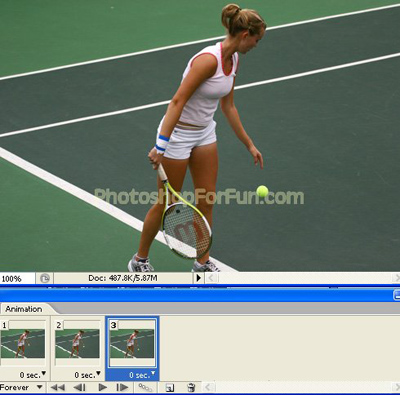
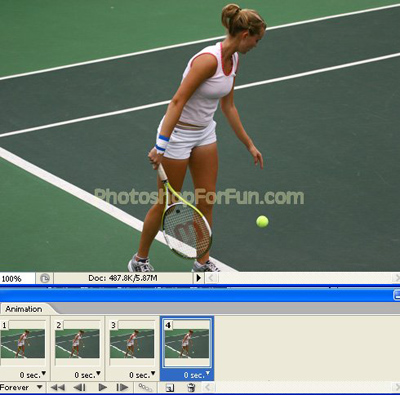
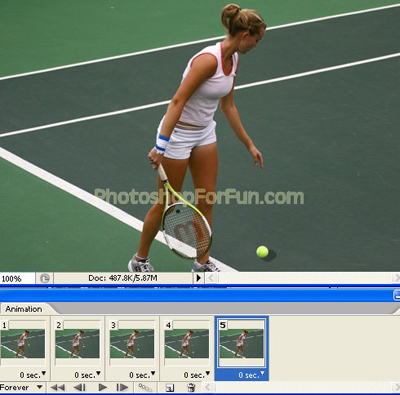
Press Ctrl+Alt+Shift+S to save an optimized animated GIF.