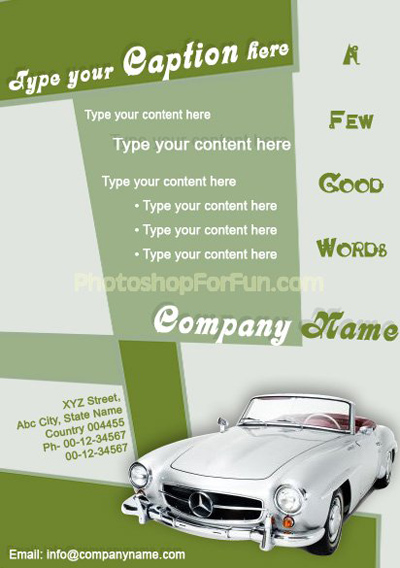
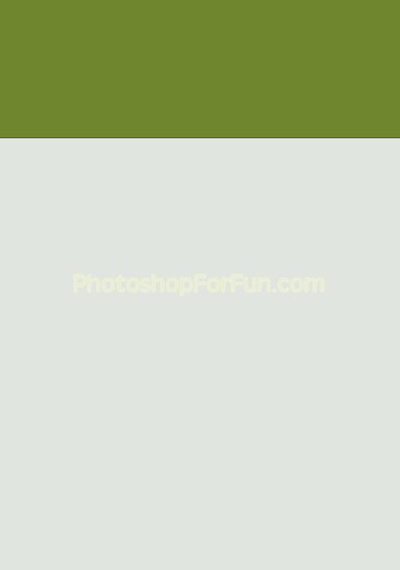
Start by creating a rectangle using rectangular shape tool.
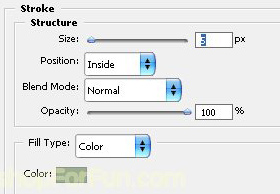
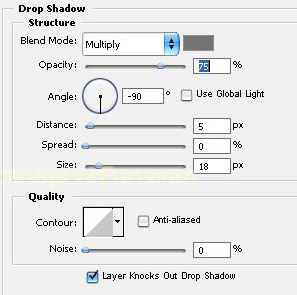
Double click the layer to open layer style window. Apply settings as shown.
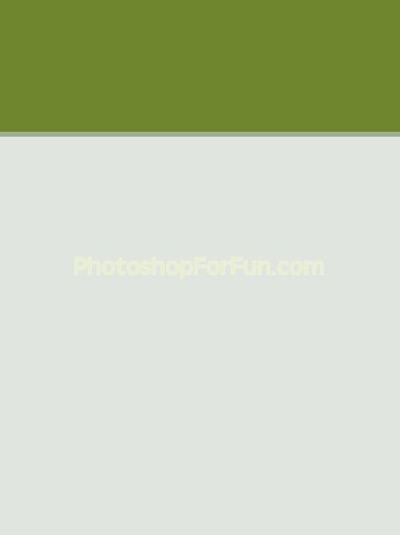
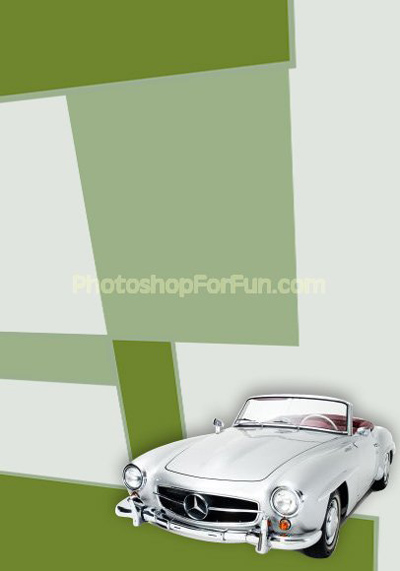
Similarly create more rectangles and apply the same layer style as shown below.
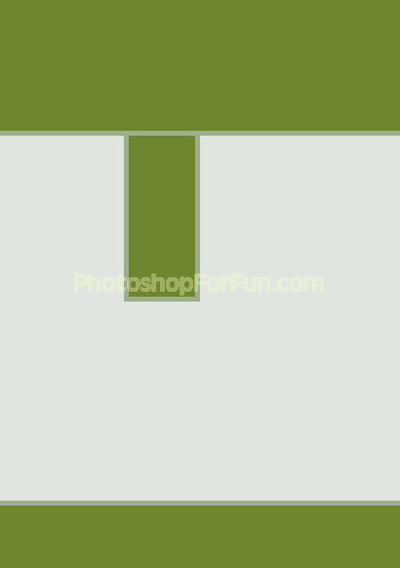
Create more rectangles with the different shade of green and place as shown below.
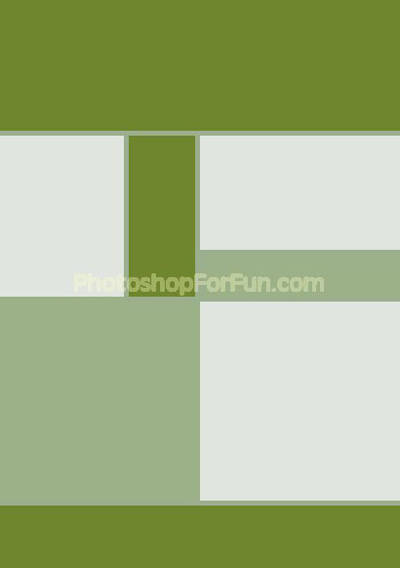
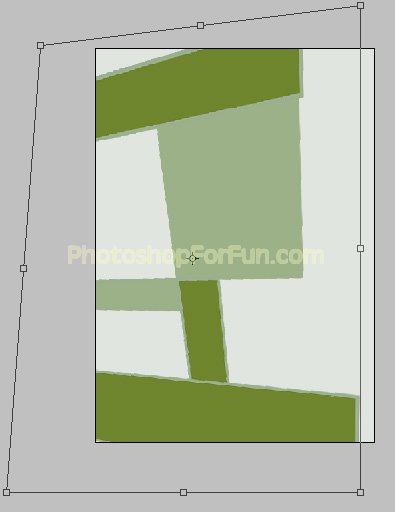
Select and merge all the rectangle layers. Press Ctrl+T. Right Click and select distort. Adjust the nodes to get the shape as shown.
Insert a product cutout.
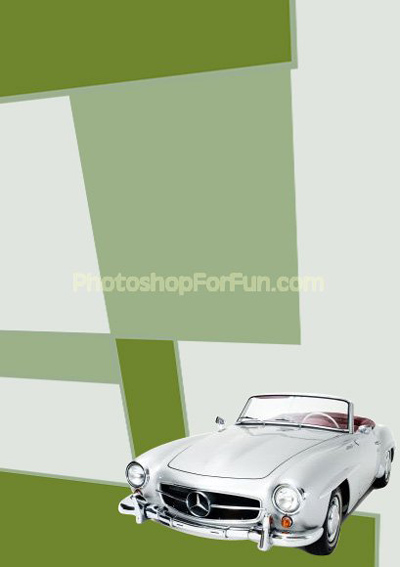
Double click the layer to open layer style window. Apply settings as shown.
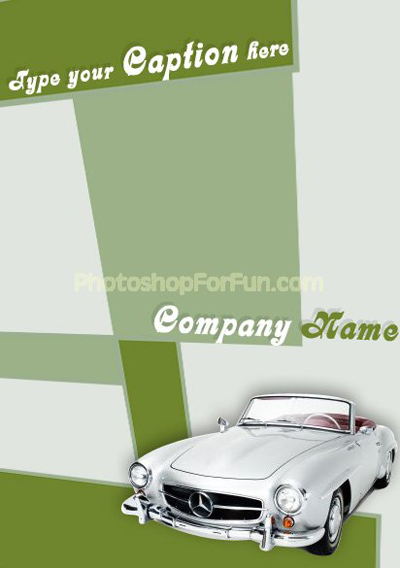
Using a nice bold font insert flyer caption and company name.
Populate the flyer with product details, promotional schemes and contact info etc.