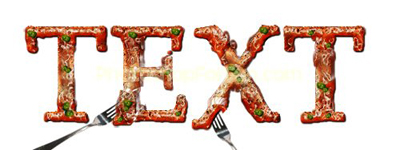
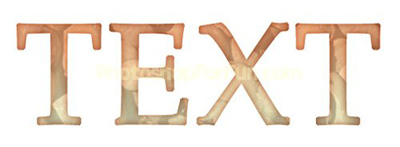
Start by typing your text. Apply a gradient as shown.

Double click the layer to open layer style window. Apply settings as shown.
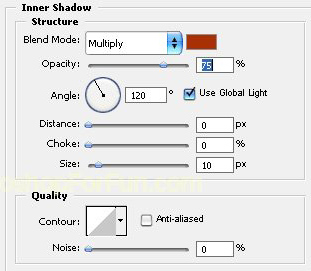
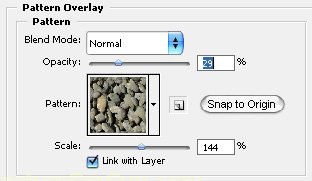
Duplicate the layer. Double click the layer to open layer style window. Apply settings as shown.
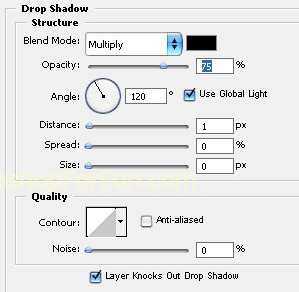
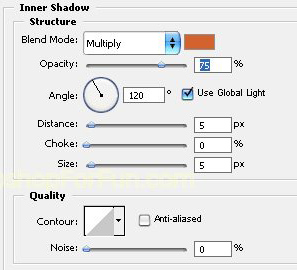
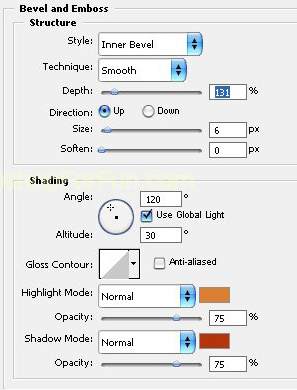
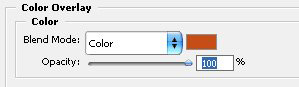
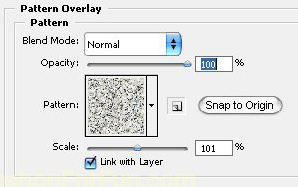
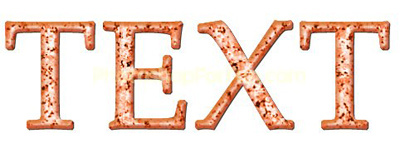
From layer menu select layer style>>create layers. Select and merge all the resulting layers. Using eraser tool with soft brush settings remove the middle area as shown.
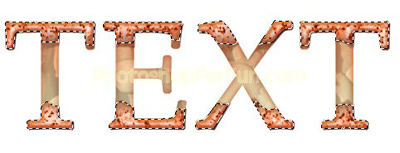
Ctrl+Click the original text layer thumbnail to get the selection. Press Q to enable quick mask. From "Filter" menu select "Noise>>Volatilize". Apply settings as shown.
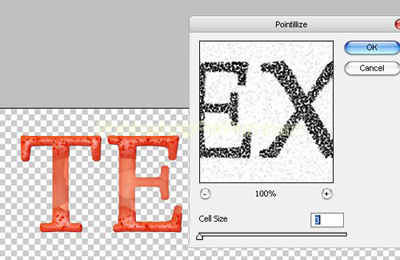
Press Q again to disable quick mask.
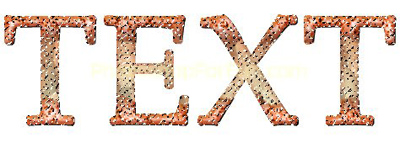
Create a new layer and fill it with dark gray color.
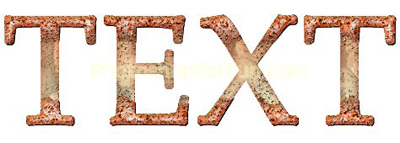
Select and merge all the layers. Select smudge tool and create some edge distortions as shown.
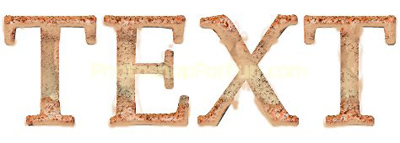
Apply same layer style we used for the second text later.
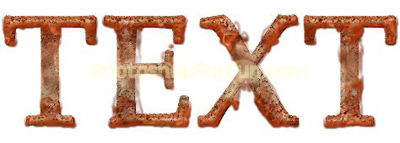
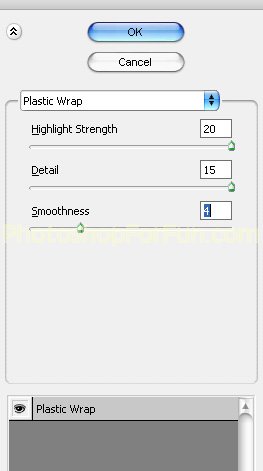
From layer menu select layer style>>create layers. Select and merge all the resulting layers. From "Filter" menu select "Artistic>>Plastic Wrap". Apply settings as shown.
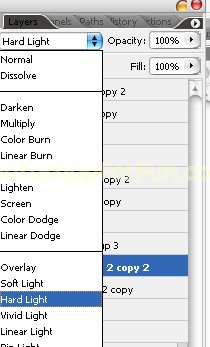
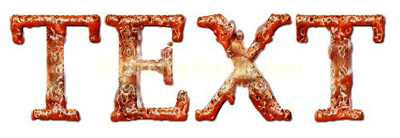
Duplicate the layer and change the layer mode to "Hard Light".
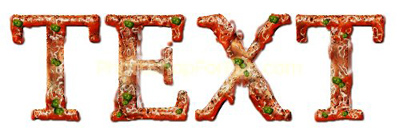
Insert some "peas" cutouts and place them as shown.
Create some rough selections. Press Ctrl+Shift+J to cut paste the selection in a new layer. Hide the layer. Select smudge tool and create some cheese effect on the edges.
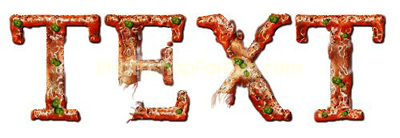
Unhide the layer, move it and apply same effect.
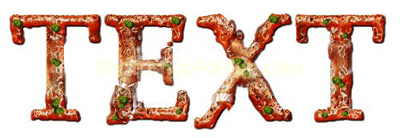
Insert a few cutouts of forks or spoons and place in an interesting manner.