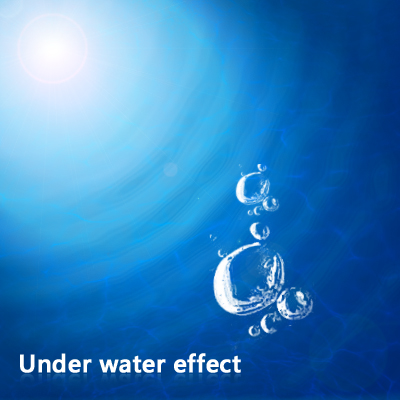
1. Start by opening a new file with 400px by 400px

2. Create a New Layer and fill it with a Radial Gradient #86d0ff to #3daef5
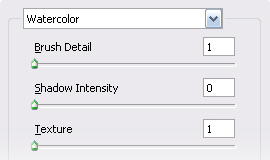
3. Filter/Artistic/Watercolor and use this:
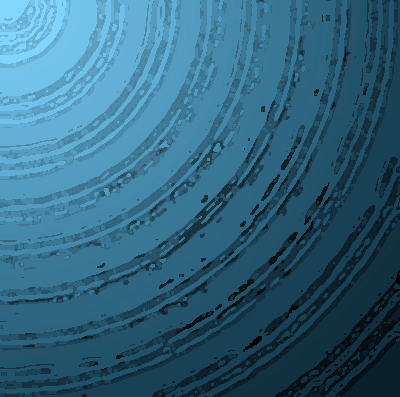
4. Now you should have something like this:
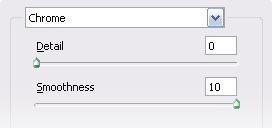
5. Then go to Filter/Sketch/Chrome
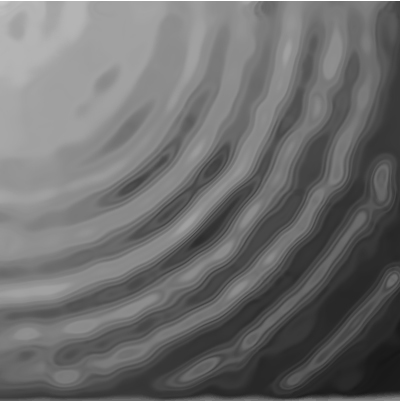
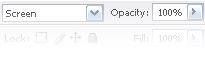
6. Redo the Step 2 and change the Blending Options to Screen.
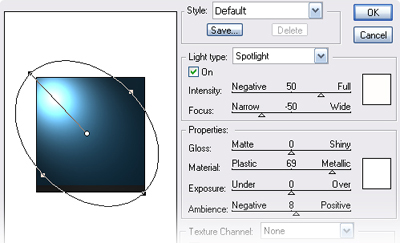
7. Again redo the Step 2 and go to Filter/Render/Lighting Effects
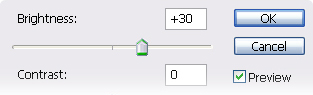
8. Then go to Image/Adjustments/Brightness/Contrast... and then change the Blending Options to Hard Light
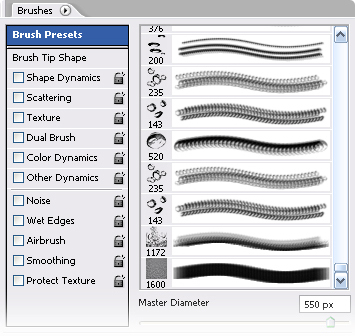
9. Now we're going to use some brushes founded at Deviantart. Pick the last one go to the tab Brushes and deselect Shape Dynamics and Scattering and then change the Blending Options to Color.
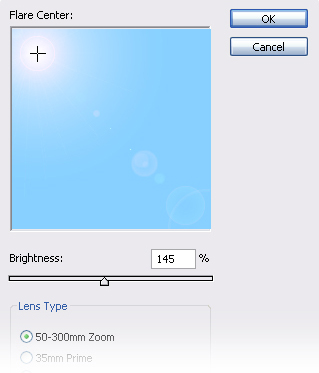
10. Create a new layer and fill it with #87d0ff and go to Filter/Render/Lens Flare and change the Blending Options to Linear Burn
11. Add some bubbles with the Brushes and that's it your own Under Water Effect.