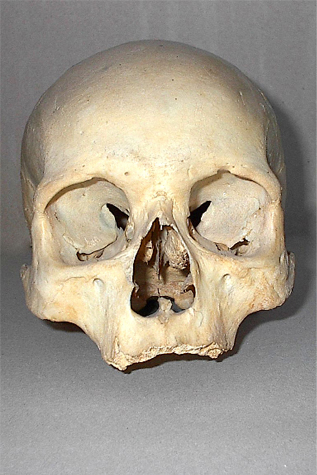
1. Save next picture (I found it at yotophoto but you can use your own) and duplicate it.
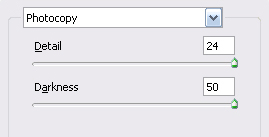
Now set #000000 as Foreground Color and #b62222 as Background Color then with image duplicated go to Filter/Sketch/Photocopy and change it to the following values:
2. You should have something like this:
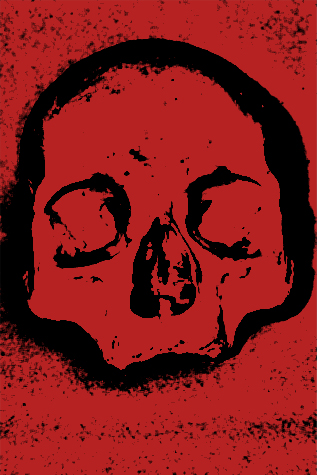
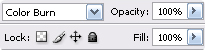
3. Change the Blending Options to Color Burn.
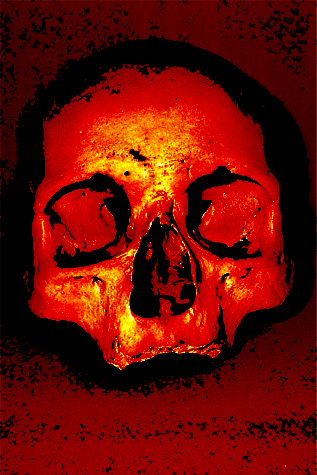
4. Now it should look like this:
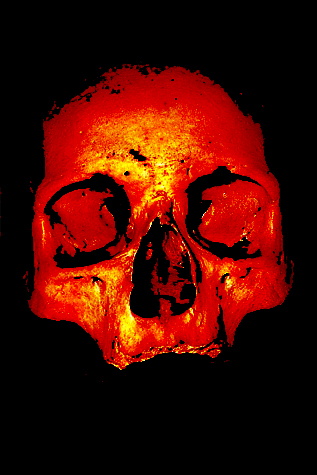
5. Now create a new layer and with the Brush Tool (B) paint it black around the skull until get something like this:
6. Change the Blending Options to Overlay.
7. Now, I'm going to use Angryblue set 1 & 2. Using this color #a00000 play with some brushes.
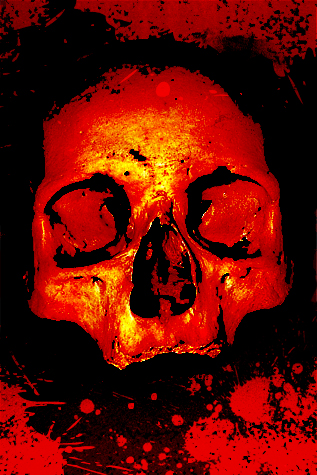
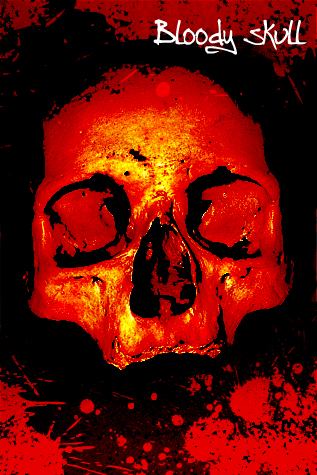
8. Finally add some text, I used a font from Angryblue (Angryblue Controlled).