First we start by creating a new file(Ctrl+N) and write using a bold font and #eb008c as color.

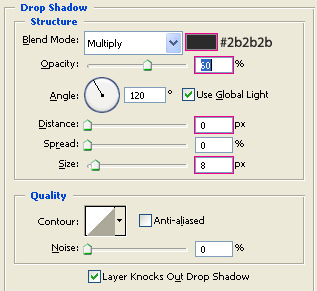
Now we're going to apply some layer styles, start with Drop Shadow using the values below:
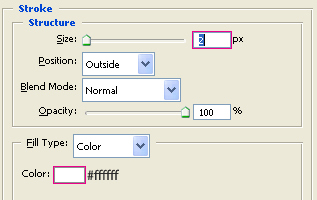
Now Stroke with the following values:
Using the Rectangle Marquee Tool
 make a selection from the middle of the text to the top, as in the image below

Now go to Select -> Transform Selection and click the Switch between free transform and wrap modes
 icon located in the upper toolbar. After the menu changes, select Flag from the drop-down menu
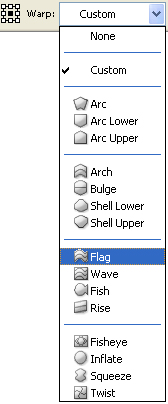
The selection should like the following, you can play with the values to fit your text:

Now create a new layer and with the Gradient Tool, using a White to Transparent gradient, make a gradient from the top to bottom of the selection

Create a new layer and Ctrl+Click over the text layer thumb to select it. Using the same White to Transparent gradient, make a gradient from the bottom to top of the selection

Change the blending option of this layer to Overlay and change the Opacity if necessary to get the final result