Open a new document in photoshop
Size 300 x 300 pixels
Color : dark grey - #303030
Select Rounded Rectangle Tool . Set the radius to 15 pixels, and start drawing a simple shape

Go to Layer > rasterize > Shape
Then Apply the following layer styles
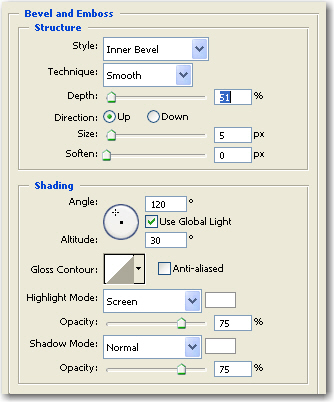
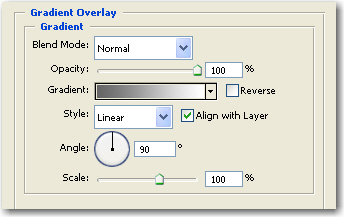
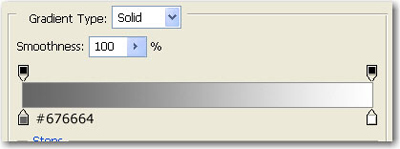
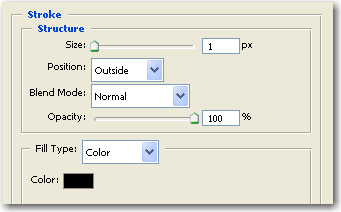
This is the result

Now comes the funny part
Select Elliptical Marquee Tool
Set the following settings

Then add the selection like in the following image

Be sure you have the " Shape 1 " selected , then hit the delete key from your keyboard

Move the selection to the left with the left arrow key

Now white the same tool , change the settings like in the next image
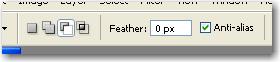
Then with the subtract from selection button pressed, add the same circle near the initial one
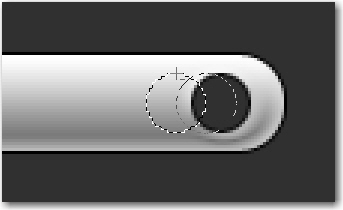
After you will release the mouse button you will have this result
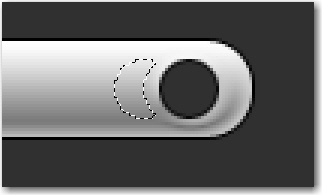
Now hit one more time Delete key from your keyboard, then move the selection one more time to the left.

Now go to Select > Modify > Contract, and choose Contract by 1 pixel. press ok, Then press one more time Delete key
Then Press CTRL+D to deselect

Select rectangular marquee tool
Use the following settings

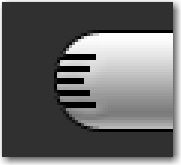
Then place a selection on the button, and hit Delete key
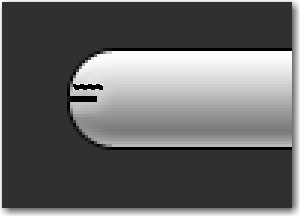
Try to make something like me
Then select the Rounded Rectangle Tool and make a simple rectangle ( keep the same radius size - 15 Pixels )
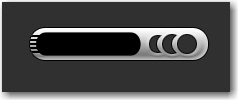
Then rasterize the shape ( go to Layer > rasterize > shape )
Now go to Select > Load selection
Select the Shape 1 layer and hit delete
Then hide the Shape 2 layer
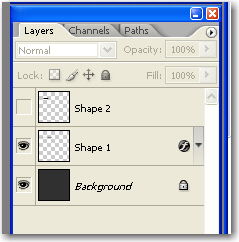
This is the result
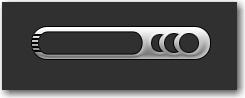
Select the background layer, then grab Rounded rectangle tool, and make another shape
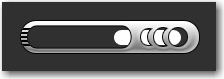
Then apply the following layer styles
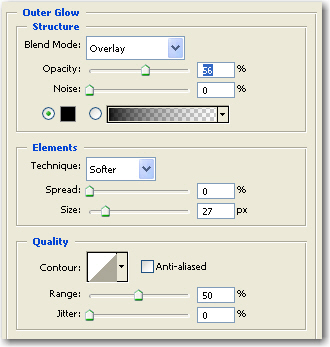
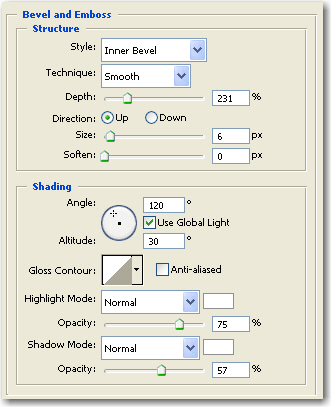
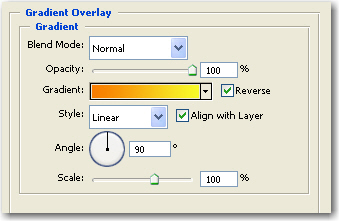
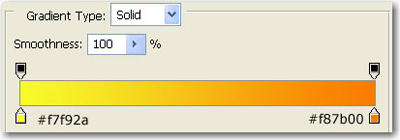
This is the result

Then with the type tool , add some text, and use the same layer styles as above
This is my final product