

Open a new document in photoshop with a grey background
Size should be 600 x 300 ( it is not so important )
I will show you how to create for a single object
Grab the Type tool and write a question mark ( choose a big font )
Font: Magneto
Size: 101
Set the anti - alliasing to Sharp

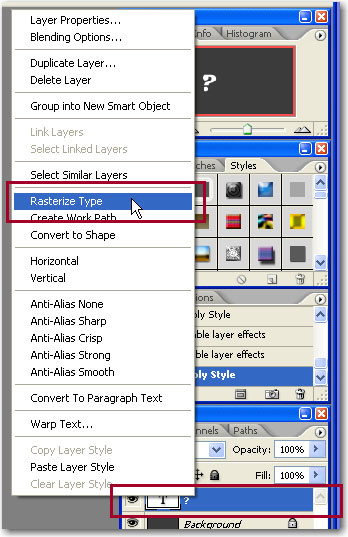
Then rasterize the Type
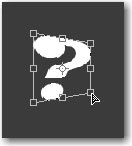
Change the perspective for this text layer
Go to Edit > transform > perspective
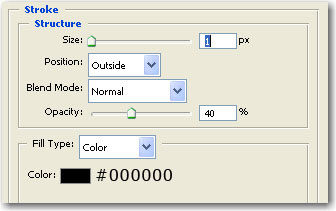
Then apply the following layer styles:
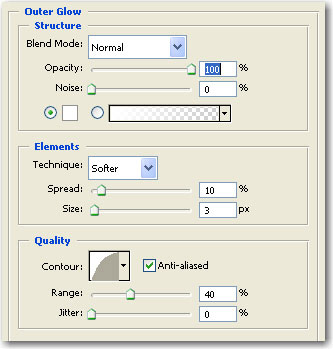
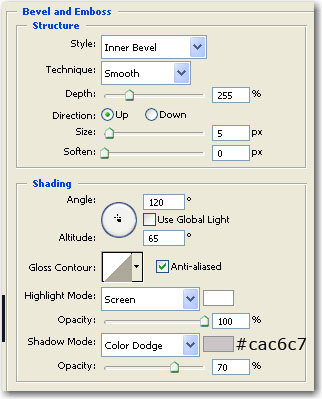
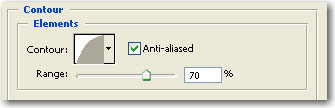
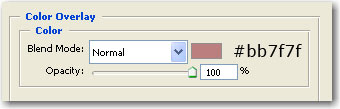
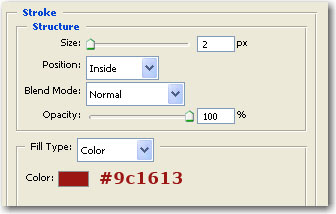
This is my result

Press Ctrl+J ( this will duplicate the layer )
Select the first layer with text
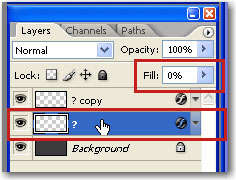
Then press on the left arrow key. a few times. and change the size of the question mark
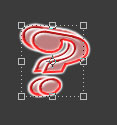
Then add the following layer styles for this layer
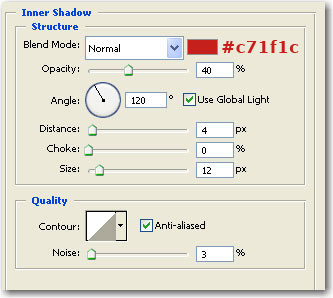
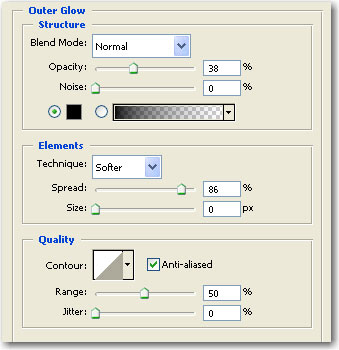
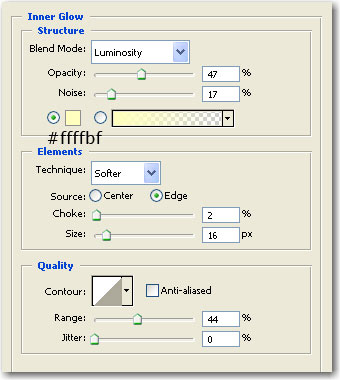
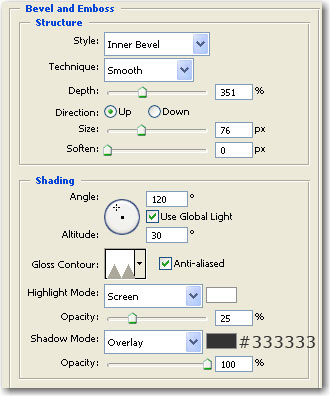
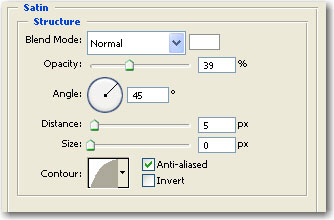
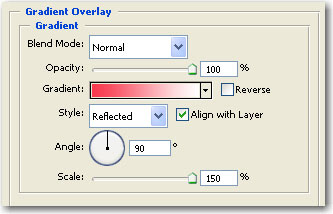
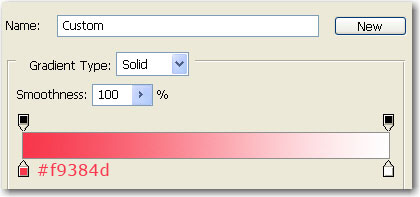
This is my result

Now we will add a smooth reflection
Select all the layers ( without background layer ) and go to Layer > Duplicate layers, and press OK
Now merge this 2 layers ( press on Ctrl+E )
Go to Edit > Transform > Flip Horizontal
Then go to Edit > Transform > Rotate 180
You will see something strange on your canvas.Do not worry. press a few times on our down arrow key until your second question mark will be the same with mine
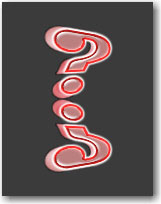
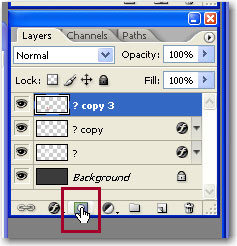
Now be sure you have selected the layer with reflection. Press on Add layer mask
Select the Gradient Tool. Press on D and draw a line the same like mine
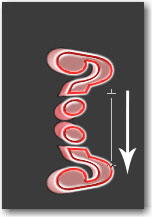
This is the result after you will release the mouse button

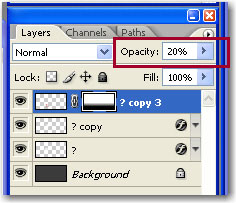
We are almost ready. Now for a more realistic effect you have to lower the opacity
Create a new layer ( press Ctrl+Shift+Alt+N ) Choose a star brush and make a simple star

I hope you like this tutorial.
