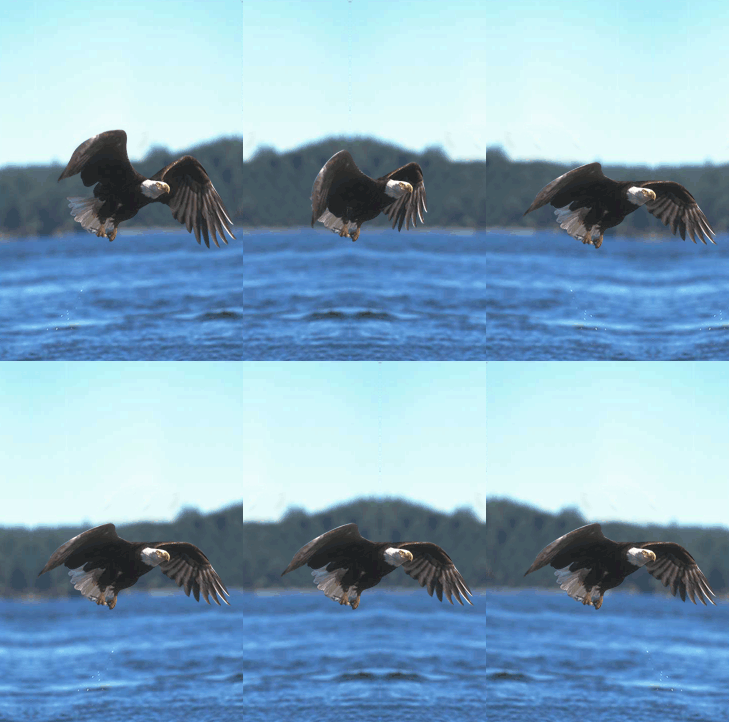
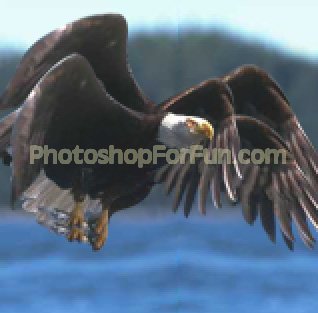
Start by opening an image of a flying eagle.
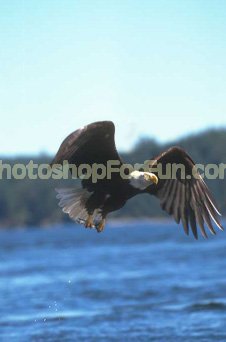
Create selection of the eagle using polygon lasso tool. Press Ctrl+Shift+J to copy paste the selection in a new layer.
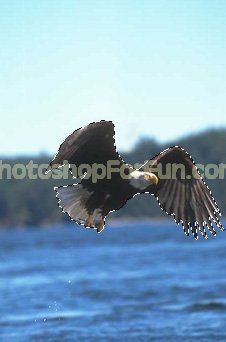
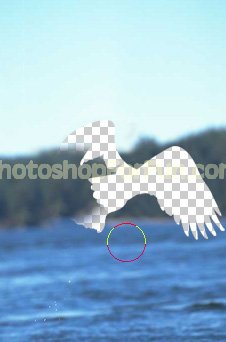
Hide the layer. Select the background layer. Select clone stamp tool and start cloning the background.
Duplicate the background layer. Press Ctrl+T. Right click and select Flip Horizontal and place on the other side. This will create loop for the background.
Adjust the image or erase the edges using soft brush settings. Merge both the background layers.
Unhide the eagle layer.
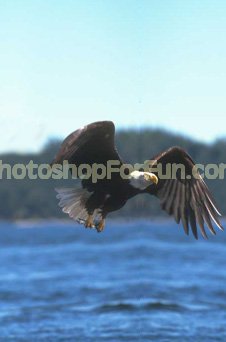
Create selection of the left wing and cut paste into new layer. Clone the top area of the eagle a bit. Hide the layer.
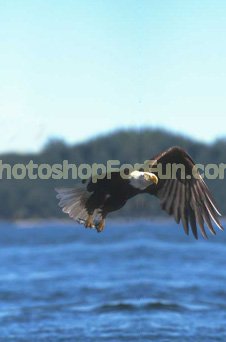
Similarly create selection of the right wing and cut paste into new layer. Clone the top area of the eagle a bit. Hide this layer too.
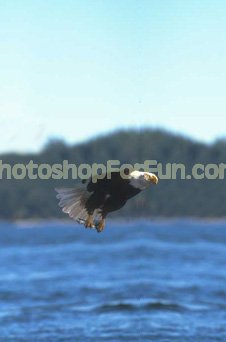
Unhide all the layers. Now we have three eagle layer. Select all the eagle layers. Press Ctrl+G to group. This'll create first pose of flying.
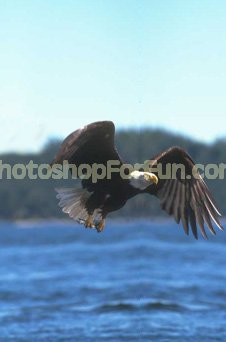
Duplicate the eagle group. Squeeze the wings horizontally. This will create second flying pose.
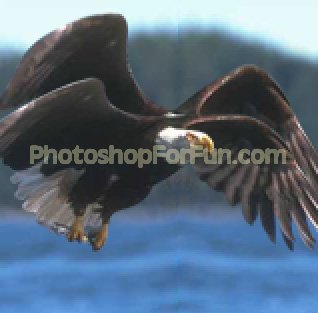
Duplicate the first group again. Rotate and squeeze the wing layers. This'll create third flying pose.
Open animation window. For the first frame hide the two flying group.
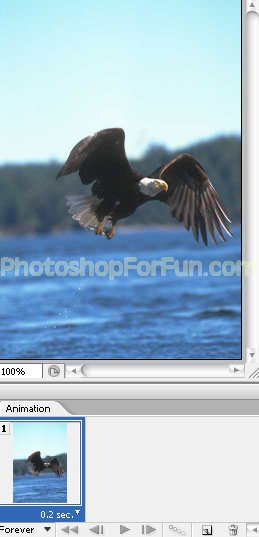
Duplicate frame. Move the background layer to the left edge.
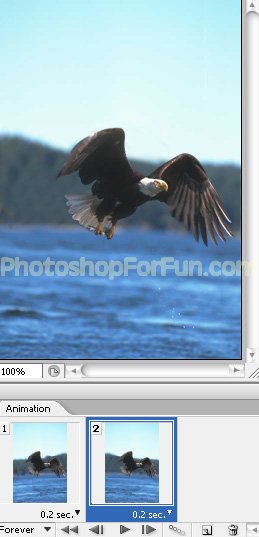
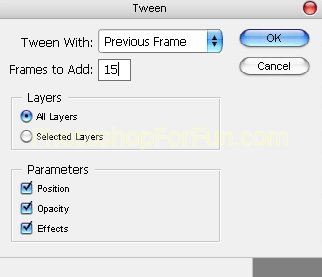
Click tween button from animation window. Apply settings as shown.
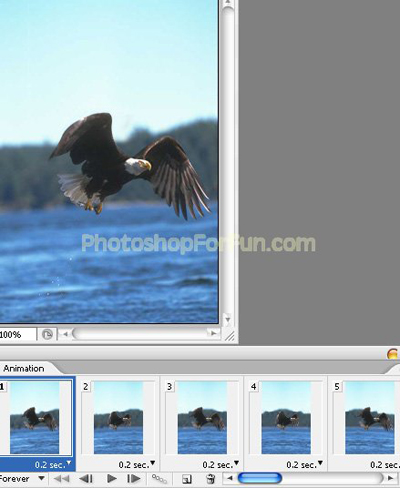
Select the second frame. Unhide the third and hide the first flying group layer.
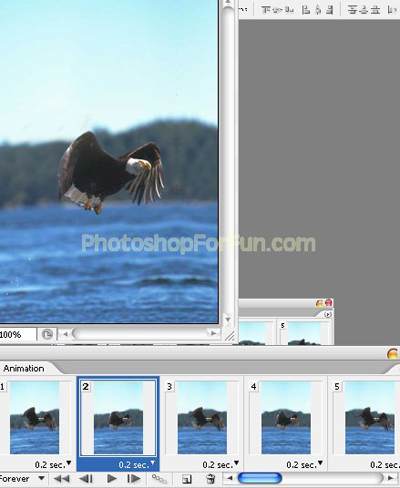
Select the third frame. Unhide the first and hide the third flying group layer.
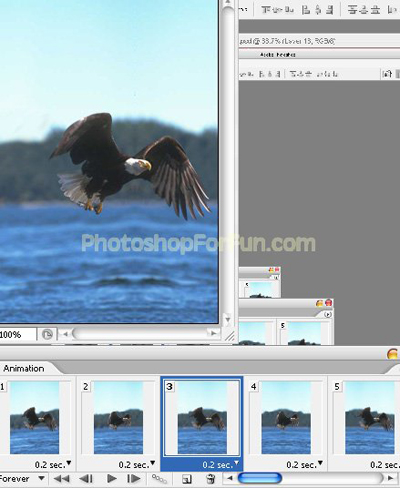
Keep hiding and unhiding first and third group alternatively till the 6th frame. Select the 7th frame. Hide first and third group and unhide second group.
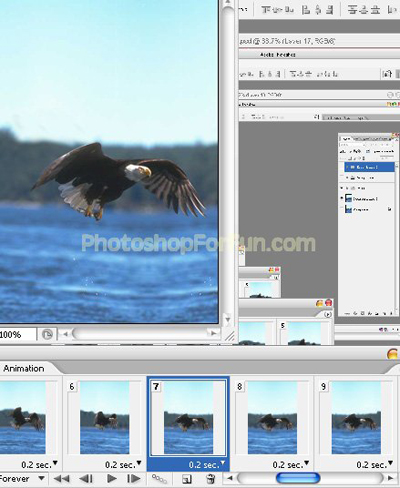
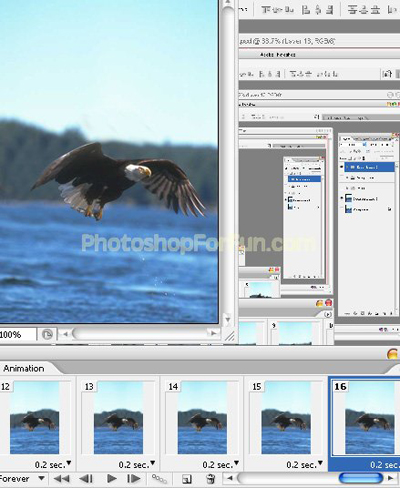
Press Ctrl+Alt+Shift+S to save an optimized animated GIF.