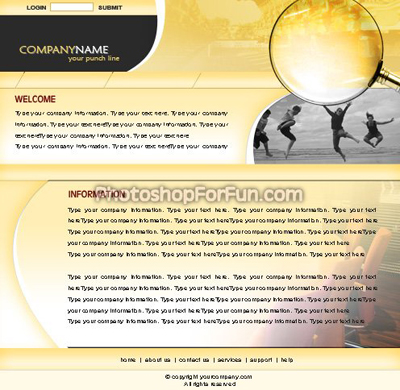
Create a rectangle using rectangular shape tool.
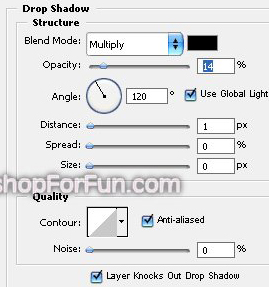
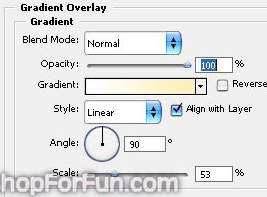
Double click the layer to open layer style window. Apply settings as shown.
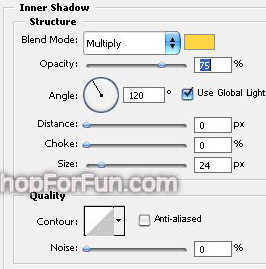
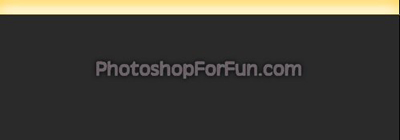
Create more rectangles and apply same layer style.
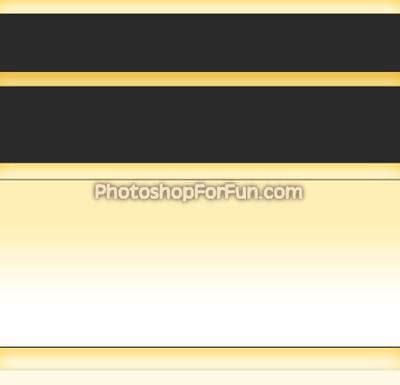
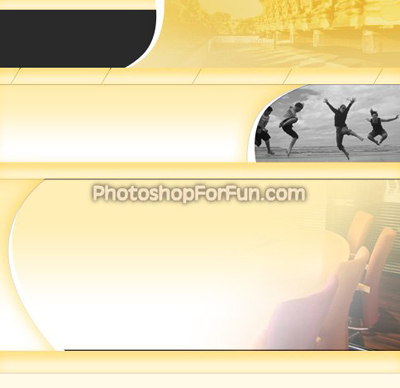
Create a rectangle for the button bar. Enable "subtract from shape area" at the top bar. Create some lines as shown.
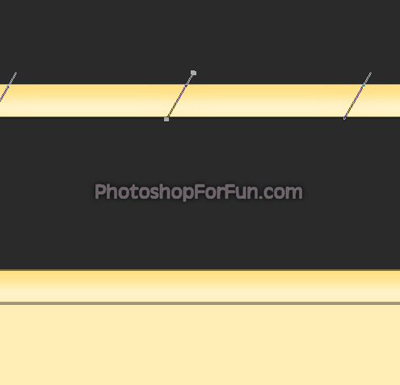
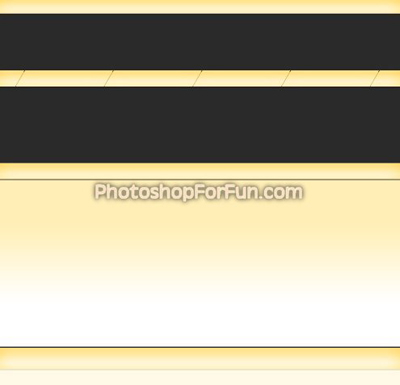
Create a shape for the header as shown in the image below. Apply same layer style.
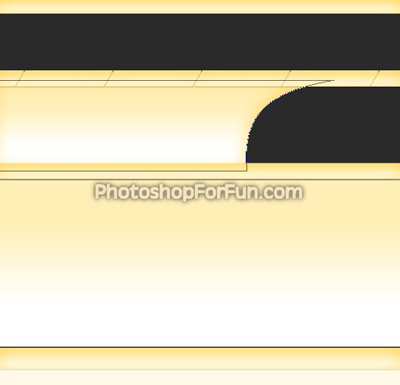
Duplicate the layer. Move it a few pixels right. Remove all the layer styles and fill it with white color. Move this layer one step below the original layer in layer order in layer palette.
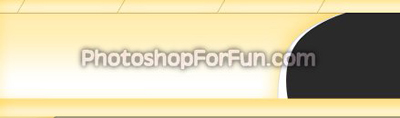
Insert an image and place as shown.
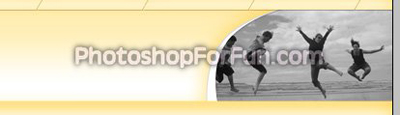
Similarly create more shapes, insert images and place them as shown.
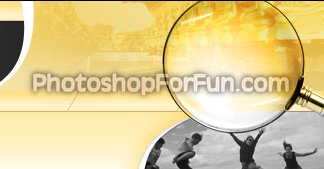
Insert another cutout of a magnifier lens and place it on the top right. Play around with the layer modes.
Populate the header by inserting company logo and content.