Create a rectangle using rectangular shape tool.
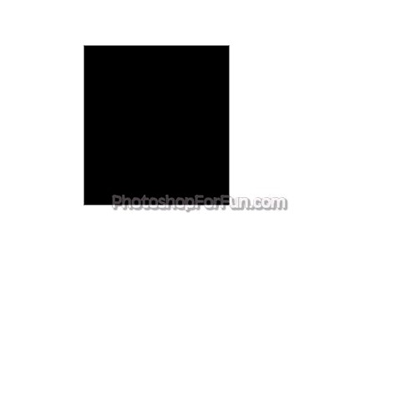
Create random shape using basic custom shape.
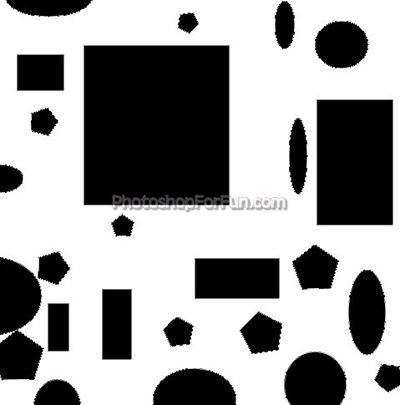
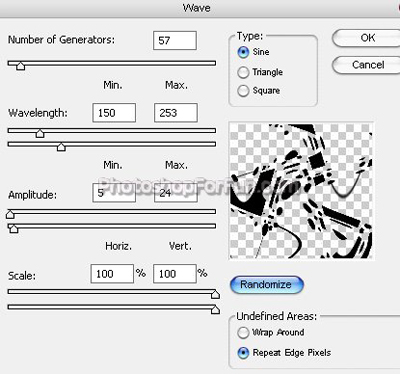
Select and merge all the shape layer. From "Filter" menu select "Distort>>Wave". Apply settings as shown.
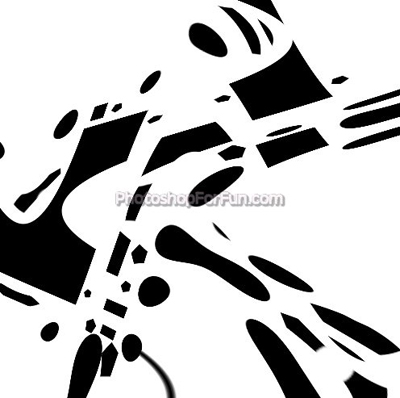
Duplicate the layer. Press Ctrl+T. Right click and select Flip Horizontal. Enable lock transparency pixels form the layer palette. Change the fill color to gray.
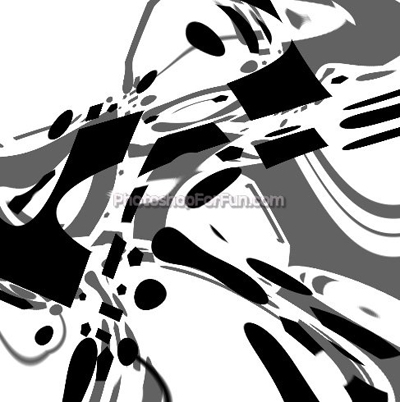
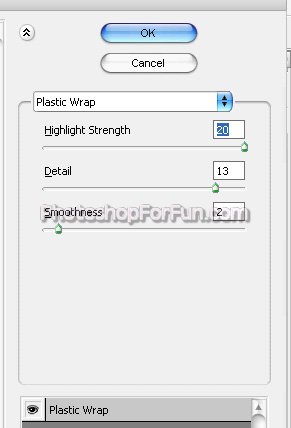
Select and merge all the layer. From "Filter" menu select "Artistic>>Plastic Wrap". Apply settings as shown.
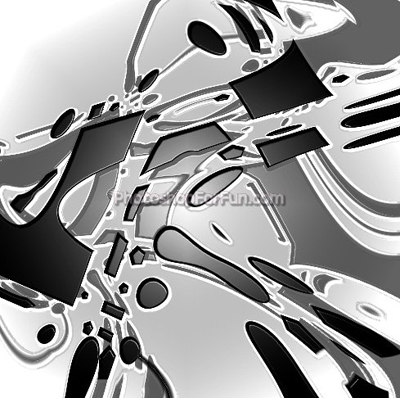
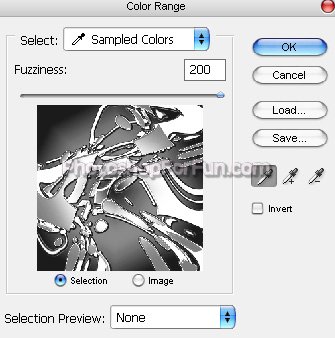
Form "Select" menu select "Color Range". Select white color using eyedropper tool.
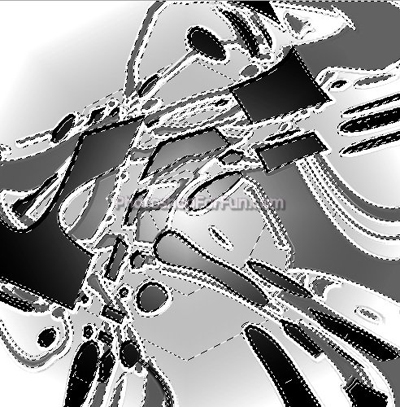
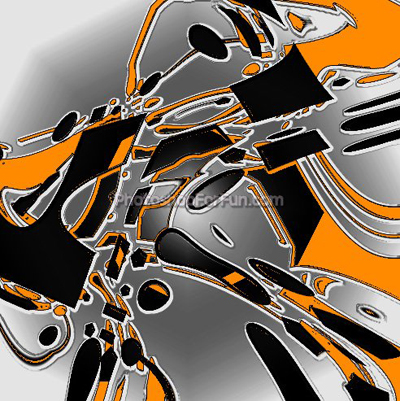
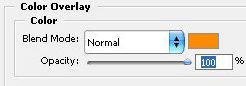
Press Ctrl+J to copy paste the selection in a new layer. Double click the layer to open layer style window. Apply settings as shown.
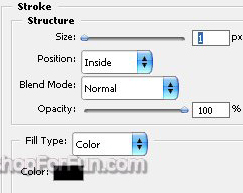
Apply stroke settings as shown.