Create a rounded rectangle using rounded rectangular shape tool. We used a corner radius of 10.

Press Ctrl+T. Rotate it.
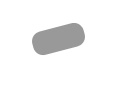
With Alt key pressed keep hitting Up arrow key many times.

Except the top layer select all other layers in layer window. Press Ctrl+E to merge. Enable lock transparent pixel in layer window and fill with a yellow color.
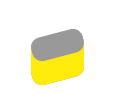
Select the top layer and fill with a lighter shade of yellow.
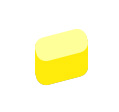
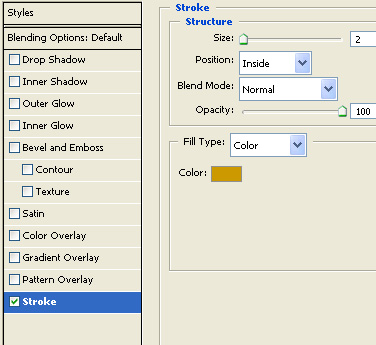
Double click the layer to open layer style window. Apply layer style with the settings shown.
Create a rectangular selection using rectangular marquee tool.
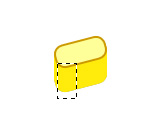
Create a new layer. Apply a black to white to black gradient in linear mode.
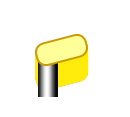
Change the layer mode to screen.
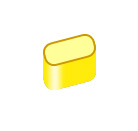
Create another selection using polygon lasso tool.
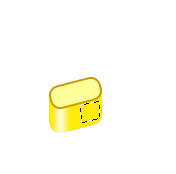
Create a new layer. Fill with a brown to white gradient in linear mode.
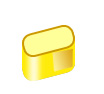
Change the layer mode to multiply.
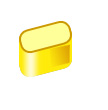
Using pen tool create a handle for the lock. Duplicate layer.

Ctrl+Click the layer thumbnail to get the selection. From select menu click modify>>contract. Enter 1 pixel. Fill with a white color.

Erase the right portion using eraser tool with a soft rounded brush setting.

Similarly create another duplicate of the handle layer. Get the selection. Contract and fill with black color. Remove left portion using eraser tool.
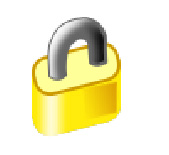

Create an ellipse using elliptical shape tool. Fill with dark brown color.
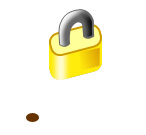
Duplicate and place both ellipses at the cross section of lock and handle. Move the ellipse layers below the handle layer in layer window.
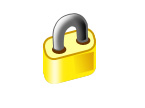
Create a circle using elliptical shape tool.
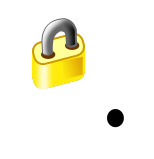
Create a rounded rectangle using rounded rectangle shape tool. Place both shapes together to create a key hole.
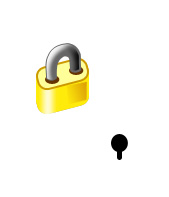
Scale down and rotate. Place as shown in the image below.
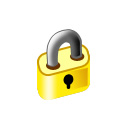
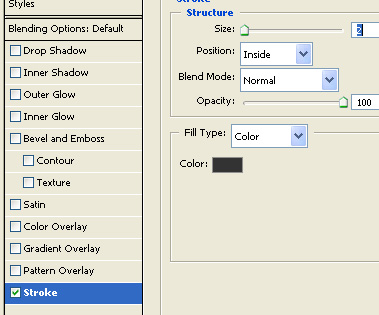
Select and merge all layers together. Double click the layer to open layer style window. Apply layer style with the settings shown.

Create an elliptical selection using elliptical marquee tool. Press Ctrl+Alt+D to feather the selection.

Create a new layer and fill with gray color. Move the layer below the lock layer.