Create a new file. Fill the background with gray color.

Create a vertical line using line tool.
Create another horizontal line using line tool
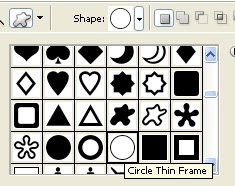
Using custom shape tool create a circle thin frame shape.
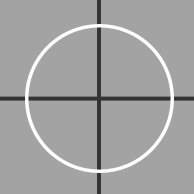
Duplicate layer. Press Ctrl+T. Scale down.
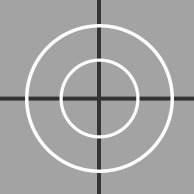
Using custom shape tool create a circle frame shape.
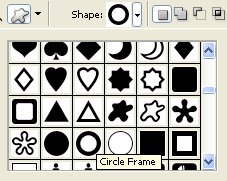
Draw this circle shape big enough to exceed the file boundaries.
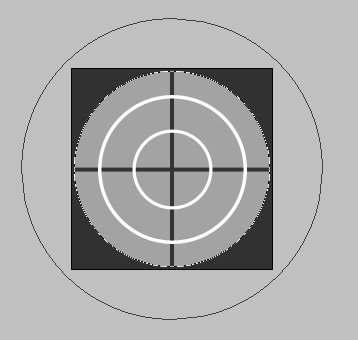
Create a circle using elliptical shape tool. Apply stroke layer style.
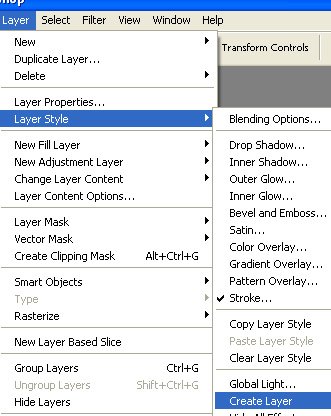
From layer menu select layer style>>create layers to separate the effect layer from the shape layer. Merge both layers.
Select polygon lasso tool . Click on center, press Shift and drag towards one edge of the file. Keep clicking to create a triangular selection.
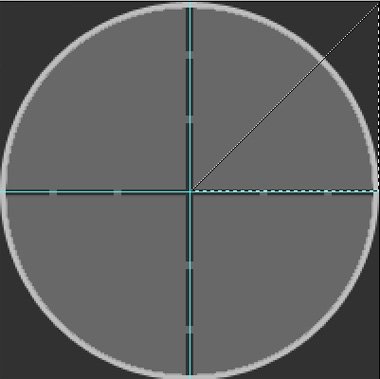
Press Ctrl+Shift+J to cut & paste the selection in a new layer.
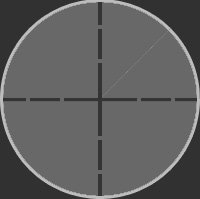
Similarly create more triangular selections to divide the circle in eight sectors.
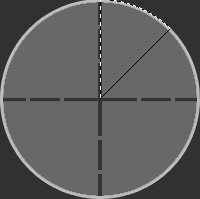
Select each sector layer and change the layer mode to vivid light.
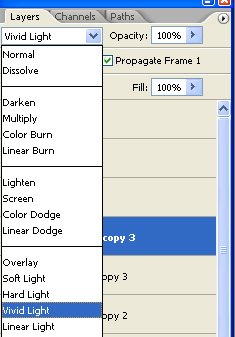
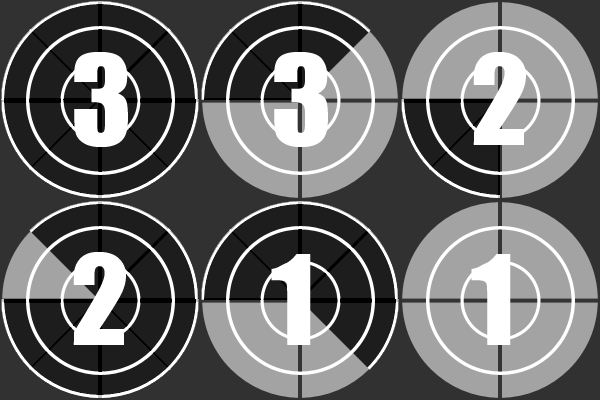
Using a bold font type numbers like 3,2,1 in separate layers.



Open animation window. For the first frame keep 3 layer visible and hide other number layers.
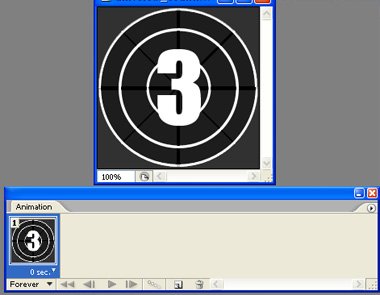
Duplicate layer. Hide on of the sector layers.
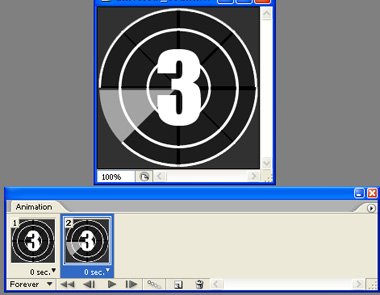
Similarly create successive duplicate frames and keep hiding sector layers sequentially.
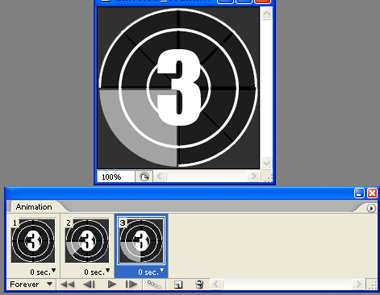
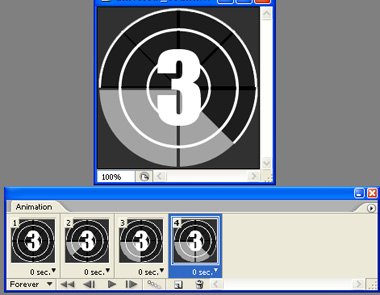
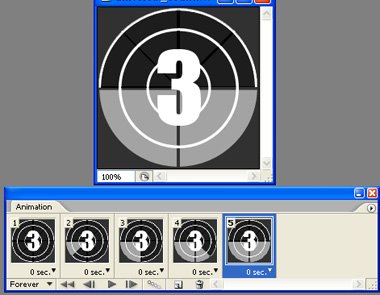
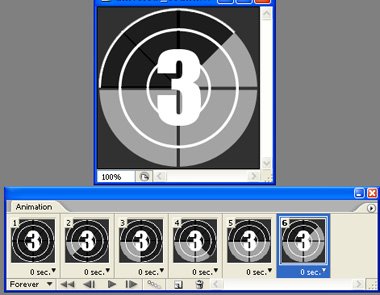
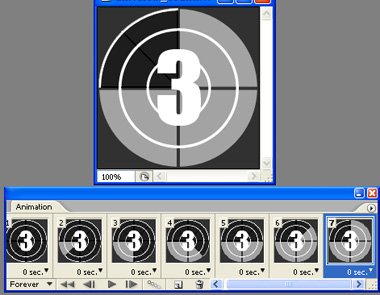
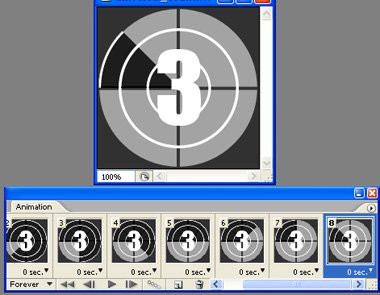
In eight frames we are through with animating the circle. Now we'll animate the number countdown.
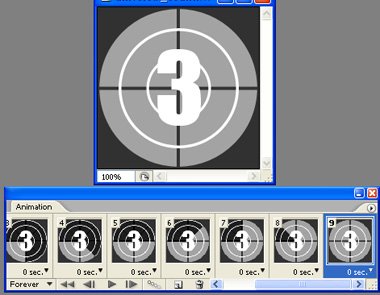
Create more frames to repeat the circle animation and this time hide number 3 layer and unhide number 2 layer.
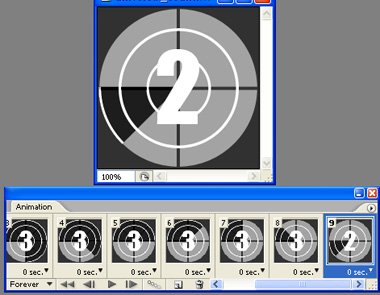
Repeat the steps for layer number 1.
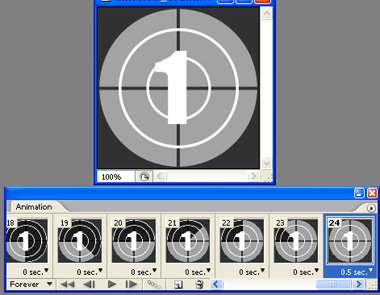
3...2...1 and here we go: